What It Means & How To Fix It
“Hello? Can you hear me?”
That’s basically what your web browser says to every website you visit.
Most of the time, the web server picks up the call. A connection is made, and voila! The site loads normally.
Sometimes, though, the call connects — and then the line goes dead mid-sentence. That’s when you’re likely to see an ERR_CONNECTION_RESET error.
This error can be a temporary blip or a lasting issue. The only way to find out is by working through the possible causes and trying different fixes.
In this guide, we’ll walk you through those possible solutions, from basic techniques to advanced troubleshooting.
Ready to go error hunting?
Let’s get into it!
What Is The ERR_CONNECTION_RESET Error?
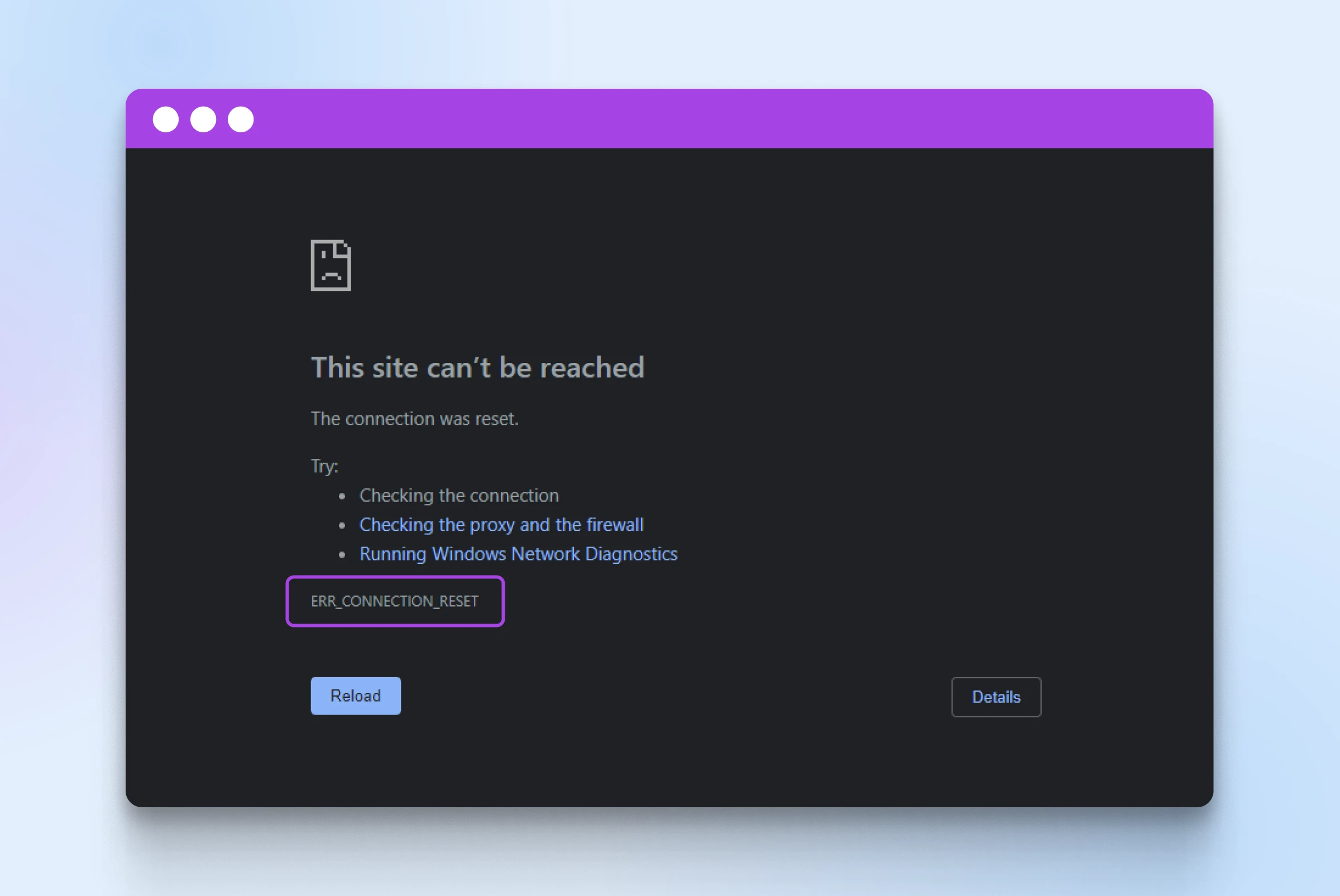
The ERR_CONNECTION_RESET error means your browser made a connection, but it was abruptly cut off — reset — before the page finished loading. Something along the way (the server, a firewall or VPN, or your own network) hung up mid-conversation, so the page can’t display.
You may also see it written as net::ERR_CONNECTION_RESET, or with Chrome’s internal error code -101. It’s different from an error where the server can’t be reached at all — that usually shows ERR_CONNECTION_REFUSED or ERR_CONNECTION_TIMED_OUT instead.
The connection reset error looks slightly different in every browser.
For example, here’s how it appears in Google Chrome:
In other popular browsers, you will see:
- Firefox: “The connection was reset” (on secure sites, sometimes “Secure Connection Failed” with the code PR_CONNECT_RESET_ERROR).
- Microsoft Edge: “Hmmm… can’t reach this page,” along with the error code ERR_CONNECTION_RESET.
- Safari: “Safari can’t open the page because the server unexpectedly dropped the connection.”
What Causes The ERR_CONNECTION_RESET Error?
The error could be caused by anything that interferes with data flow between your browser and the hosting web server. Yep, it really is that vague.
Server
Server is a computer that stores data. Web server is a type of server that stores and delivers web pages to users. Web servers are connected to the internet and use HTTP to send web pages to users.
Read More
However, there are several common culprits:
- Internet connection problems: If your Internet access is weak or your Wi-Fi drops while a page is loading, you might get a connection reset error. A stale DNS record can also point your browser at an old or wrong IP address, whose server then kills the connection.
- Server issues: A hosting server that is overloaded or set up incorrectly may throw the ERR_CONNECTION_RESET Error.
- Browser cache or cookies: If the website data stored in your browser cache becomes disrupted, you might see a connection reset error. Outdated cookies and browser extensions can cause similar problems.
- Firewall or antivirus interference: Security software is sometimes a little overzealous, and this could interfere with your connection even when there are no threats to worry about.
- Hardware and driver issues: On older devices, connection reset errors can be caused by outdated drivers, compatibility issues, or even ancient hardware.
How To Fix The ERR_CONNECTION_RESET Error
Pinning down the exact cause of the error message can be tricky. Instead, we recommend working through the most common troubleshooting steps until you solve the problem.
Here’s your to-do list — 11 fixes, starting with the easiest and most common ways to resolve the issue:
1. Refresh The Page
When the error is caused by a temporary problem, such as an overloaded server or a weak internet connection, reloading the page is often enough to fix the error.
We recommend doing a hard refresh. This forces your browser to load the page from scratch without using any cached content.
In most desktop browsers, you can do this by hitting Ctrl + F5 on Windows and Linux, or Cmd + Shift + R on Mac.
The exception is Safari: press Opt + Cmd + R (Reload Page From Origin) to reload without the cache.
On mobile devices, there’s no direct route to a hard refresh. Instead, try reloading the page as normal.
2. Clear Your Browser’s Cache And Cookies
Assuming the reload didn’t work, it’s worth clearing your cache and any cookies stored by your browser.
Corrupted data is often to blame for this error message.
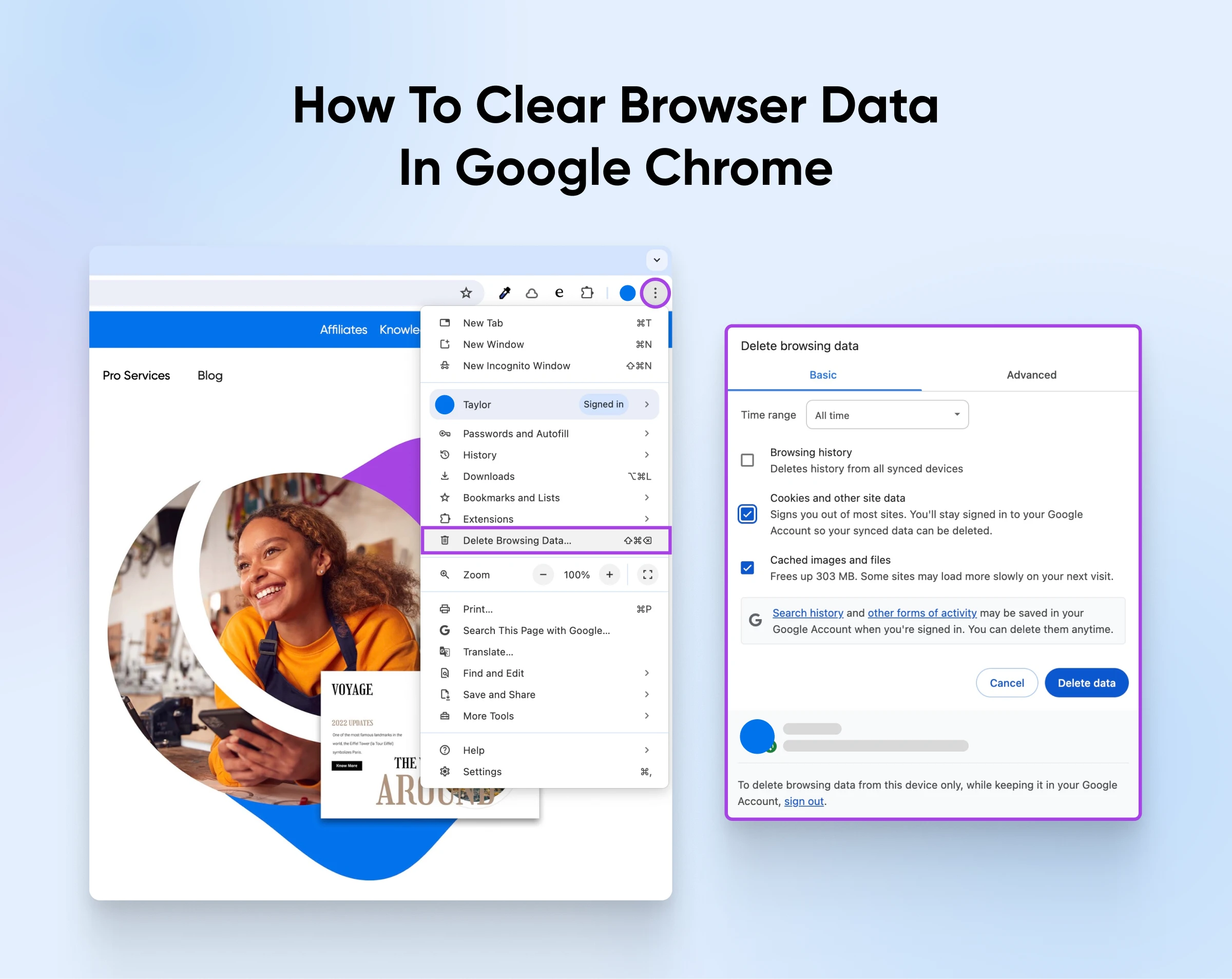
Here’s how to do it in popular browsers:
Google Chrome (Desktop)
- Hit the three dots on the far right of the toolbar.
- Choose Delete browsing data from the drop-down menu.
- Select Cookies and other site data and Cached images and files.
- Click on Delete Data.
Google Chrome (Mobile — Android; iPhone is similar)
- Tap the three-dot menu.
- Tap Delete browsing data.
- Set the time range to All time, and check Cookies and site data and Cached images and files.
- Tap Delete data.
Microsoft Edge
- Tap the three dots on the right of the menu bar.
- Navigate to Settings > Privacy, search, and services.
- Scroll down to Clear browsing data now, and select Choose what to clear.
- In the Time range drop-down, select All time.
- Click the checkboxes for Cookies and other site data and Cached images and files.
- Finish with Clear now.
Safari (Mac)
- Via the menu bar, navigate to Safari > Settings.
- Select the Privacy tab, then click Manage Website Data.
- Make sure all sites in the list are selected and then click Remove All.
Safari (iOS)
- Open Settings and tap Apps (on older iOS versions, skip this step).
- Tap on the Safari option.
- Hit Clear History and Website Data, choose a timeframe, and confirm.
3. Check The Website’s Status
When you’re trying to diagnose a connection error, it’s easy to look past an obvious explanation.
Maybe the website you’re trying to visit is down?
Try to access the same page on a different device or using an alternative connection. For instance, you could switch from Wi-Fi to data on your phone.
You can also check the status of any website using a dedicated tool like Down for Everyone or Just Me.
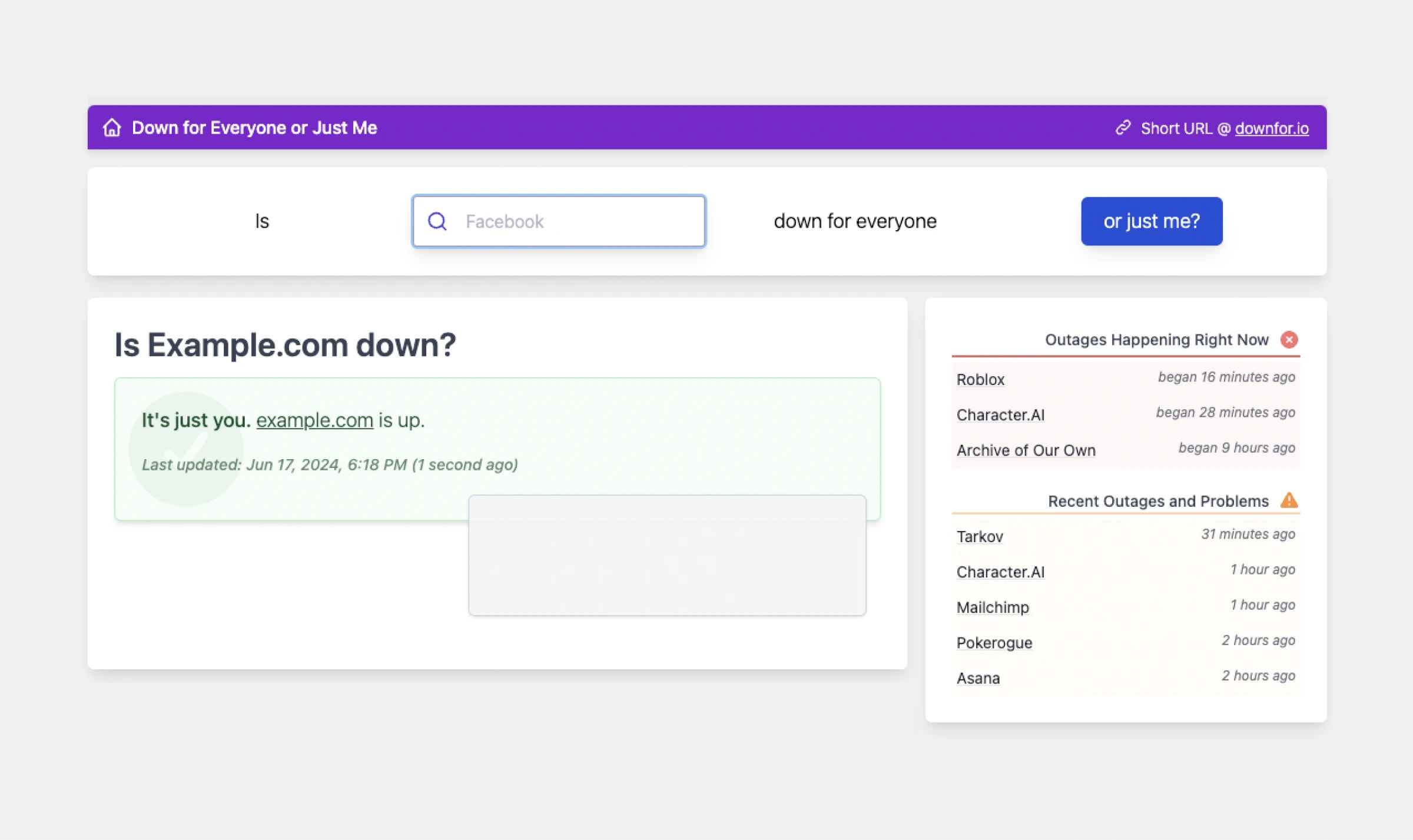
Perhaps you just need to wait a while for the issue to clear up.
4. Check Your Browser Extensions
Some browser-based applications interact with the way your browser loads content. It’s especially true for privacy extensions and ad blockers.
If these extensions stop working properly, they can cause connection problems.
Try disabling your extensions one by one.
After you have disabled each extension, try accessing the website you wanted. If the error suddenly clears, you will have identified your culprit.
5. Restart Your Internet Router
Well, that was the low-hanging fruit. If you find that the ERR_CONNECTION_RESET error persists, you’ll need to try some more creative solutions.
Restarting your router is a good place to begin.
Your router keeps connection state in its memory, and over weeks of uptime it can get clogged or corrupted — which shows up as flaky, dropped connections.
Rebooting your router is an easy way to solve such problems — just turn it off and unplug the power cable for 30 seconds. Then, plug it back in and turn it back on.
If you’re lucky, this alone might clear the blockage.
6. Disable Your VPN Or Proxy
Virtual private networks are great for maintaining online privacy. They work by sending all your traffic through an encrypted tunnel to a remote server, which makes it difficult to see which pages you have requested.
They’re very effective for privacy, but there’s a slight problem. VPNs and other proxies can create connection gremlins.
Data rerouting only works if the proxy server can keep up with demand. Some sites also block the IP addresses of VPN providers, causing more connection headaches.
If you use a VPN and encounter the ERR_CONNECTION_RESET issue, try temporarily turning off the protection. Your proxy might be blocking the connection.
This isn’t a permanent solution, of course. However, if it fixes the error, you can still use a VPN via a different proxy server.
7. Temporarily Disable Your Antivirus And Firewall
Security software is a bit like a bouncer for your device. It keeps a lookout for unwanted guests and shuts down any suspicious activity.
The problem is that this bouncer can be a touch paranoid. From time to time, they misunderstand what’s happening and throw out a perfectly well-behaved visitor.
In technical terms, this means that your browser may be unable to connect with websites that your security software thinks are suspicious. The end result? You might get an ERR_CONNECTION_RESET error code.
So, as with your VPN, try temporarily disabling your antivirus software and your firewall.
Firewall
A firewall is a set of rules governing incoming and outgoing connections for a network or device, aiming to protect against intrusions and unwanted connections.
Read More
Microsoft Defender Firewall (formerly Windows Firewall) is a frequent culprit.
Here’s how you can turn it off on Windows 11:
- Click the Windows icon and select Settings.
- Under Privacy & security, head to Windows Security > Firewall & network protection.
- Select your network profile.
- Under Microsoft Defender Firewall, set the switch to Off.
If you’re using another type of protection, check the documentation of your provider for instructions.
8. Check Your TCP And IP Settings
As you work to fix ERR_CONNECTION_RESET errors, it’s worth renewing your device’s IP address lease.
The TCP/IP protocol governs how data is transmitted over the Internet. If your TCP/IP settings are misconfigured, it can disrupt communication between your device and a hosting server.
To fix this issue, try resetting the IP address on your device:
Renewing Your IP Address On Windows:
- Press Windows + R. This will open the Run box.
- Type CMD and press Enter.
- Type ipconfig /release in the Command Prompt window and hit Enter.
- Next, type in ipconfig /renew and press Enter.
- Finally, type Exit.
- Press Enter to finish up.
Renewing Your IP Address On Mac:
- Open up System Settings and select the Network panel.
- Select your current network on the right and hit Details.
- Click TCP/IP.
- Select Renew DHCP Lease and then click OK.
9. Reset Winsock (Windows)
Winsock is the part of Windows that manages how apps talk to the network. When its settings get corrupted — often after a VPN, proxy, or security tool has modified them — you can see connection resets in every browser. Resetting Winsock is a fix Microsoft itself recommends for stubborn connection problems on Windows.
- Search for Command Prompt in the Start menu, right-click it, and choose Run as administrator.
- Type netsh winsock reset and hit Enter.
- For good measure, also run netsh int ip reset — unlike the IP renewal in fix 8, this rebuilds the TCP/IP stack itself.
- Restart your computer to apply the changes.
10. Flush Your DNS Cache
The DNS cache on your device is essentially an address book for websites. Instead of having to ask for the location of every page, your device can simply consult this temporary record.
DNS
The Domain Name System (DNS) protocol keeps records of which domain names correspond to specific IP addresses. DNS enables you to browse the web by typing in regular URLs instead of IP addresses.
Read More
If these records go stale or corrupt, your device can end up talking to the wrong address — and the connection gets cut off with that pesky error.
You can avoid this problem by flushing away your DNS records.
Flush DNS Cache On Windows:
- Toggle over to Start.
- Search for Command Prompt and right-click on the top result.
- Choose the Run as administrator option.
- Type in
ipconfig /flushdns. - Hit Enter.
Flush DNS Cache On Mac:
- In your Applications folder, open Utilities.
- Open Terminal.
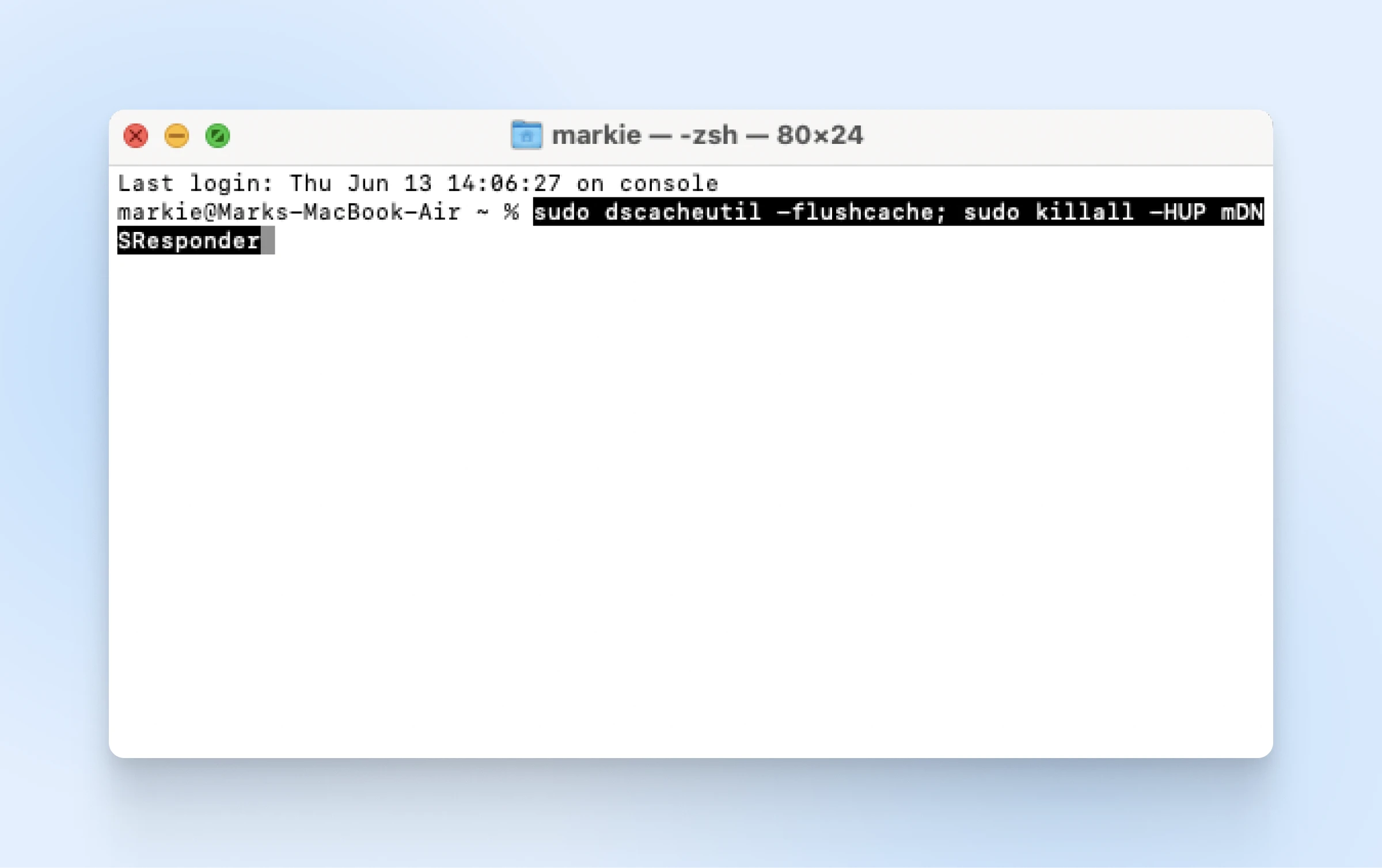
- In the window, type:
sudo dscacheutil -flushcache; sudo killall -HUP mDNSResponder. - Hit Enter.
11. Try Different DNS Servers
A corrupted cache might not be the only cause of connection issues.
Every time you visit a new website, your device has to ask DNS servers for directions. If those servers are not working properly, you might see errors such as ERR_CONNECTION_RESET.
The workaround here is to switch servers. You can do this through your device’s network settings, usually under the advanced options.
Here are some alternative DNS providers to try:
- Cloudflare: 1.1.1.1 and 1.0.0.1
- Google: 8.8.8.8 and 8.8.4.4
- OpenDNS: 208.67.222.222 and 208.67.220.220
Make sure you restart your device after making the change so that the new DNS settings take effect.
Preventing The ERR_CONNECTION_RESET Error From Coming Back
Hopefully, your ERR_CONNECTION_RESET error is now resolved. (If not, this is a good time to contact your hosting provider for help.)
The cause of this error is often clear. There are, however, cases in which it returns at seemingly random intervals.
To prevent this from happening, follow these guidelines:
- Stay up to date: Make sure to install new updates for your device’s operating system, your browser, and your security software. Older versions can cause conflicts that interrupt connections.
- Look after your network: Poor Wi-Fi signal can create errors, so consider using an extender to improve wireless connections throughout your home. Make sure your router has up-to-date firmware, too.
- Upgrade your ISP: Some Internet service providers apply throttling on your connection. If you’re seeing errors regularly, it might be worth switching ISPs.
- Choose reliable hosting: Seeing ERR_CONNECTION_RESET errors on your own website? That often means your web host is struggling to keep up. Migrate to DreamHost, and you can benefit from our 100% uptime guarantee!
Uptime
Uptime is the amount of time that a server is available. This is normally measured in percentages. Many web hosts boast an uptime of 99.9%.
Read More
ERR_CONNECTION_RESET FAQ
Is ERR_CONNECTION_RESET My Problem Or The Website’s?
Either is possible. If the site fails on every device and network you try, the problem is on the website’s side. If it fails on just one device or one network, work through the local fixes above — cache, extensions, VPN, firewall, and DNS.
What Does Error Code -101 Mean?
-101 is Chrome’s internal number for this exact error, sometimes shown as “connection_reset, -101” or net::ERR_CONNECTION_RESET. It doesn’t point to a different cause, so the same 11 fixes apply.
What’s The Difference Between ERR_CONNECTION_RESET And ERR_CONNECTION_REFUSED?
A reset means the connection started and was then cut off mid-conversation. A refusal means the server said no before any connection began. If you’re seeing refusals, head to our ERR_CONNECTION_REFUSED guide instead.
What Does “Connection Reset By Peer” Mean?
It’s the same event seen from the command line: the machine on the other end (the “peer”) closed the connection. Developers hit it in tools like curl or SSH; in a browser, the same thing surfaces as ERR_CONNECTION_RESET.
Can A Website Cause ERR_CONNECTION_RESET For Everyone?
Yes. An overloaded server, a misconfigured firewall or CDN, or a hosting outage can reset every visitor’s connection. If it’s your website, check your server logs and contact your host’s support team.
Errors popping up in other places?
Don’t worry, we’ve got your back.
Check out these guides for more troubleshooting tips on common errors:
Reset Your Internet Connection
The ERR_CONNECTION_RESET error isn’t usually anything to worry about, but it can be annoying.
Bookmark this guide for quick access whenever the issue arises so you can troubleshoot it quickly!
If you’re seeing errors popping up on your own website, consider switching to DreamHost.
All our web hosting plans include unmetered bandwidth and a 100% uptime guarantee, so you can wave goodbye to connection issues.
We also provide fast storage, free SSL security, and 24/7 support as standard — in other words, the perfect foundation for a successful site.
Sign up today to try it for yourself!

Dedicated Hosting
Ultimate in Power, Security, and Control
Dedicated servers from DreamHost use the best hardware and software available to ensure your site is always up, and always fast.
See More
Did you enjoy this article?