The End User Portal and NinjaOne Assist Mobile App
Most conversations about NinjaOne center around what technicians can do. The end user portal flips that. It’s a dedicated, self-service space for the people using the devices you manage, giving them direct access to their own devices, tickets, files, and shared content, all scoped to exactly what you allow.
Key Points
- The End user portal gives your users a self-service place to connect to their own devices, submit tickets, view shared documentation, and restore from their own backups.
- Access is controlled through roles, so what a user can see and do is scoped to exactly what you allow.
- Documentation and folders can be shared directly with end users, cutting down on requests for information that already exists.
- The NinjaOne Assist mobile app extends that same self-service access to iOS and Android.
- Syncing users in through Microsoft Entra ID or another SCIM-supported IDP keeps accounts, roles, and organization mapping accurate automatically, no manual account creation required.
- The portal can be fully branded to match your environment, whether that’s your company’s internal look or a client-facing identity.
What the end user portal is
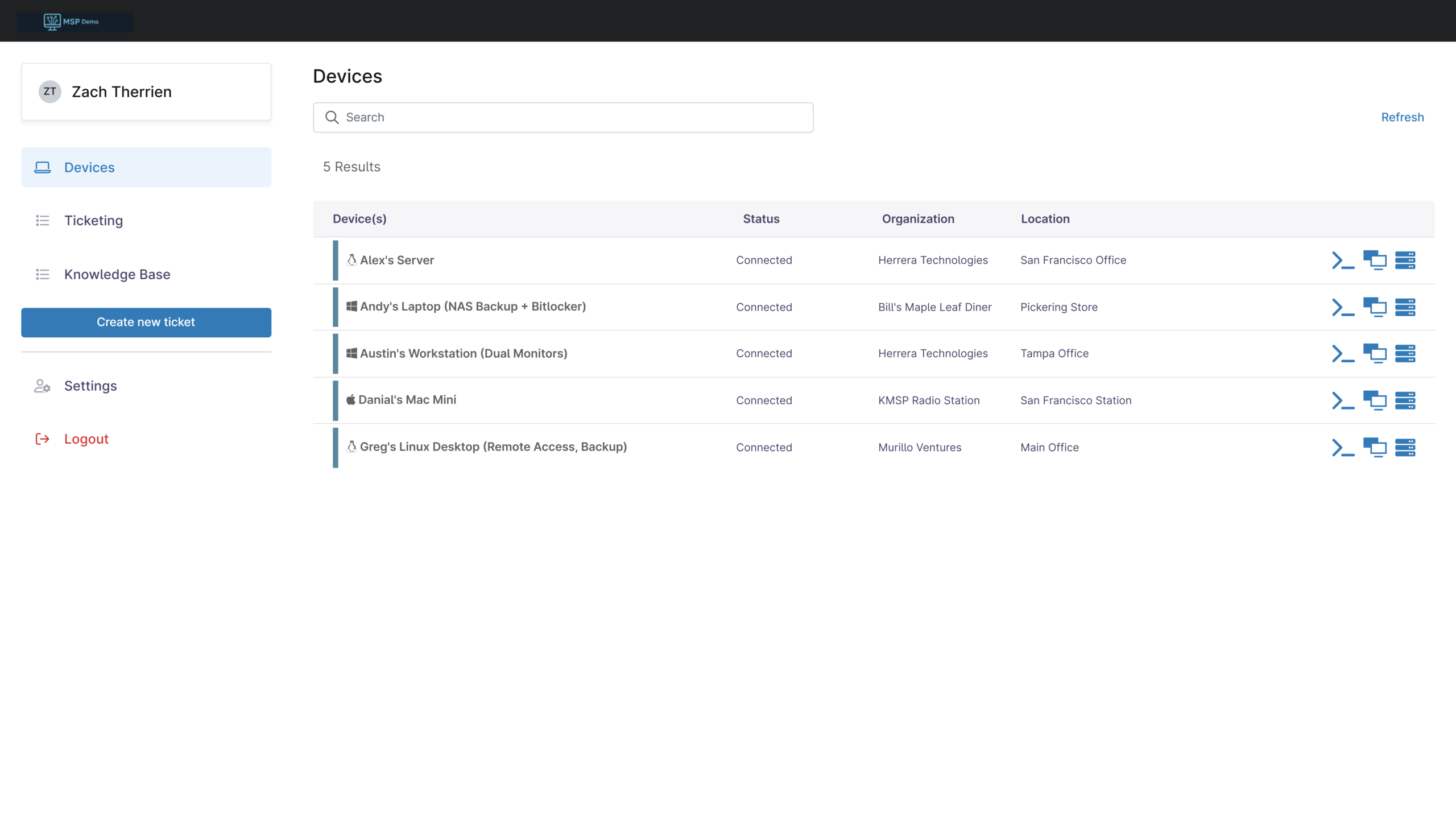
The end user portal is a separate login experience built for the people using the devices you manage. Once an end user has an account, they log into the NinjaOne instance through a browser, or through the NinjaOne Assist mobile app, and see a list of devices they have access to along with each device’s status.
Getting a user into the portal starts with creating an account for them and granting them access to specific devices, which is a separate action from making them the device owner. You can add as many devices as needed to a user’s access list, and multiple users can be granted access to the same device.
Access itself is governed by roles, the same permission structure technicians use. You decide what a given role can see and do, and if a user belongs to multiple roles, NinjaOne applies the highest level of access across all of them. A user in a role without remote access permissions who’s also in a role that grants them remote access will end up with remote access, not the more restrictive setting.
Users only get what’s explicitly turned on for their role, regardless of whether they log in through a browser or through NinjaOne Assist.
What end users can do
Remote access to their own devices:
Once granted access, end users can connect to their devices using whichever remote access tool you’ve enabled for that operating system. No waiting on a technician to remote in for something they could do themselves.
Across Windows, macOS, and Linux, NinjaOne supports multiple connection types, and you decide which ones a given role can use:
- NinjaOne Remote – a full remote control session
- User command line – a terminal session running in the context of the logged-in-user
- System command line – a terminal session running with system-level privileges
Since these are set per role and per operating system, you can be as narrow or as broad as needed. A general staff role might only get NinjaOne Remote, while a more technical role, like an internal developer, might also get command line access.
Submit and track tickets with NinjaOne Ticketing:
Users can create, update, and respond to NinjaOne tickets straight from the portal. You control what forms they see, and within those forms, you can control whether any fields are required to submit, ensuring you get the information needed on initial submission.
By default, users can only see the tickets they personally submitted. With ticketing permissions, you can also grant organization-wide access, giving visibility into every ticket tied to their organization, regardless of who reported it. That’s useful for someone like an office manager or department lead who needs to track every open request across their location, not just the ones they personally filed.
Restore their own backups:
If backup is enabled and the permission is granted, users can open the backup manager, browse through completed backup plans for their device, and download the files or folders they need. No ticket required to get a file back.
This is one of the more overlooked self-service wins. A user who accidentally deletes a file or overwrites something usually files a ticket, waits for the technician to pick it up, and waits again for the restore. Giving them direct access to their own backup history turns that into something they resolve in a couple of minutes on their own, without anyone on your team touching it.
Access shared documentation:
Folders can be shared directly with end user roles from the system dashboard, giving users a place to find setup guides, policies and procedures, or reference material without asking IT where to look.
When you share a folder, you can choose to make it available to all end-user roles or scope it to specific ones, and you can display the folder’s contents directly rather than requiring users to click into it. This is useful if you’re sharing multiple folders at once and want to keep things organized. Shared folders also show on the End User Roles tab inside the documentation app’s configuration page, giving you a central place to see and manage what’s been shared with whom.
This can be found by navigating to Administration > Apps > Documentation > End User Roles.
Note that this sharing option is only available from the system dashboard.
Wake devices remotely:
End users can use Wake-on-LAN to bring a sleeping device back online, as long as it’s connected to the same network as another online device.
Extending access with the NinjaOne Assist mobile app
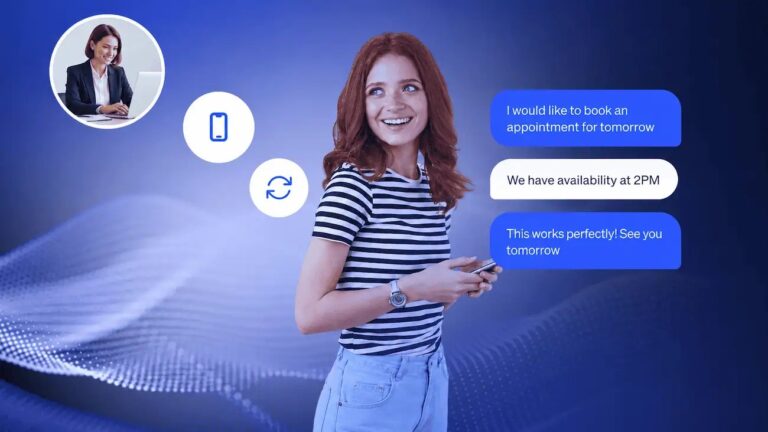
For end users who split their time between office and remote work, or who just need to check a device while away from a desktop, NinjaOne Assist removes the dependency on being at a specific computer to get help or get connected. It’s the same self-service access as the portal: connect to a device, check details and status, submit and update tickets, all from a phone or mobile device with access to the iOS App Store or Google Play Store.
The app carries over the same role-based permissions as the browser portal. A user doesn’t gain broader access by switching to mobile, and they don’t lose functionality either. If their role has NinjaOne Remote enabled, they can launch a remote session from their phone. It’s the same experience, just built for a smaller screen and a different context.
That consistency matters for deployment. You’re not managing two separate permission sets or explaining two different tools to your users, mobile is just another way in. For distributed teams, field staff, or anyone more likely to notice a device problem away from their desk than at it, that matters.
Keeping accounts accurate with SCIM
Manually creating end user accounts works fine for a handful of users. It falls apart fast once you’re managing dozens or hundreds of them, whether that’s across departments in a single company or across multiple client organizations.
Syncing NinjaOne with Microsoft Entra ID (or another IDP) through SCIM solves that. You set up user roles in Entra ID, map them to groups, and NinjaOne provisions the matching end user and technician accounts automatically as those groups change. Add someone to the right group in Entra ID and they show up in NinjaOne with the correct role and organization already assigned. Remove them, and their access goes with it.
For internal IT, this is usually simple since most users sit in a single organization, sometimes split by department. For MSPs, it’s the mechanism that keeps each client’s users mapped to the right organization automatically. Either way, each synced user needs an OrganizationID attribute so NinjaOne knows where they belong, and for users who need access across every organization, that attribute can be set to “All.”
The result is an end user provisioning process that scales with your environment instead of adding a manual step every time someone joins, changes roles, or leaves.
The end user journey
It’s worth walking through what this looks like from the end user’s side, since that’s usually the part that’s hardest to picture from the admin view.
Getting an account:
An end user’s account gets created one of two ways: manually, when you add them and grant device access yourself, or automatically, when they’re synced in through Entra ID or another SCIM-supported identity provider. Either way, the user doesn’t do anything to trigger this step. It happens on your side.
Getting invited:
Once the account exists, a manually created user receives an email invitation to set up their login. A user created through a SCIM sync doesn’t receive an invite email, but can still navigate to the portal and log in directly.
Visibility in the portal:
Once logged in, the user sees a straightforward list of devices they have access to, along with each device’s current status. No admin panels, no unrelated organization data, just what’s relevant to them that you allowed.
Taking action:
From there, whatever’s turned on for their role is available directly: connecting to a device, submitting or checking a ticket, pulling a file from a backup, browsing shared documentation, or waking a sleeping device. All of it happens without a support request, and all of it stays inside the boundaries you’ve set for that role.

Why this matters
Without a sanctioned self-service option, users find their own way around IT anyway. They install their own remote access tools, email files to themselves instead of restoring from backup, or ask a coworker for help instead of opening a ticket. None of that is logged, none of it is controlled, and none of it is visible to you until something goes wrong. The end user portal gives users a legitimate channel for the things they’re going to try to do regardless, and keeps every action inside a system you control.
Paired with IDP sync, it also removes the administrative overhead of keeping end user accounts current by hand. Access follows your identity provider, roles stay accurate, and your team spends less time on account management and more time on the work only they can do.