32 Essentials (+ Cheat Sheet)
Almost everything has a beautiful user interface these days. Just point and click to get things done. So we almost never need the command line.
But the moment you sign up for a VPS, you need to learn these essential Linux commands, or you’ll be left staring at a black screen, wondering what the heck to do next.
Linux commands are short text instructions you type into a terminal to tell the operating system what to do — list files, move data, monitor resources, restart services. Since most web servers run Linux, a few dozen commands cover nearly all day-to-day website and VPS management.
While there are thousands of Linux commands, I’ve filtered down to the 32 most-used commands for day-to-day server management — organized by skill level, with a cheat sheet to keep handy.
Linux Commands Cheat Sheet
Here are all 32 commands at a glance. Each one is explained in detail, with real server examples, further down the page — and the skill levels are explained in the next section.
| Command | Stands for | What it does | Level |
|---|---|---|---|
| ls | List | Lists the contents of your current directory | Foundation |
| pwd | Print working directory | Displays the full path of where you are | Foundation |
| cd | Change directory | Moves you to a different directory | Foundation |
| mkdir | Make directory | Creates a new directory | Foundation |
| cp | Copy | Copies files and directories | Foundation |
| mv | Move | Moves or renames files and directories | Foundation |
| cat | Concatenate | Displays the full contents of a file | Foundation |
| head | – | Shows the first 10 lines of a file | Foundation |
| tail | – | Shows the last 10 lines of a file | Foundation |
| ps | Process status | Shows the processes running on your system | Professional |
| top | – | Displays a real-time view of running processes | Professional |
| htop | – | Shows live processes in a friendlier, color-coded interface | Professional |
| kill | – | Terminates a process by its ID | Professional |
| killall | – | Terminates every process with a given name | Professional |
| df | Disk free | Shows disk space usage for all mounted filesystems | Professional |
| free | – | Displays used and available memory | Professional |
| du | Disk usage | Shows disk usage for a specific directory | Professional |
| grep | Global regular expression print | Searches for text patterns inside files | Professional |
| find | – | Finds files and directories that match your criteria | Professional |
| chmod | Change mode | Changes file and directory permissions | Professional |
| ping | Packet Internet Groper (but most people just say ping) | Tests whether your server can reach another machine | Infrastructure |
| curl | Client URL | Transfers data to or from servers | Infrastructure |
| netstat | Network statistics | Displays network connections and listening services | Infrastructure |
| ss | Socket statistics | Lists network sockets; the faster, modern netstat replacement | Infrastructure |
| sudo | Superuser do | Runs commands with elevated privileges | Infrastructure |
| chown | Change owner | Changes file and directory ownership | Infrastructure |
| ssh-keygen | Secure Shell key generator | Generates SSH key pairs for secure logins | Infrastructure |
| ufw | Uncomplicated Firewall | Opens and blocks ports with simple firewall rules | Infrastructure |
| systemctl | System control | Starts, stops, and manages system services | Expert |
| crontab | Cron table | Schedules automated tasks to run at set times | Expert |
| sed | Stream editor | Finds and replaces text inside files | Expert |
| awk | Named after its creators (Aho, Weinberger, Kernighan) | Extracts columns and patterns from text and logs | Expert |
Understand Your Current Proficiency With Linux Commands
Depending on how often you use Linux commands, you’ll fall into one of these four proficiency levels.
- Foundation level: You can SSH into your server and navigate directories, but you aren’t comfortable with system changes. You probably copy-paste commands from tutorials without fully understanding what they do. File permissions are still confusing, and when something breaks, you don’t know where to start looking.
- Professional level: You’re comfortable with basic file operations and can troubleshoot simple issues, but complex problems still send you searching for help. You can manage development environments but lack the confidence to optimize performance or implement security measures.
- Infrastructure level: You can diagnose performance bottlenecks and handle security configurations, but automation feels overwhelming. You understand how individual commands work, but aren’t fluent enough yet to combine them into efficient workflows.
- Expert level: You can think systematically about server architecture and can quickly identify the root cause of complex issues. You automate routine tasks and can optimize servers for specific use cases without relying on external resources.
I’ve categorized the Linux commands below, keeping in mind these exact proficiency levels.
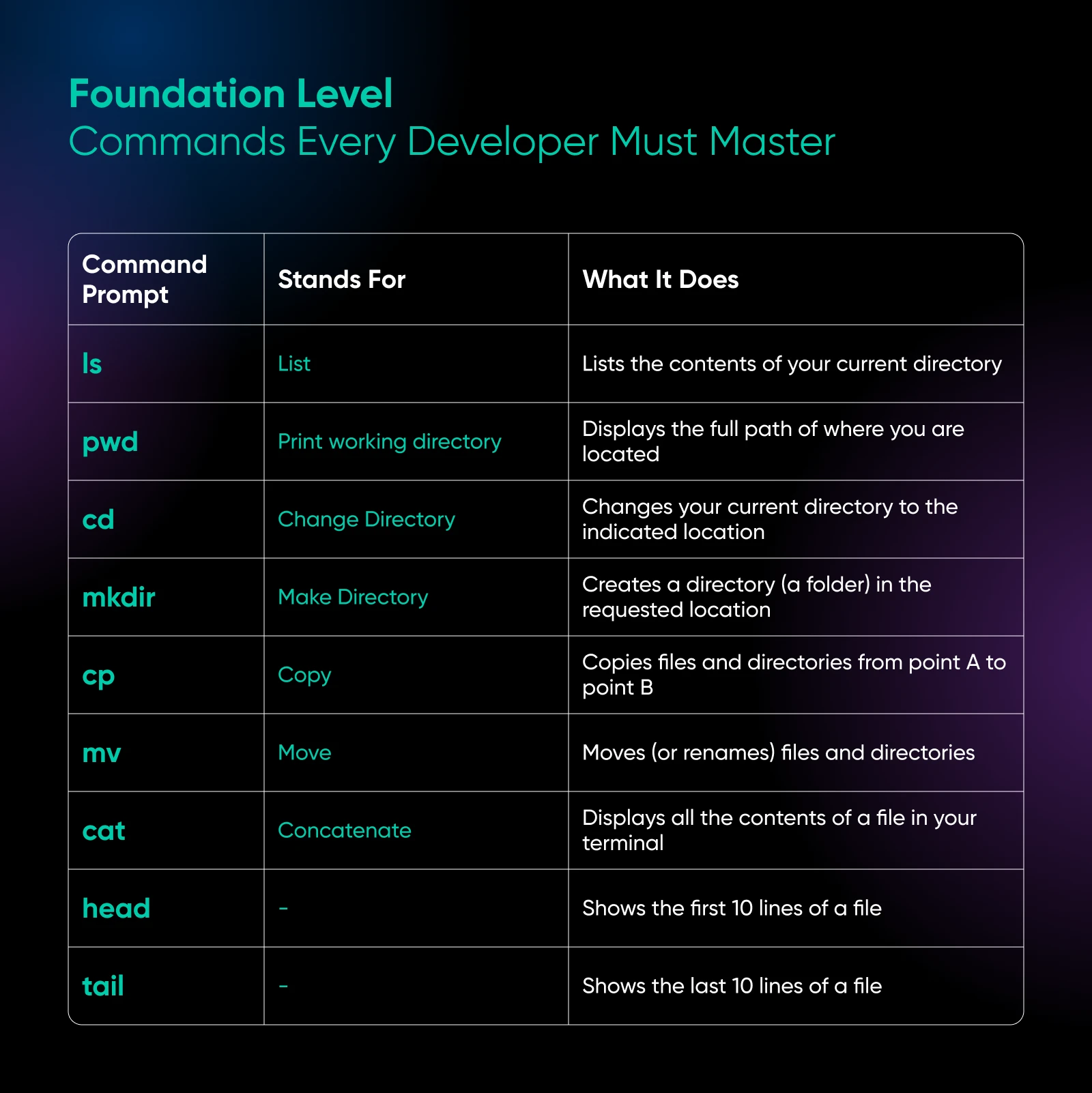
Foundation Level: Commands Every Developer Must Master
The first time you SSH into a VPS, you need to know how to navigate around and look at files. These commands help you do that without feeling completely lost.
Navigation and File Inspection
1. ls: Shows the contents of your current directory
The command without parameters lists (get it? ls = list!) all visible files and folders in your current location.
But when managing websites, you need more detailed information, so you can use ls -la to see permissions, ownership, file sizes, and hidden files that start with dots.
ls -la /var/www/html
The output shows everything you need:
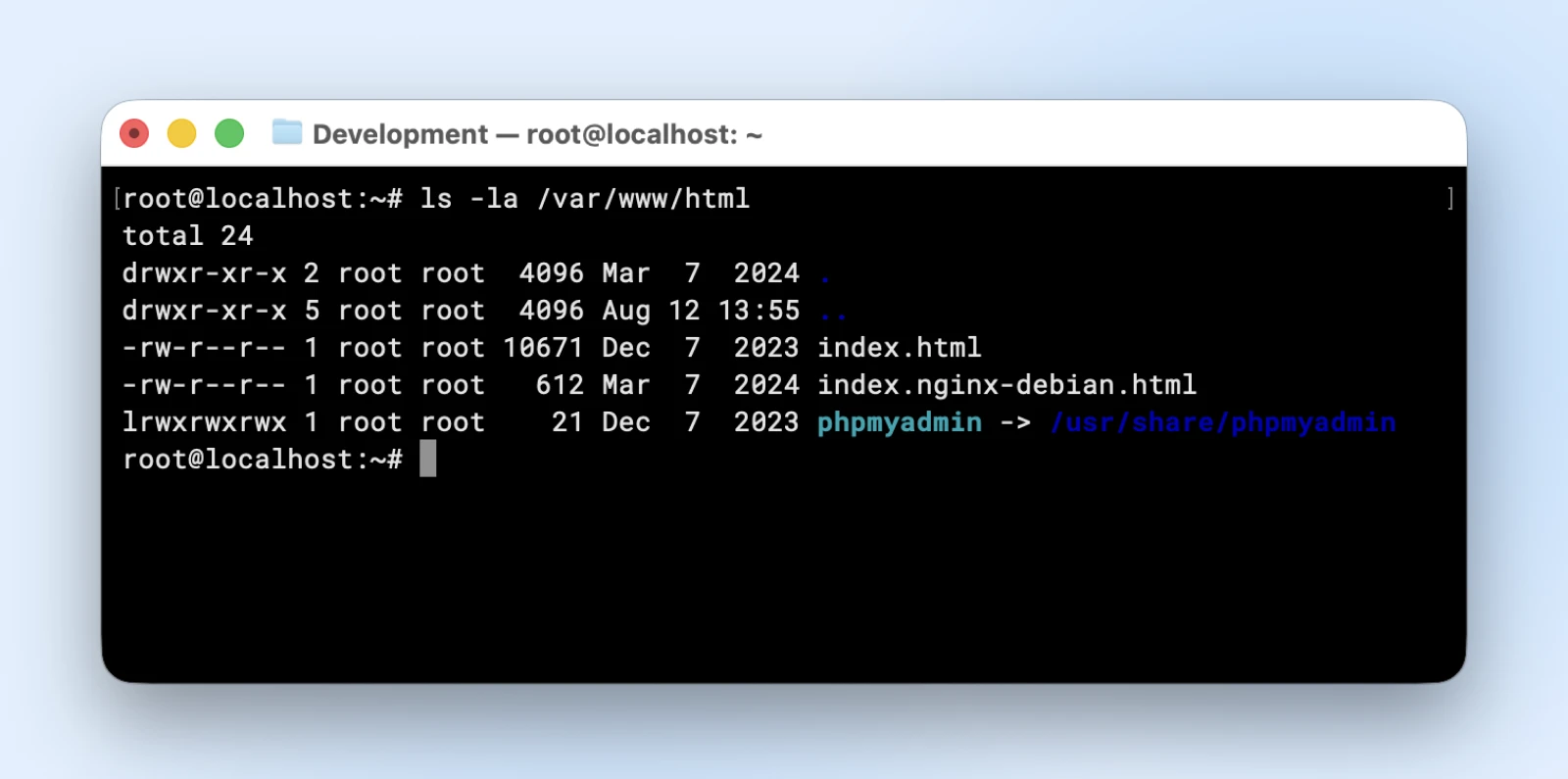
The first column shows file permissions, the third and fourth show who owns the file, the date near the end shows when it was last modified, and the final column is the file’s name.
The table shows detailed information about all files in your web directory, including hidden configuration files like .htaccess that can cause website issues.
2. pwd: Shows your current location in the directory structure
The command stands for “print working directory” and displays the full path of where you’re currently located. When managing multiple websites on one VPS, this prevents you from accidentally editing the wrong site’s files. Just type in:
pwd
This might return something like /var/www/site1, confirming you’re working in the correct website directory.
3. cd: Moves you to a different directory
The basic syntax is “cd /path/to/directory.”
You can use shortcuts like “cd” alone to go home, “cd -” to return to your previous directory, and “cd ..” to move up one level.
cd /var/www/html
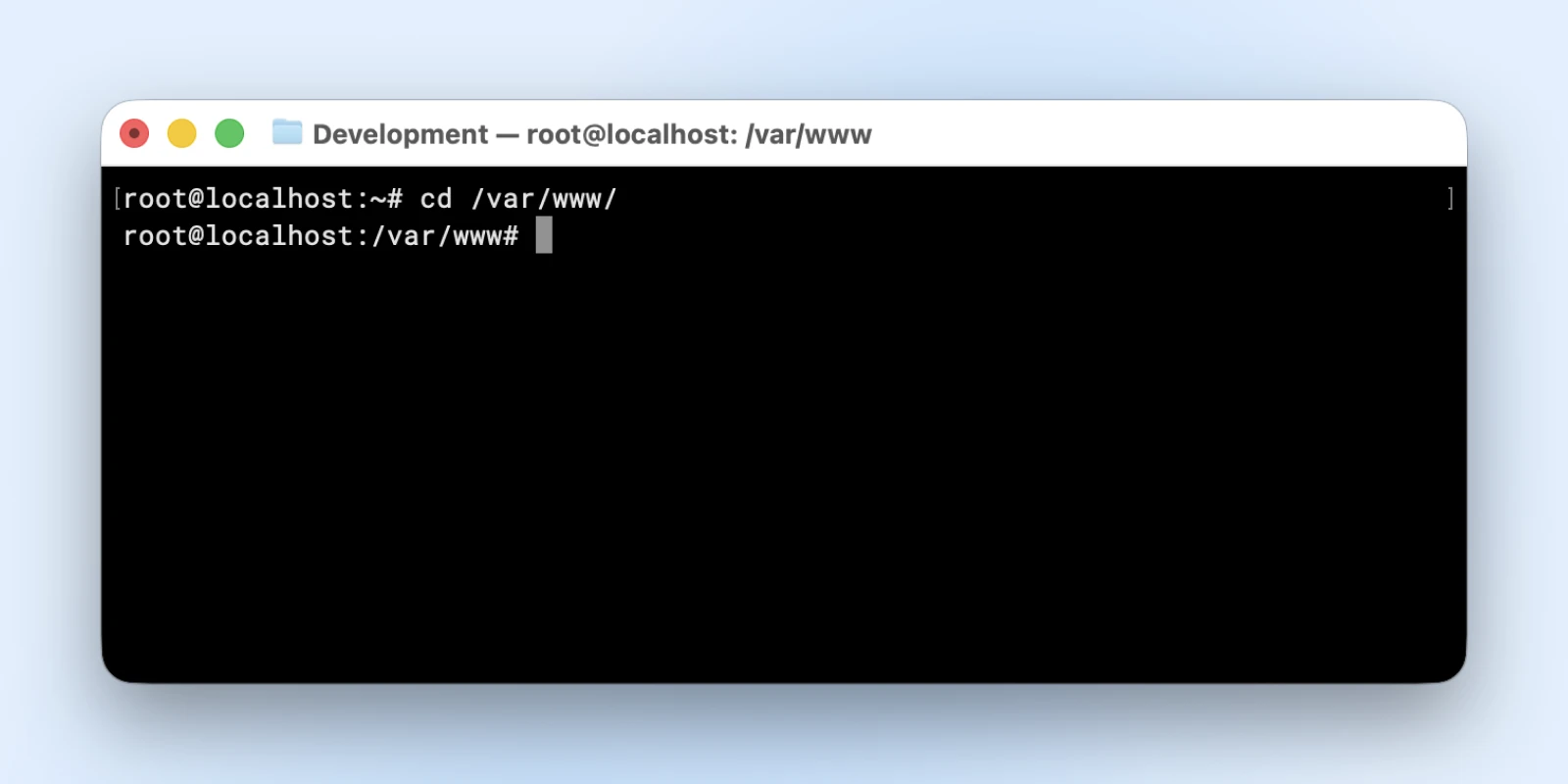
This moves you directly to your website’s main directory, where most files are stored.
File and Directory Management
4. mkdir: Creates new directories
It stands for “Make Directory,” and the basic syntax is “mkdir directory-name” to create a single folder.
You can use “mkdir -p” to create nested directory structures in one command, and it won’t error if directories already exist.
mkdir -p /var/www/newsite/{public,logs,backups,ssl}
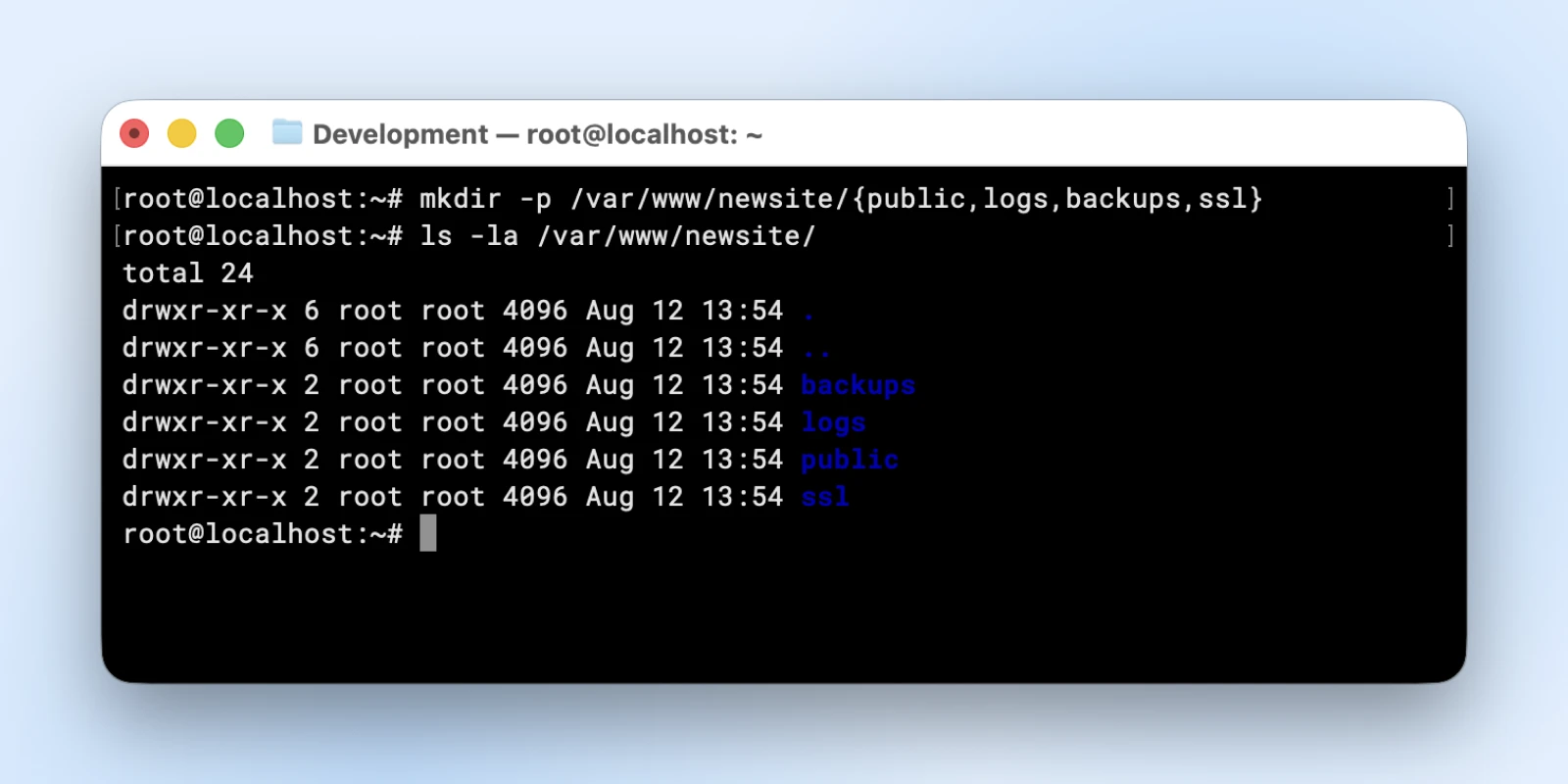
This creates a complete directory structure for a new website with separate folders for public files, logs, backups, and SSL.
5. cp: Copies files and directories from one location to another
The basic syntax is:
cp
However, by default, the cp command does not copy files inside folders or even nested folders.
You’ll need to use “cp -r” to copy entire directory trees recursively, which handles all subdirectories and their contents.
cp -r /var/www/production /var/www/staging
This creates a complete copy of your production website for testing changes before deploying them live.
6. mv: Moves files and directories, or renames them
Unlike copying, this removes the original file, and you can move to different directories or rename files in the same location.
Here’s the basic syntax:
mv
To move the file elsewhere, you need to specify the full destination path as below:
mv wordpress-6.3.2.zip /var/www/downloads/
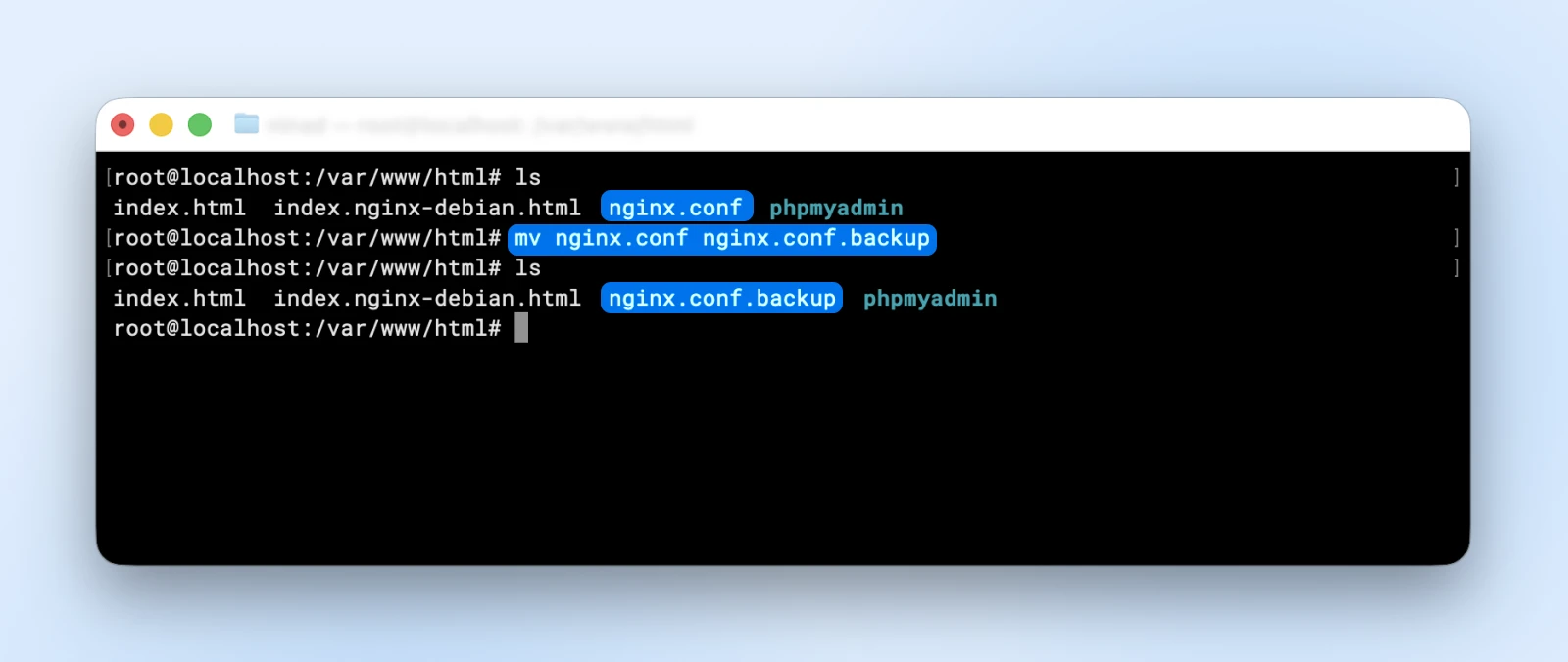
If you want to rename a file, you can just “move” the file from one name to another name in the same directory:
mv nginx.conf nginx.conf.backup
File Content Operations
7. cat: Displays the entire contents of a file in your terminal (Short for concatenate)
The basic syntax is cat filename. This command is perfect for reading short configuration files or checking the contents of scripts without opening a text editor.
cat /var/www/html/wp-config.php
This displays your WordPress configuration file so you can verify database credentials or check for syntax errors.
8. head: Shows the first few lines of a file
The default is 10 lines, but you can specify a different number with “head -n 20.” This is useful for checking large log files without displaying thousands of lines in your terminal.
head -n 50 /var/log/nginx/access.log
This shows the first 50 entries from your web server’s access log to check recent traffic patterns.
9. tail: Shows the last few lines of a file
The tail command without any parameters shows 10 lines, but “tail -f” continuously displays new lines as they’re added to the file. This makes it invaluable for monitoring log files in real-time while troubleshooting.
tail -f /var/log/nginx/error.log
This follows your error log in real-time, showing new error messages immediately as they occur during website operations.
Professional Level: Commands for Managing Development Workflows
Once you know your way around, these professional-level commands give you control over the dynamic parts of your server. You can monitor what’s running, manage processes, and handle system resources like a pro.

Process Control and Monitoring
10. ps: Shows currently running processes on your system
Running “ps aux” displays all processes with detailed information, including CPU and memory usage.
- a shows processes for all users.
- u provides a user-friendly format.
- x includes processes not attached to terminals.
| the “pipe” passes the output from “ps aux” to the “grep” command, and I’ll cover it in the file searching section later.
ps aux | grep nginx
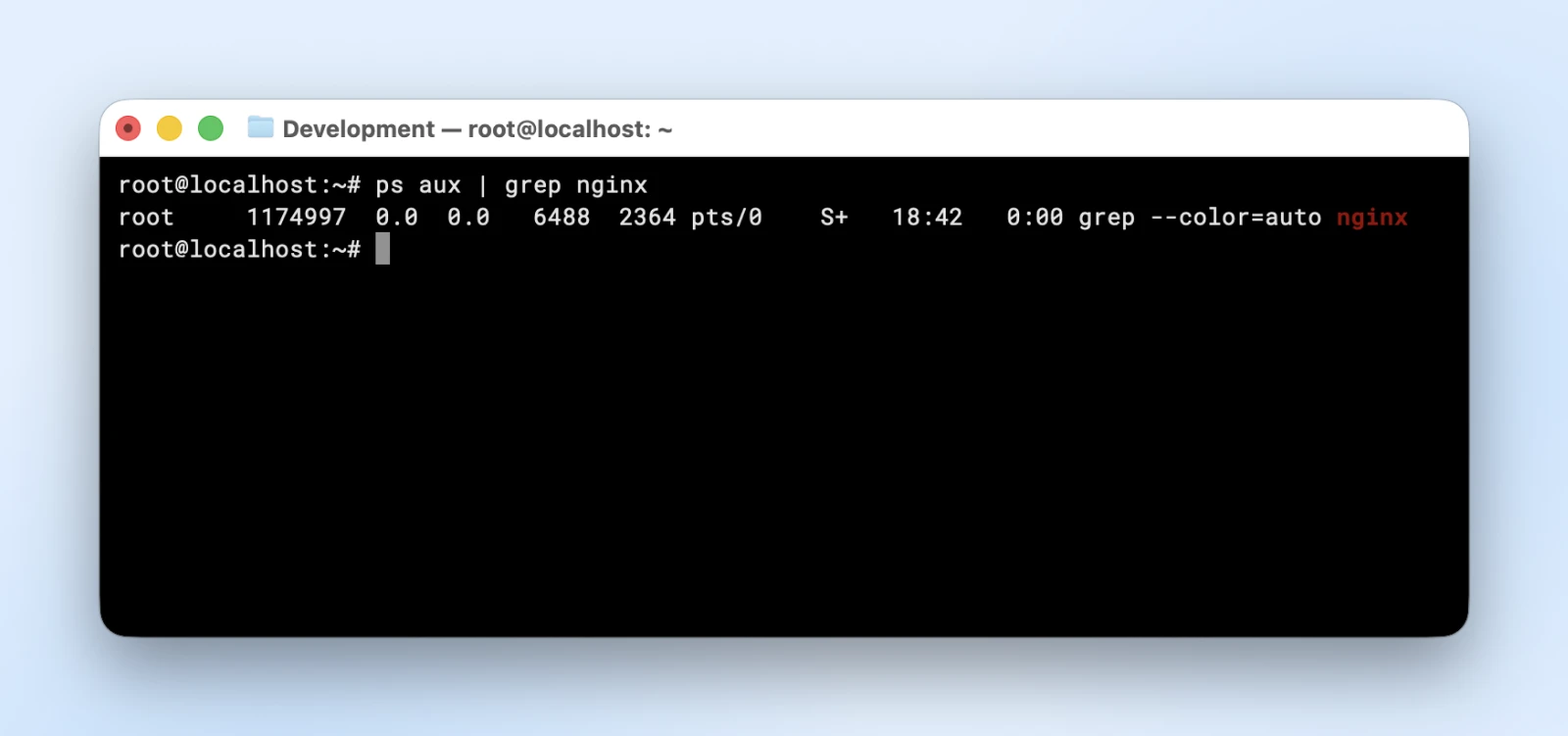
This full command outputs all NGINX-related processes. One quirk: you’ll always see one line for the grep command itself — NGINX is only running if you see nginx processes besides it (or check with pgrep nginx).
11. top: Displays real-time system performance and running processes
Unlike “ps,” this command updates continuously, showing live CPU, memory, and process information. Press q to quit, k to kill processes, and M to sort by memory usage.
top
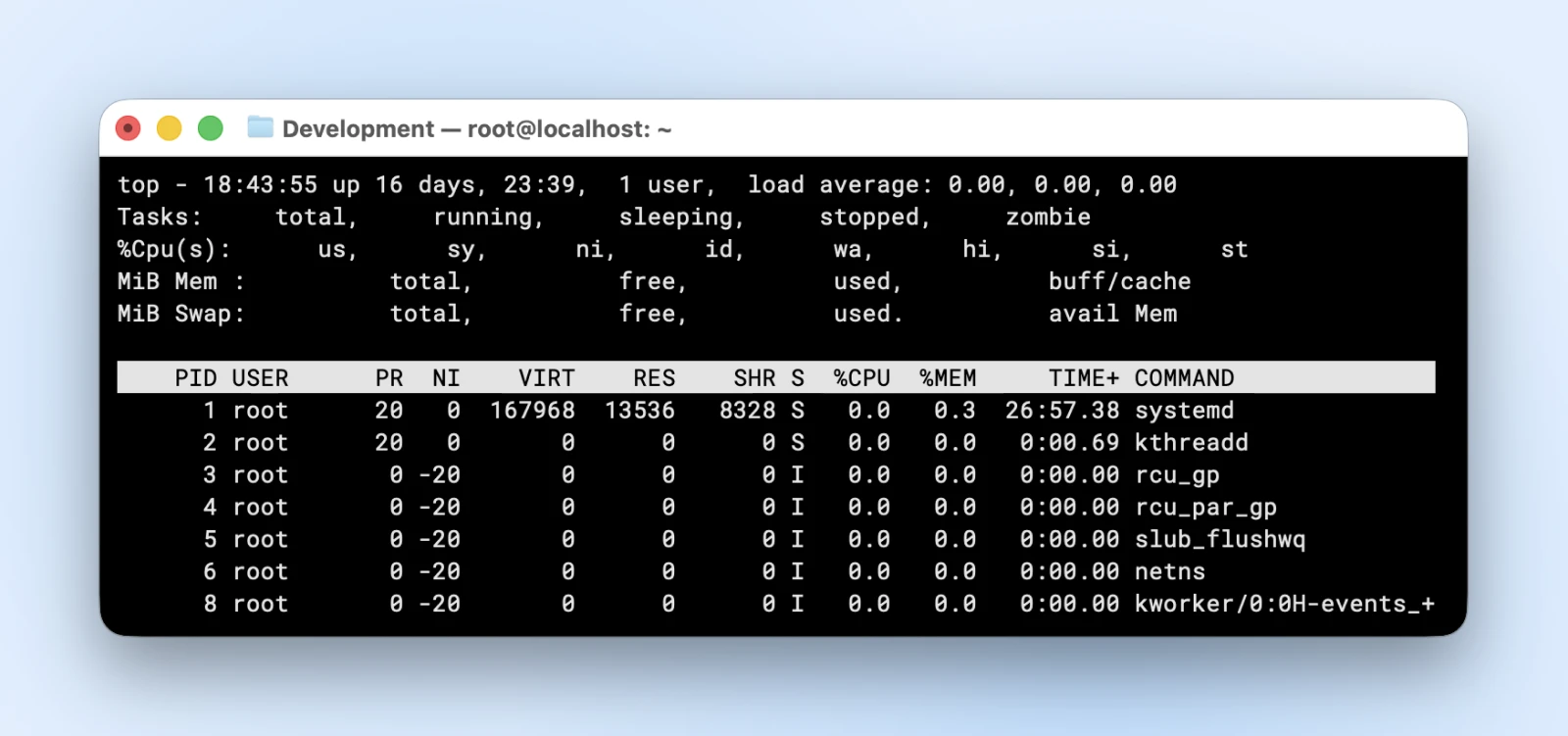
When your website loads slowly, this reveals which processes are consuming resources. The load average and memory usage statistics help identify system bottlenecks.
12. htop: Enhanced version of top with better visual interface
This provides the same functionality as top but with color coding, mouse support, and easier navigation. You may need to install it first with a sudo command, which we cover down below.
htop
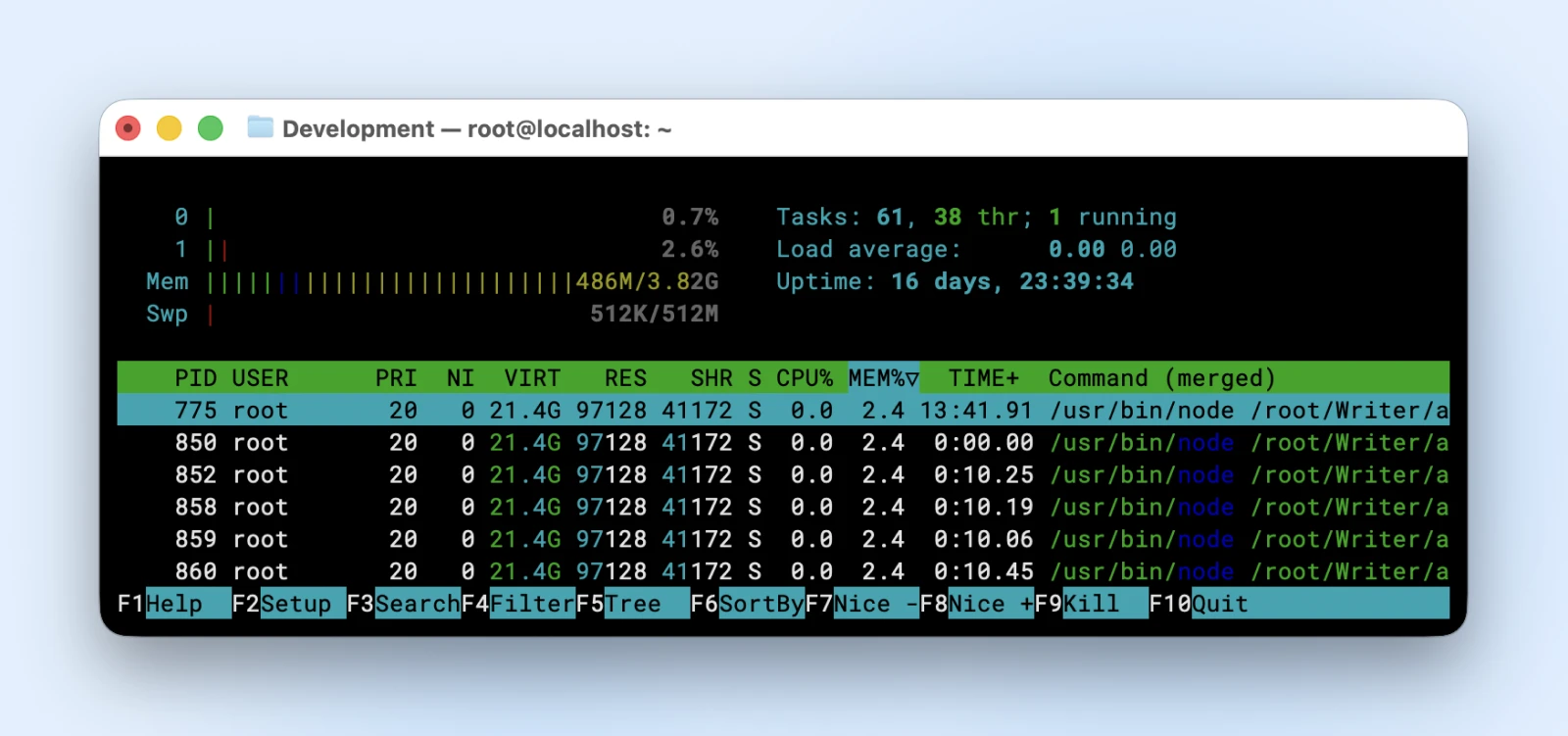
The color-coded display makes it easier to spot problem processes at a glance, and you can scroll through the process list more easily.
13. kill: Terminates processes by their process ID
Use kill
kill 1234
When a PHP process gets stuck consuming too much CPU, find its PID with ps aux or top, then use kill to terminate it.
14. killall: Terminates all processes with a specific name
You won’t always know the PID since service names can differ from app names. The killall
killall php-fpm
This stops all PHP-FPM worker processes — useful when you need to restart your PHP handler completely.
System Resource Monitoring
15. df: Shows disk space usage for all mounted filesystems
Running “df -h” displays disk usage in human-readable format (GB, MB instead of kibibytes). The above command can help you keep track of disk usage so you can avoid disk full errors.
df -h
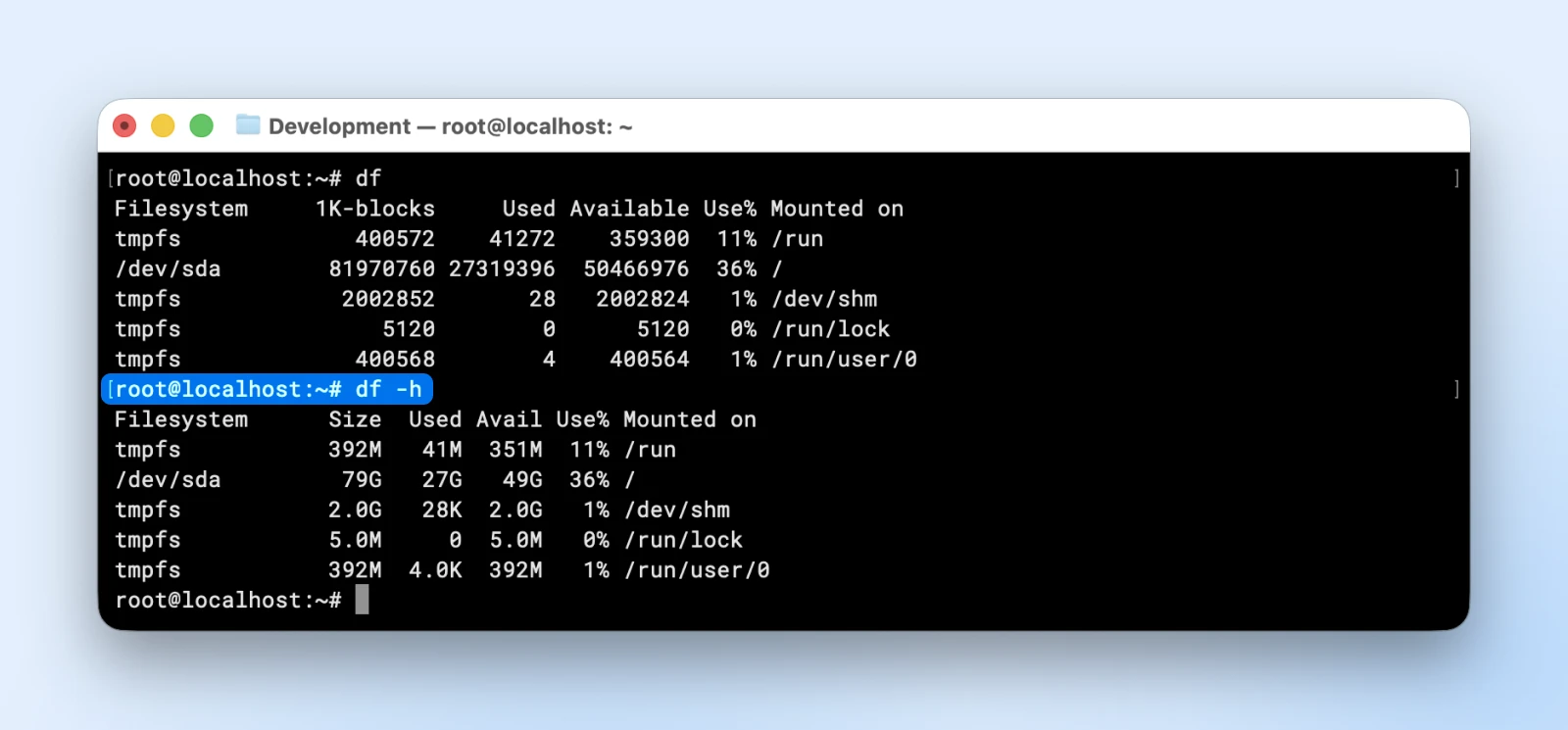
If you see the “use%” column with more than 70% for any disk, it’s time to clean up the disk space or upgrade to larger storage.
16. free: Displays memory usage including RAM and swap space
Without parameters, the free command will provide you data in kibibytes (1 kibibyte is 1024 bytes).
Use “free -h” to see memory statistics in human-readable format. This helps identify memory-related performance issues before they crash your applications.
free -h
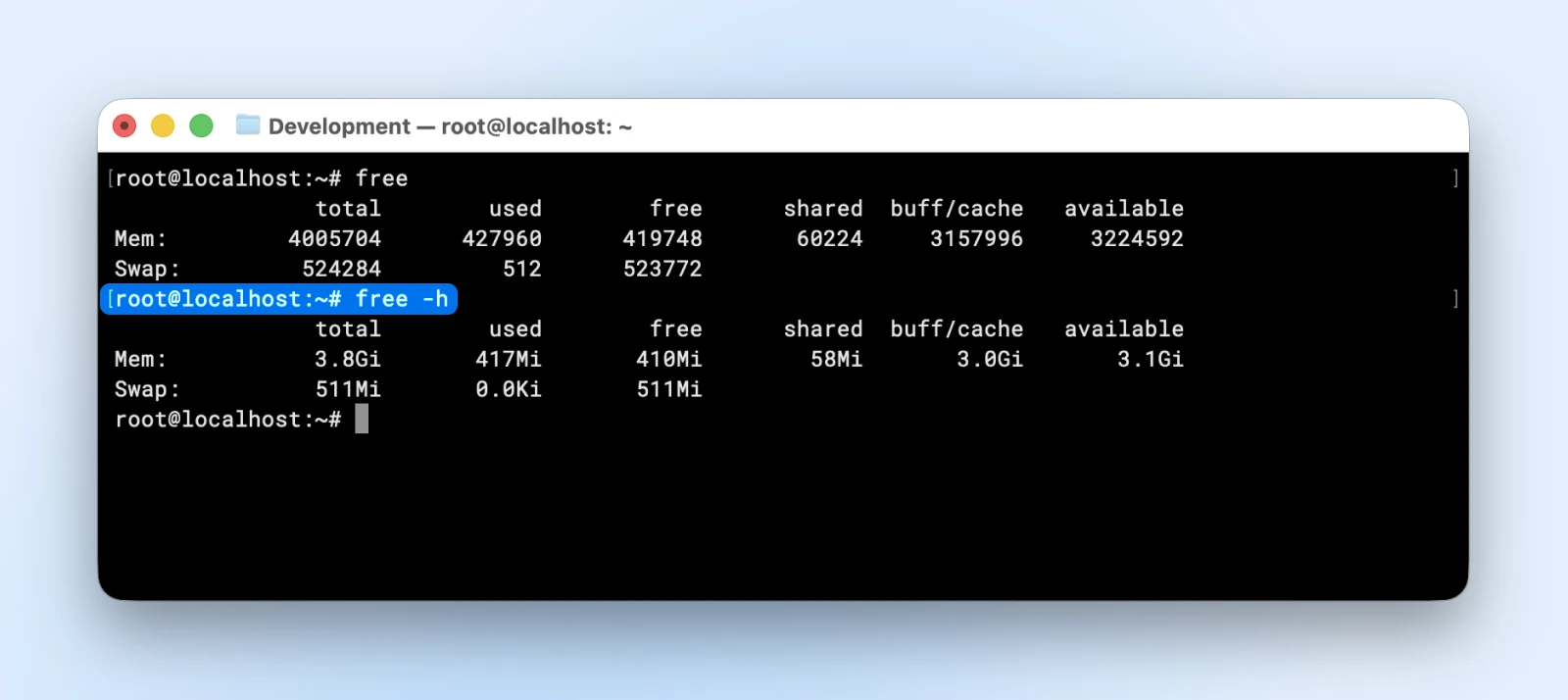
If “available” memory drops near zero, your server will become unresponsive. This indicator tells you when to add more RAM or optimize your applications.
17. du: Shows disk usage for specific directories
Running du -sh
du -sh /var/www/*
If you’re running multiple websites on your VPS, the above command will show you which website consumes the most space and helps you identify directories that could use cleanup
File Searching and Text Processing
18. grep: Searches for text patterns within files
Grep stands for “global regular expression print.” I used the “grep” command with our “ps aux” command before. Let me explain what it actually does.
This command can be used to look up text or regex patterns in large text. Use grep “search term”
grep -r "database_name" /var/www/html/
This finds all files containing your database name, essential for tracking configuration references or troubleshooting connection issues.
19. find: Searches for files and directories based on various criteria
This command helps you find files in your path that match a specific name or pattern.
You can use find
find /var/www -name "*.log" -size +100M
This finds log files larger than 100MB, helping identify files that need rotation or cleanup to free disk space.
20. chmod: Changes file and directory permissions
File permissions on Linux can be complex, and I cannot explain them in detail here, but Red Hat wrote a comprehensive article explaining file permissions.
Once you understand file permissions, you can use the “chmod” command to update them.
Use chmod
“Permissions,” in this case, use numeric notation where” 7=read+write+execute,” “6=read+write,” “4=read only.”
chmod 600 /var/www/html/wp-config.php
Giving 777 permissions to critical files opens your server to security vulnerabilities.
So you need to be aware of what permissions are absolutely necessary and only provide those. Web files typically need 644 permissions, while website directories need 755 to run correctly.
Infrastructure Level: Commands for Production Environments
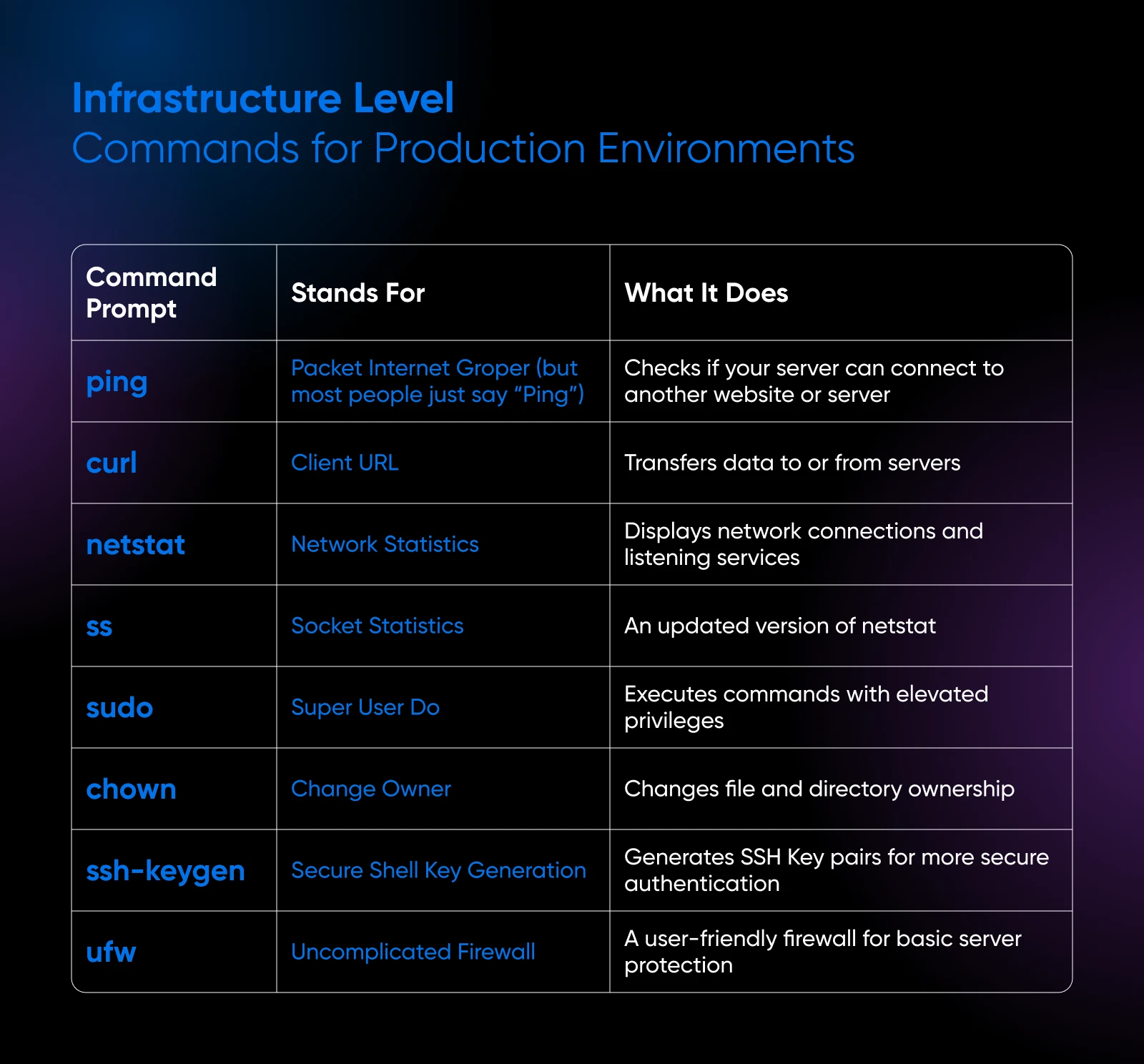
When you’re required to handle the networking aspect of your servers, these commands can quickly separate competent administrators from those who struggle when real issues hit production websites.
Network Diagnostics and Management
21. ping: Tests network connectivity and measures response time
The “ping” command checks if your server can connect to another website or server. You can ping either a domain name or an IP address.
Using just ping
ping -c 4 yourdomain.com
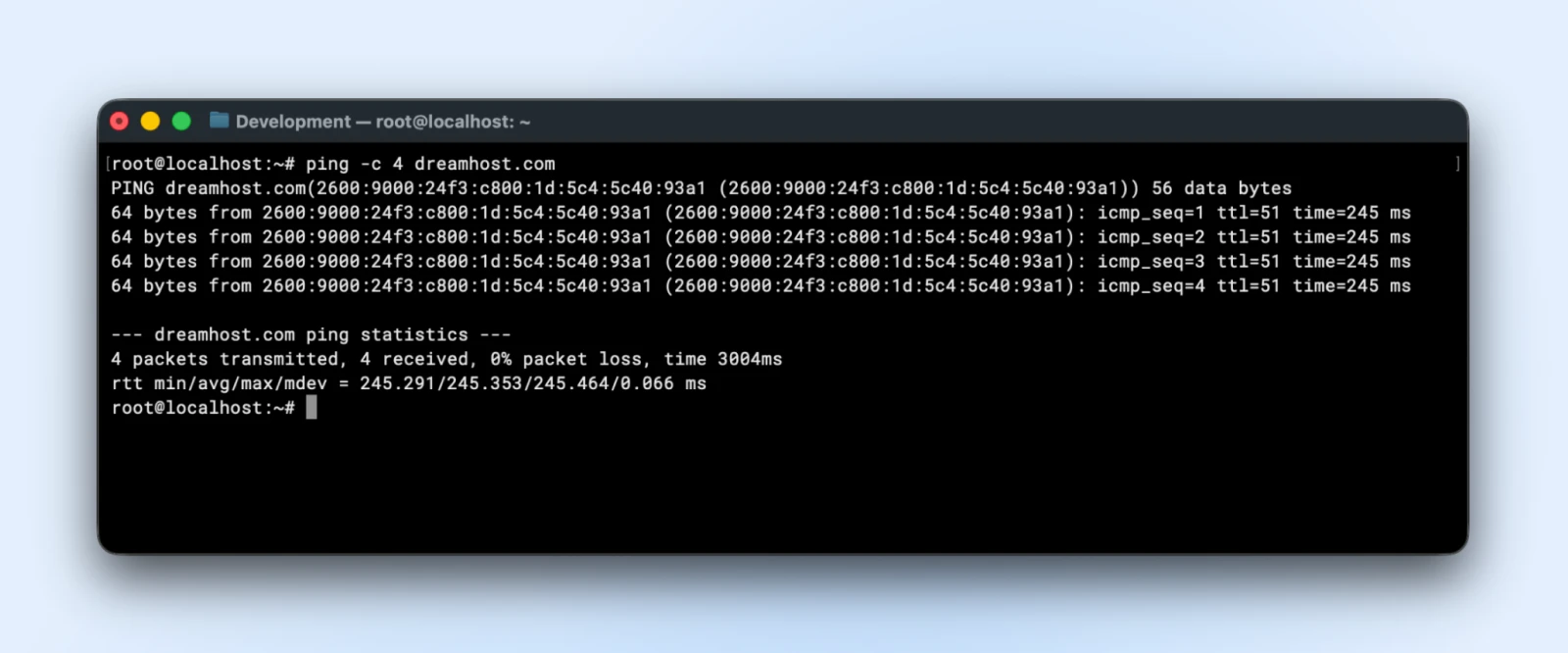
If ping fails entirely, either DNS is broken or there’s a network connectivity issue and you can start narrowing down the issue from here.
22. curl: Transfers data to or from servers using various protocols
When you’re in the terminal, fetching a website and downloading packages is quite difficult. You don’t have a browser or a UI connected.
This command has a variety of parameters, so you may want to go through this official curl usage tutorial to understand it completely.
But for checking if a website is responding, you only need the “-I” (that’s uppercase i) parameter. This parameter helps curl fetch HTTP headers instead of fetching the full HTML from the website.
curl -I
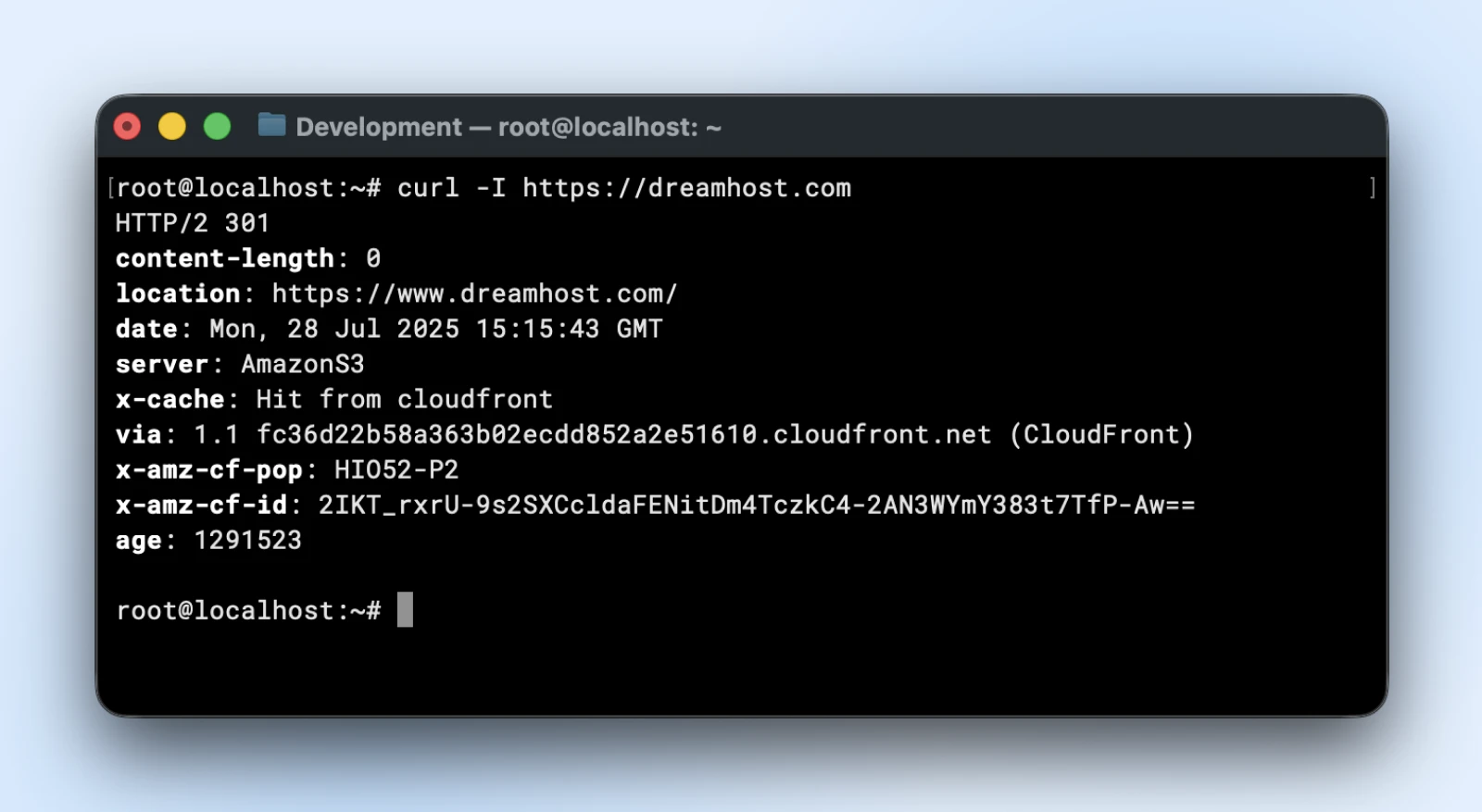
This shows HTTP status codes (“200=success,” “404=not found,” “500=server error”) and response headers, revealing issues browsers might hide.
23. netstat: Shows network connections and listening services
Netstat is yet another extensive command that helps you monitor your network connections, check which ports are open on your server, which services are listening on which specific ports, and a lot more.
The netstat man page covers all the flags if you want to go deeper.
For server use, you’d mostly need the “netstat -tlnp command” to display listening network connections.
The flags mean:
- “-t” TCP connections
- “-l” listening only
- “-n” numerical addresses
- “-p” process IDs
netstat -tlnp | grep :80
This confirms your web server is listening on port 80. If nothing appears, your web server isn’t running or configured properly.
24. ss: A modern replacement for netstat with better performance
While netstat has been the legacy tool that continues to work, it can be slower if you’re on an extremely busy server. The “ss” command came in to fix that.
You can use similar parameters as netstat with the ss command and receive the output much faster.
ss -tlnp | grep :443
This checks if your web server is listening for SSL connections on port 443, essential for HTTPS websites.
Security and Access Control
25. sudo: Executes commands with elevated privileges
Sudo, short for “super user do,” lets you perform administrative tasks without switching to the root user completely. It helps run commands with accountability and reduced risk.
If you switch to the “root” account, you have full control over your server and can accidentally delete files, including being able to delete the operating system, while it is running.
So, sudo saves us from such accidents. Just prepend sudo to any administrative command and it will ask for your password.
sudo systemctl restart nginx
Administrative tasks like restarting services require elevated privileges. Using sudo is safer than logging in as root directly.
Do note that your user needs to have the sudo permissions before using the sudo command.
26. chown: Changes file and directory ownership
In Linux, every file is owned by a user and a group. You can always change who owns the file by using the chown command. You can use chown
For instance, web servers need to own website files to serve them properly.
chown -R www-data:www-data /var/www/html/
This command is helpful if you are uploading files via FTP. These files can come in with the wrong ownership, and you can use chown to change that.
27. ssh-keygen: Generates SSH key pairs for secure authentication
SSH keys are much more secure than passwords for server access. The private key never leaves your computer — even during login it’s never transmitted — so a hacker watching your network can’t capture it. Only the public key gets copied to the server.
Running “ssh-keygen -t rsa -b 4096” creates public and private key files (or use “-t ed25519”, the modern default).
ssh-keygen -t rsa -b 4096 -C "your@email.com"
This creates a “4096-bit RSA” key pair. Copy the public key to servers for passwordless authentication and automated deployments.
28. ufw: Ubuntu’s Uncomplicated Firewall for basic server protection
Every server needs a good firewall setup. Ubuntu servers come with the ufw firewall preinstalled; on Debian it’s one apt install away. (RHEL-family distros like Fedora and AlmaLinux use firewalld instead.)
Once you have it, add your ufw allow
sudo ufw allow 22
sudo ufw allow 80
sudo ufw allow 443
sudo ufw enable
This allows SSH (22), HTTP (80), and HTTPS (443) traffic while blocking everything else, providing basic but effective server protection.
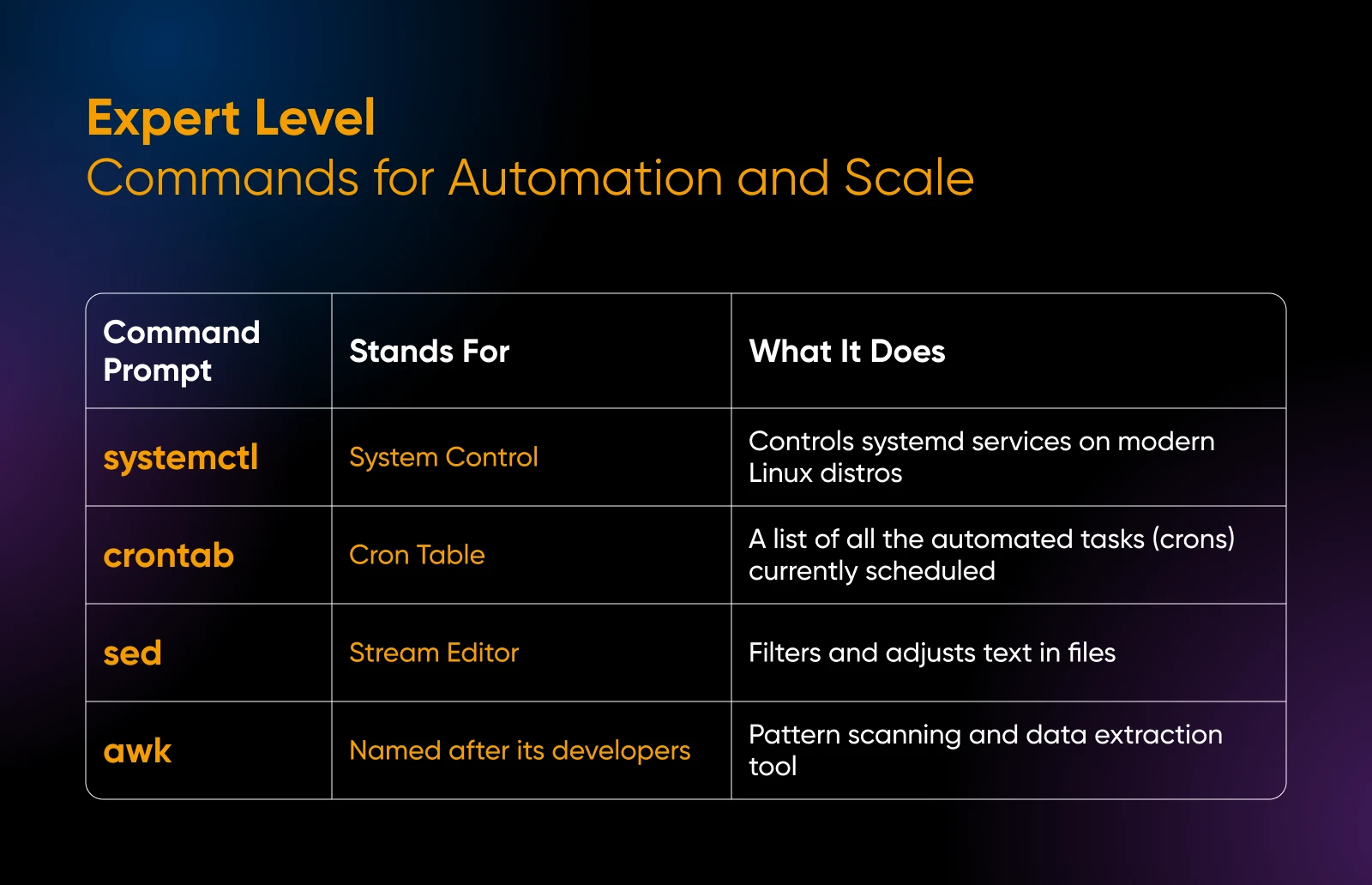
Expert Level: Commands for Automation and Scale
These commands help you with automation and advanced system administration for managing websites at scale.
Service Management
29. systemctl: Controls systemd services on modern Linux distributions
Use systemctl
systemctl status nginx
systemctl restart mysql
The first command shows detailed NGINX status including recent log entries. The second restarts your database server to apply any configuration changes you might have made to the “mysql” configuration.
30. crontab: Schedules automated tasks to run at specific times
You don’t want to wake up in the middle of the night to run server commands. Cron jobs can do that for you.
To edit your personal cron table, run crontab -e and you’ll see all your existing cron entries.
Tasks are specified using the format: minute, hour, day, month, weekday, and command.
0 2 * * * /usr/local/bin/backup-website.sh
For instance, the above cron job runs a backup script (“backup-website.sh”) daily at 2 a.m.
You can use cron jobs for automated backups, log rotation, and maintenance tasks and so much more in your production environments.
Advanced Text Processing
31. sed: Stream editor for filtering and transforming text
Use sed ‘s/old/new/g’
sed -i 's/old_database/new_database/g' /var/www/html/wp-config.php
This replaces all occurrences of “old_database” with “new_database” in your WordPress config file; useful for database migrations.
32. awk: Pattern scanning and data extraction tool
Running awk ‘{print $1}’
awk '{print $1}' /var/log/nginx/access.log | sort | uniq -c | sort -nr | head -10
This extracts IP addresses from access logs, counts them, and shows the top 10 visitors to your website.
Real-World Application Scenarios
Time to put these commands together for common situations you’ll face managing your VPS. (Need a refresher first? Scroll back up to the cheat sheet.)
When Your Website Loads Slowly
Start by checking what’s consuming your server resources.
Run top or htop to see which processes are using the most CPU and memory. You’re looking for any processes consuming over 50% of your resources and if any of them can be killed.
If resource usage looks normal, check your available disk space with “df -h.” If you notice usage exceeding 90% on any filesystem, free up space as soon as possible. Everything drastically slows down when your server is full.
Next, verify your web server is actually running properly.
Use ps aux | grep nginx (or ps aux | grep apache if you’re using Apache) to confirm your web server processes are active and responding.
Check your error logs while testing your site.
Run tail -f /var/log/nginx/error.log in one terminal, then visit your website in a browser window. If there are any errors running your site, you should see them immediately appear in your terminal.
Finally, test your website’s response time directly from the server with curl -I https://yoursite.com. This bypasses any network issues and tells you exactly how long your server takes to respond.
Setting Up a Secure Development Environment
Create a dedicated user account for development work instead of using root for everything:
sudo adduser devuser
Set up a proper directory structure for your staging site. This keeps development files organized and separate from production:
mkdir -p /var/www/staging/{public,logs,backups}
Fix the ownership so your web server can access the files properly:
chown -R devuser:www-data /var/www/staging
Set appropriate permissions – 755 allows the owner to read/write/execute while giving others read and execute access:
chmod -R 755 /var/www/staging
(755 on everything gets a staging site working quickly; for production, directories get 755 and regular files 644.)
Configure your firewall to allow only essential services. Start by allowing SSH so you don’t lock yourself out:
sudo ufw allow 22
Allow web traffic on the standard HTTP and HTTPS ports:
sudo ufw allow 80
sudo ufw allow 443
Enable the firewall to start blocking unauthorized connections:
sudo ufw enable
Command Combinations That Show Real Proficiency
Advanced users combine commands to solve complex problems:
The below command finds nginx processes, extracts their PIDs, and kills them all in one line:
ps aux | grep nginx | awk '{print $2}' | xargs kill -9
(In practice, pkill nginx does the same thing in one step — but building the pipe teaches you the pattern.)
This find command automatically removes log files older than 7 days to free disk space:
find /var/log -name "*.log" -mtime +7 -delete
This combined du command shows the 5 largest directories in your web root, sorted by size:
du -sh /var/www/* | sort -hr | head -5
If you’re getting 404 errors, run this command to count them in your access log to identify broken links:
grep -c " 404 " /var/log/nginx/access.log
Linux Commands FAQ
Which Linux Commands Should I Learn First?
Start with the nine Foundation commands: ls, pwd, cd, mkdir, cp, mv, cat, head, and tail. They cover moving around the filesystem and reading files — enough to explore a server safely before you touch anything that changes it.
How Do I See All The Commands Available On My System?
Run compgen -c (a Bash built-in — Bash is the default shell on most Linux servers) to list every command your shell can find. For any single command, man followed by its name opens the full manual, and adding –help after most commands prints a quick usage summary.
Are Linux Commands The Same On Every Distribution?
The core commands in this list work everywhere. The differences show up in system tooling: Ubuntu (and often Debian) installs software with apt and uses the ufw firewall, while Fedora and AlmaLinux use dnf and firewalld. Check your distribution’s documentation for those.
Do Linux Commands Work On macOS?
Mostly, yes. macOS is Unix-based, so everyday commands like ls, cd, grep, and ssh behave the same in its Terminal. Some flags differ because macOS ships BSD versions of tools like sed and grep, so the odd flag from a Linux tutorial won’t work.
So, What Comes Next
Once you’re comfortable with these 32 commands, you’ll want a quality VPS provider that’s fast and flexible while providing complete control for your growing skills.
DreamHost’s VPS hosting offers just that. You get full root access to experiment safely, SSD storage that makes file operations lightning-fast, and scalable resources when your projects outgrow their current limits.
Every plan comes with full root access, your choice of Linux OS, and DDoS protection — and our support team is available 24/7 whenever hardware, network, or connectivity issues come up.

Managed VPS
When You Expect Performance Get DreamHost VPS
Big or small, website or application – we have a VPS configuration for you.
See More
Did you enjoy this article?