How To Fix “Briefly Unavailable For Scheduled Maintenance”
It’s been five minutes, and you still see “Briefly unavailable for scheduled maintenance. Check back in a minute” on the screen instead of your website.
That means your website has encountered a maintenance mode error and is currently stuck there. Thus, neither you nor your site visitors can access the website right now.
But don’t worry! It’s just a daily WordPress thing. You can recover your site without engaging in massive technical work storms.
In this article, we’ll look at the leading causes of the WordPress maintenance mode error, show you how to fix this, and share some tips to help you avoid the same problem in the future.
Let’s get started!
What Is The “Briefly Unavailable For Scheduled Maintenance. Check Back In A Minute” Error?
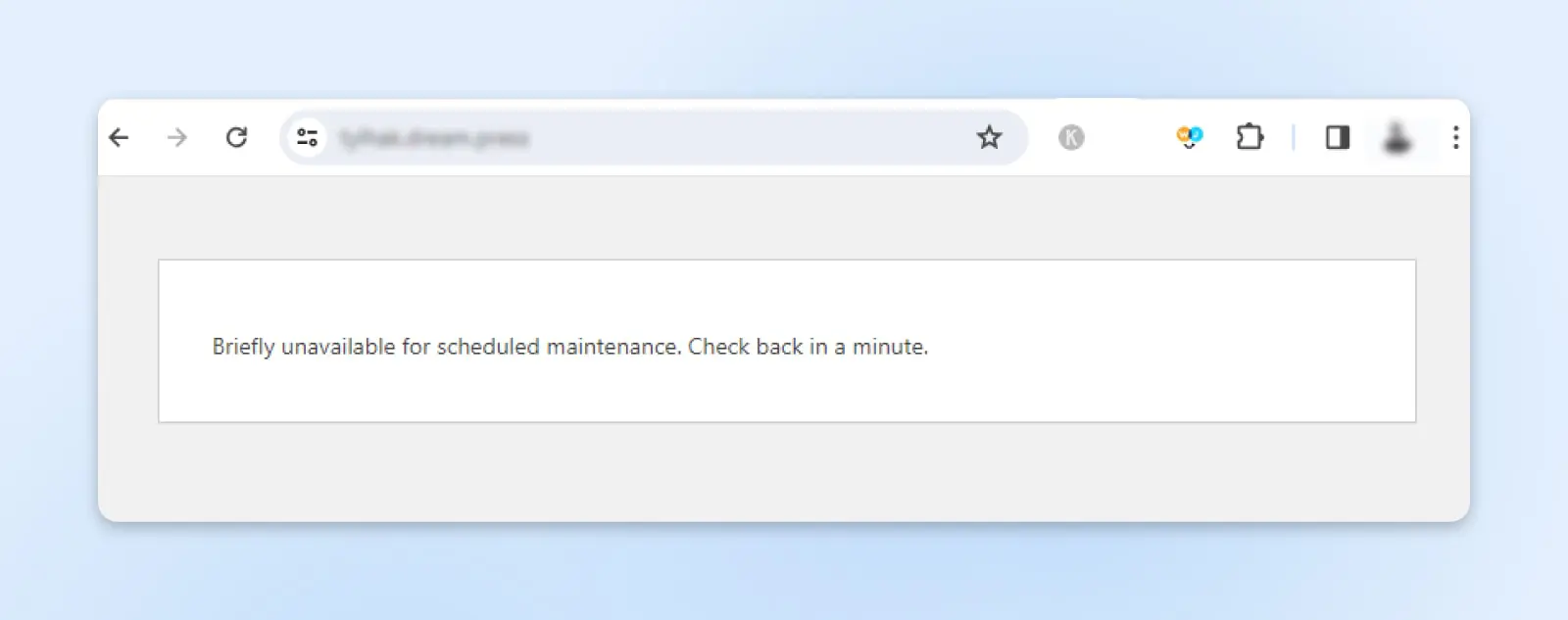
The “Briefly unavailable for scheduled maintenance. Check back in a minute” message is WordPress’s built-in notice that the site has entered maintenance mode for an update. If it stays on screen, an interrupted update has left a temporary .maintenance file in your site’s root directory, and deleting that file brings the site back.
WordPress includes this mode to allow for smooth updates and changes to the core software, plugins, and themes without affecting the user experience or risking data loss.
That said, when the “Briefly unavailable for scheduled maintenance. Check back in a minute” notification appears and remains on your screen, it usually means something from the core update or maintenance went wrong in the background and has made the site temporarily unavailable.
If reloading the page doesn’t solve the issue, you’ll have to solve it manually. After all, visitors won’t be able to access the page that displays the error until you fix the problem.
Also, sometimes, you may encounter a different notification: “The website is undergoing scheduled maintenance.”
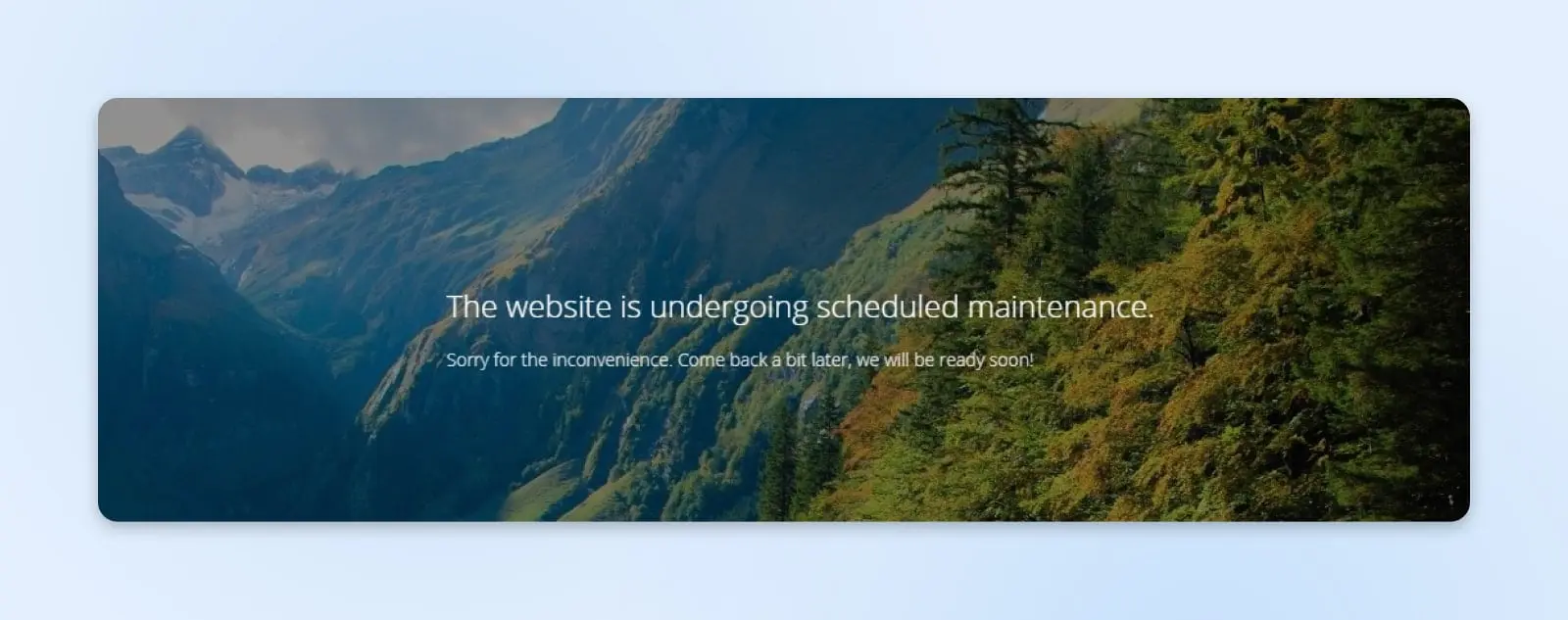
Although similar to the error message, it’s not the same. That wording usually comes from a maintenance-mode plugin, not WordPress itself. If it’s stuck on your own site, deactivate the plugin from the dashboard if you can reach it. Locked out? Rename the plugin’s folder inside wp-content/plugins using your host’s file manager or SFTP — WordPress automatically deactivates a plugin whose folder it can’t find.
What Causes The “Briefly Unavailable For Scheduled Maintenance” Error On WordPress?
When WordPress performs an update, it enters maintenance mode. During this time, a temporary .maintenance file is created in the site’s root directory, which informs you and website visitors the site is undergoing essential updates and will return soon.
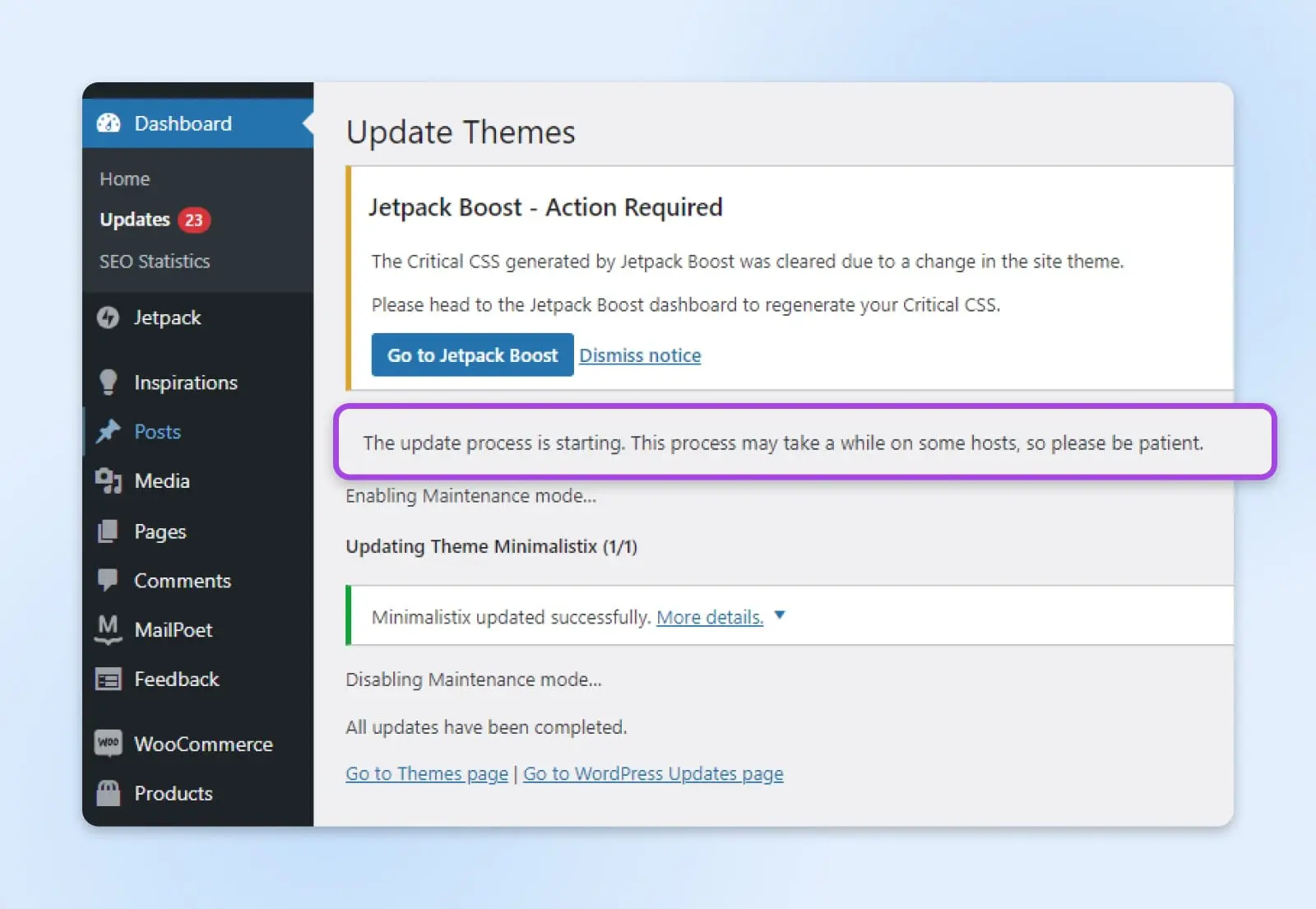
That in itself won’t break your website. It’s just a safety measure WordPress sets while replacing or modifying the core files in the root folder when it updates. If performed live, these operations could break your site’s functionality.
WordPress sites usually stay in maintenance mode for a few seconds to a few minutes (it’s barely noticeable!). After applying the updates, WordPress deletes the .maintenance file, removes the site from maintenance mode, and restores regular user access.
So far, everything is working as intended. Nothing unusual.
However, unexpected errors, such as file system errors, server timeouts, internet issues, update permission issues, or plugin/theme conflict errors, can interrupt the update process.
And that’s where problems begin: the interrupted update leaves the .maintenance file behind. Here’s a detail most guides miss — WordPress ignores a .maintenance file that’s more than 10 minutes old, so the core lockout eventually expires on its own. If the message persists past that, something else is propping it up: a cached error page, repeated failed update attempts rewriting the file, or a maintenance plugin. Deleting the file simply brings the site back immediately instead of waiting.
Before we take a closer look at how to fix the error below, here’s a rundown of the most common factors that cause websites to stay in maintenance mode:
- Closing the browser window during an update.
- Updating several plugins at the same time.
- The update script timing out due to a slow hosting server response or a low memory problem.
- Internet connection drops during the update process, interrupting or prolonging the update.
How To Fix “Briefly Unavailable For Scheduled Maintenance. Check Back In A Minute”
There are several methods for manually resolving this maintenance error. Just proceed cautiously; it requires server access, which may raise security concerns.
You can solve this issue by logging into your web hosting account or connecting to your site using a Secure File Transfer Protocol (SFTP) client such as FileZilla.
SFTP
Secure File Transfer Protocol (SFTP) is a safer version of the FTP protocol that uses a secure shell data stream.
Read More
With that out of the way, here are the two most commonly used methods to resolve the “Briefly unavailable for scheduled maintenance” issue in WordPress:
Use The Panel
You may be able to fix this error by using the DreamHost custom-built panel — or whichever control panel your host provides, like cPanel — to remove the .maintenance file from the root directory.
WordPress creates this file during updates to signal maintenance mode. A failed update — one that hits the script execution time limit or a permission error — can’t clean the file up on schedule, so the maintenance screen hangs around far longer than the minute it promised.
There, you must become a surgeon with a knife and perform this minor surgery in order to revive your website.
Welcome onboard, Dr. Strange!
Access your web hosting account and log in to DreamHost or cPanel. Your hosting provider usually provides the login details and URL for cPanel.
In DreamHost’s panel, go to Manage Websites, click Manage on your site, and open the File Manager. In cPanel, click the File Manager icon on the dashboard.
File Manager
A file manager is a software application that enables users to manage their files. It typically provides a Graphical User Interface (GUI) where people can browse through their files, open them, edit them, and save them.
Read More
Navigate to the public_html folder — the root directory of your WordPress installation. (On DreamHost, this folder is named after your domain instead.) If you’ve installed WordPress in a subdirectory or a subdomain, navigate to the appropriate folder.
Inside the root directory, look for the file named .maintenance. Once you find the .maintenance file, select it and delete it.
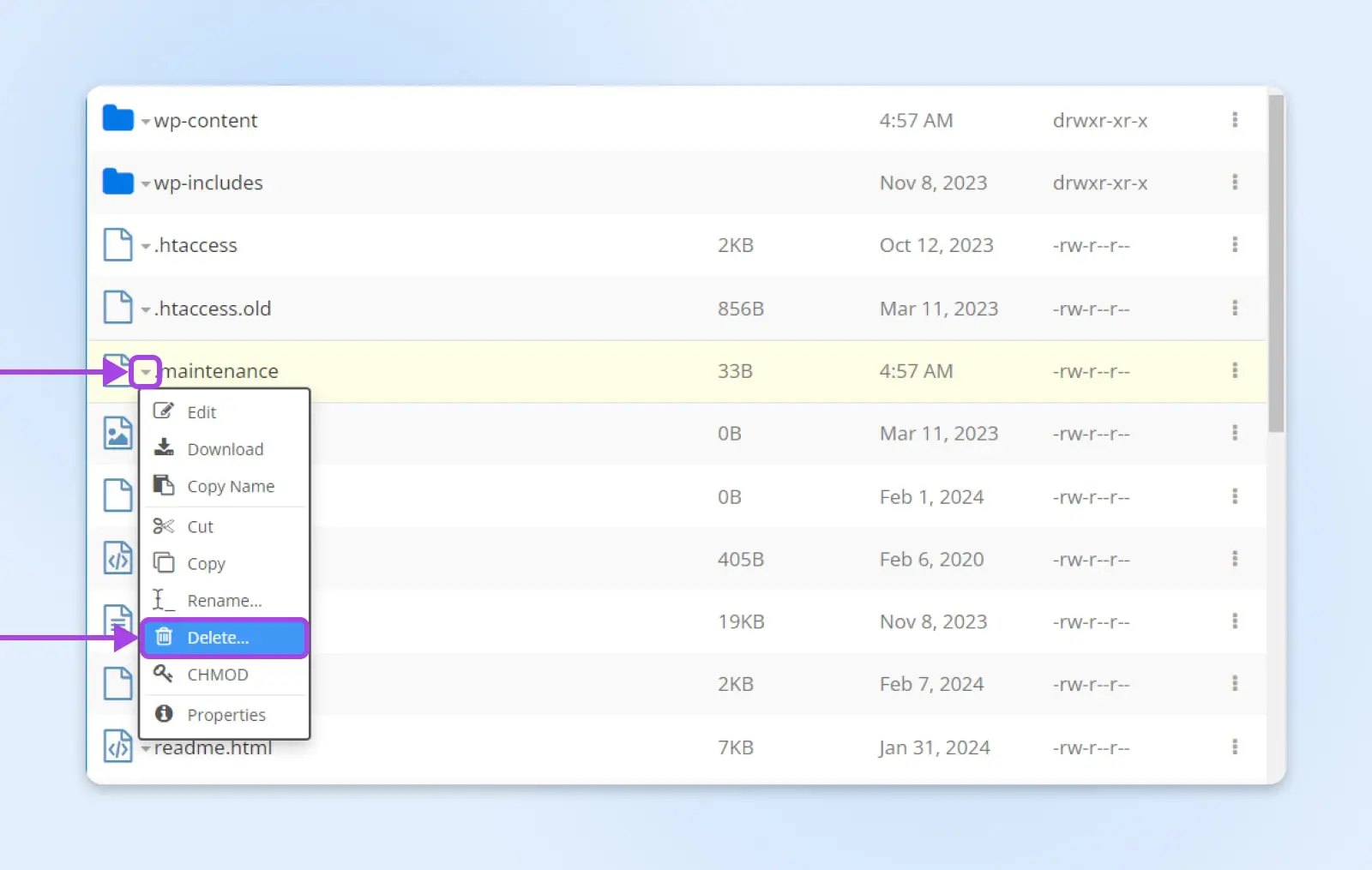
It’s just a flag file holding the timestamp of when the update started. Deleting it takes your site out of maintenance mode immediately. (The update it was guarding may still be unfinished — see “Finish The Interrupted Update” below.)
Nerd Note: You can manually enable maintenance mode without a plugin, but an empty .maintenance file won’t do it. The file must contain , and WordPress only honors it for 10 minutes from that timestamp.
Use File Transfer Protocol (FTP)
You can also resolve this issue by using the File Transfer Protocol (FTP), a method accessible and effective for users at all technical levels.
FTP
File Transfer Protocol (FTP) is a connection that you can use to transfer files over Transmission Control Protocol (TCP)/Internet Protocol (IP). You can use FTP to connect to a server you own and interact with its files.
Read More
First, you’ll need to install an FTP client, such as FileZilla, to access your website’s files on the server. Then, connect to your site using the FTP credentials provided by your hosting service.
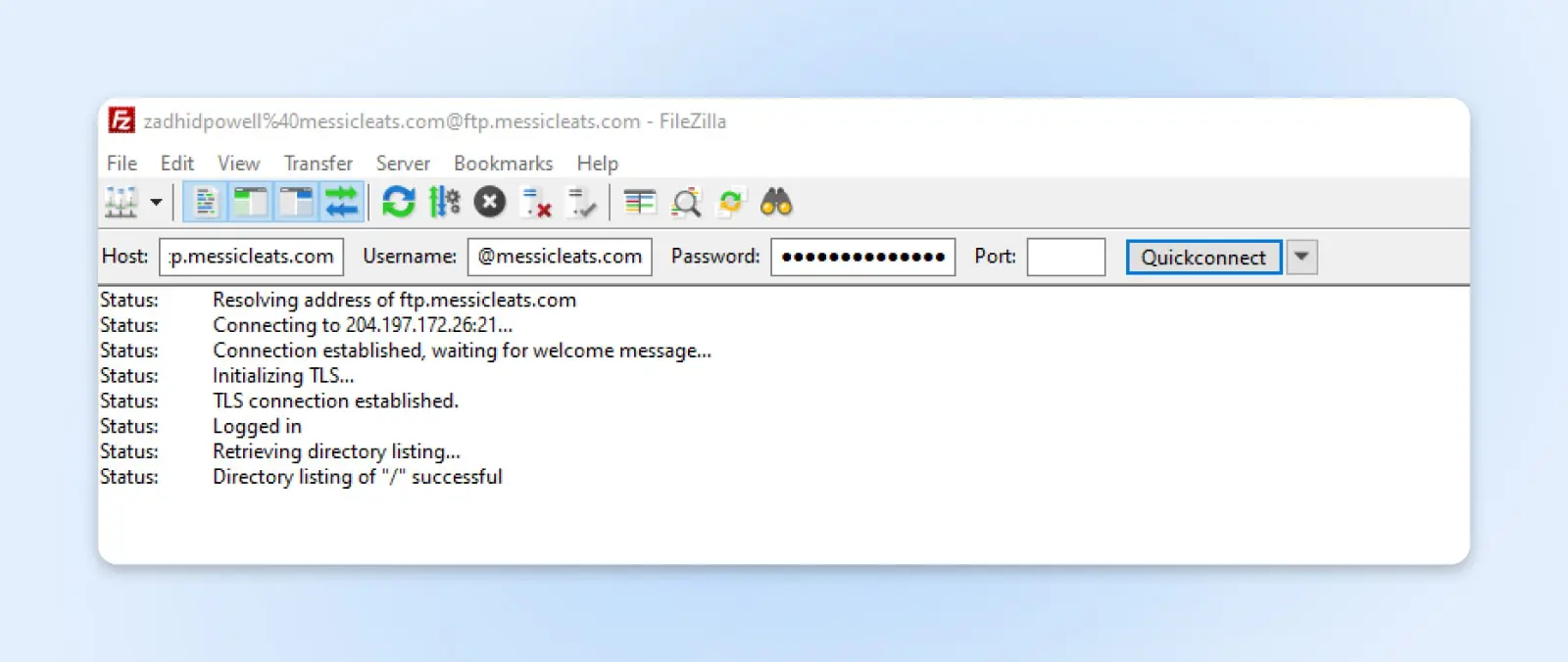
These credentials typically include a hostname (often your website’s URL), a username, and a password.
Once connected, navigate to the root directory of your WordPress site. This is usually titled public_html, or the name of your website.
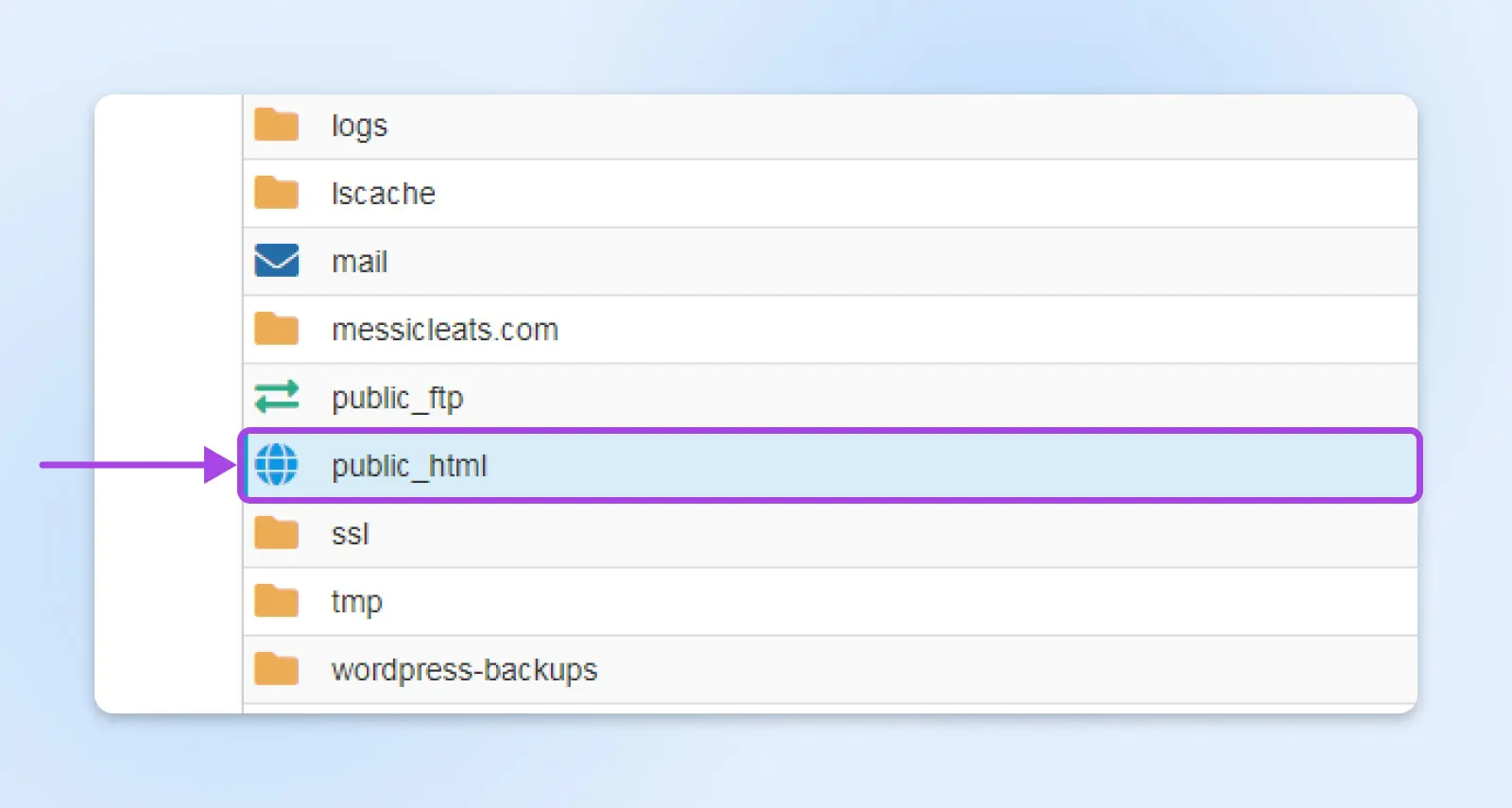
Your WordPress core files reside in the root directory, including wp-config.php, an easy reference to confirm you’re in the correct location.
Then, look for the .maintenance file in the root directory.
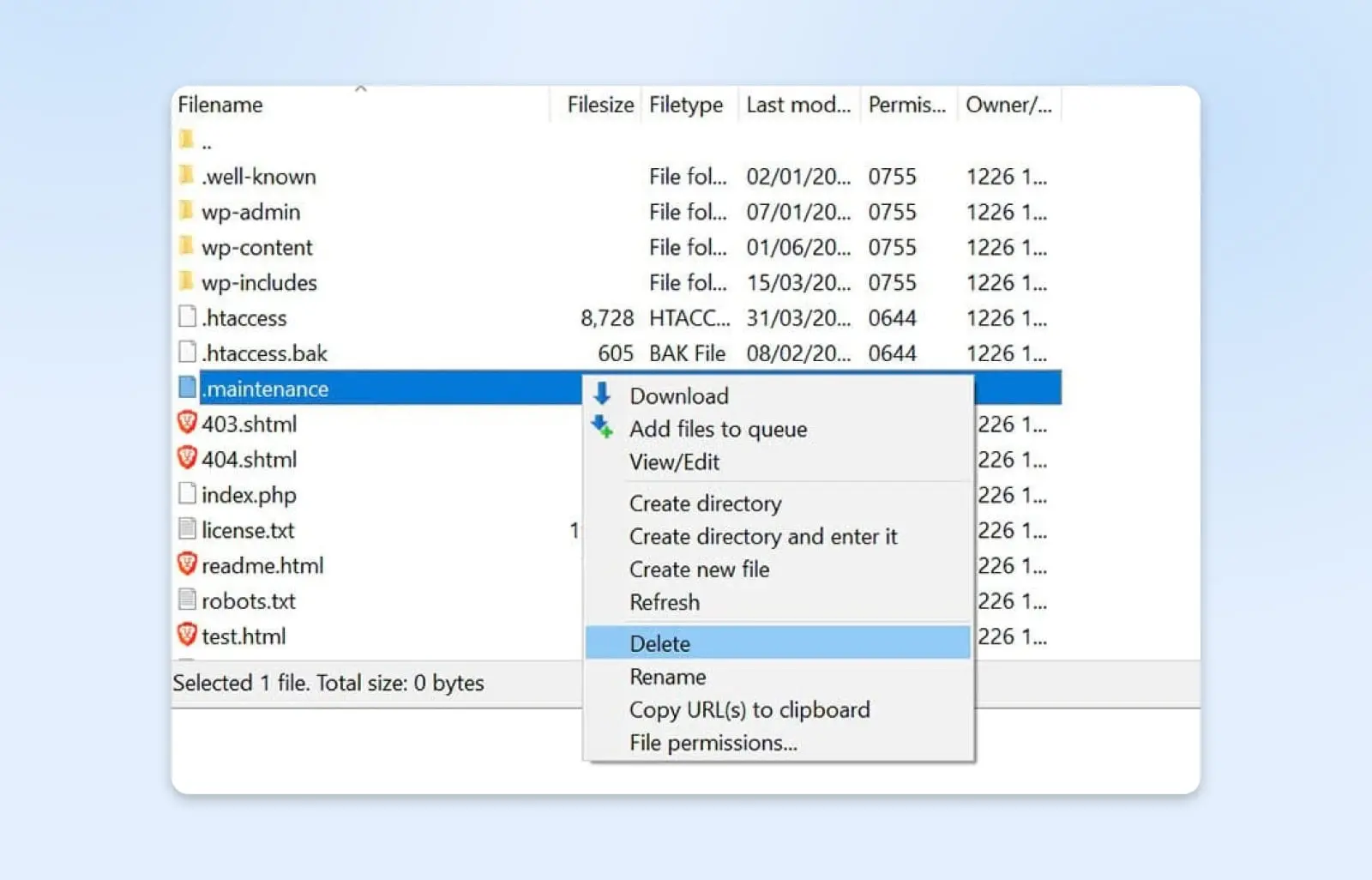
Right-click the .maintenance file and select Delete from the context menu. This action removes the file from your server, effectively removing your site from maintenance mode.
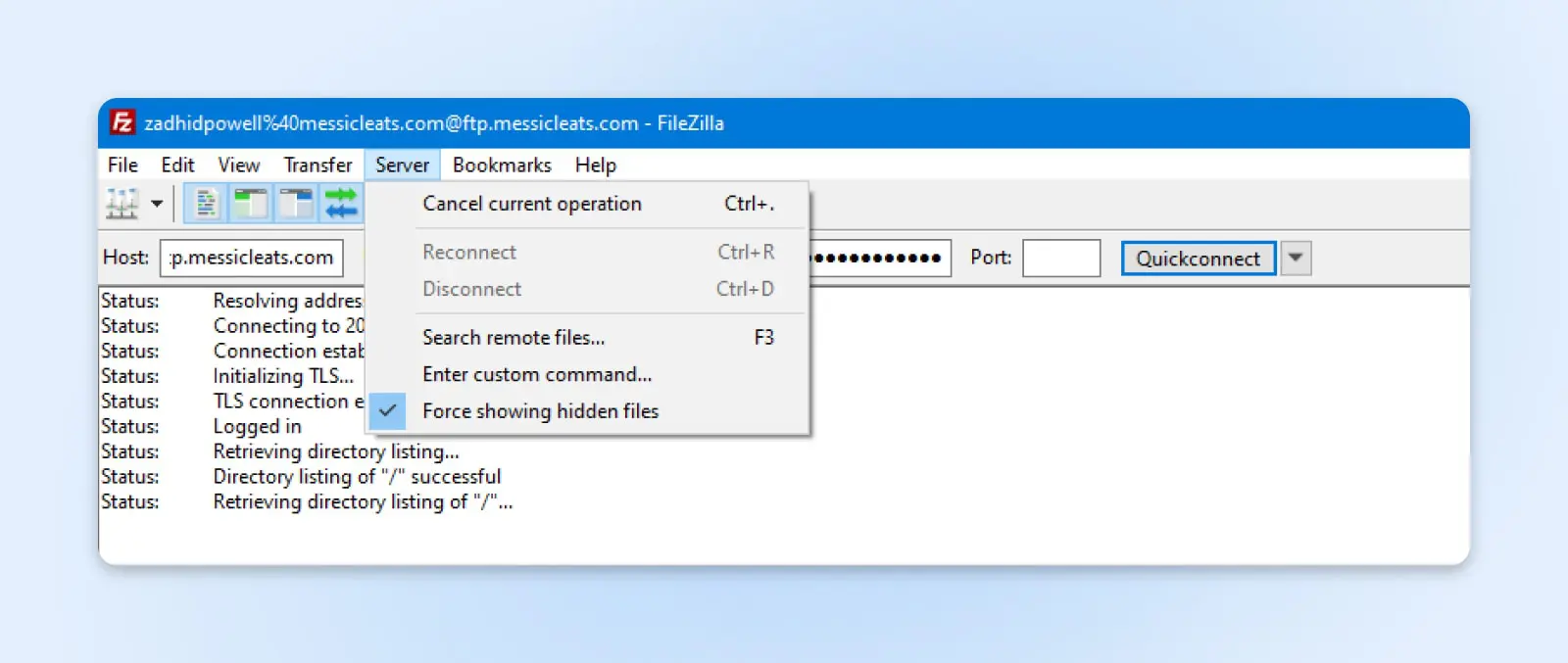
To see the file immediately, you must ensure your FTP client is set to show the hidden files in the folder. You can do this in FileZilla by clicking Server in the menu and selecting Force showing hidden files.
Still Getting The “Briefly Unavailable for Scheduled Maintenance” Error After Deleting The .maintenance File?
If you’re still stuck after taking the necessary steps, like deleting the .maintenance file, don’t blame your luck. It’s not only you.
Low PHP memory, a half-finished update, or a stale cache can all keep the error on screen after the file is gone.
Consider following the steps below if you are still stuck with the maintenance mode error after removing the maintenance file from the root folder.
Increase The PHP Memory Limit
All WordPress operations, including theme/plugin updates, require a certain amount of memory allocated by your server’s PHP configuration. PHP’s stock configuration typically caps memory at 128 MB.
PHP
PHP (Hypertext Preprocessor) is an open-source scripting language. It’s widely used in web development and can be embedded in HTML. Several popular Content Management Systems (CMS), such as WordPress, are built with PHP.
Read More
WordPress updates require a certain amount of memory to process. Updates may fail due to low memory issues, triggering the “Briefly unavailable for scheduled maintenance” error.
You can increase the PHP memory limit to meet the application’s specific requirements. Edit the wp-config.php file by adding define('WP_MEMORY_LIMIT', '256M'); above the “/* That’s all, stop editing! */” line to allocate more memory. (If your host caps memory at the server level, this line can’t raise it — ask support instead.)
Finish The Interrupted Update
Deleting the .maintenance file gets you out of maintenance mode, but it doesn’t finish the update that was interrupted — a half-updated plugin, theme, or core version can leave the site unstable or trigger the error again on the next attempt.
Head to Dashboard → Updates and re-run whatever was in progress. If a core update was the culprit, run the pending update — or, if WordPress already shows the latest version, click Re-install to replace WordPress’s own files cleanly; it won’t touch your content or settings. Still shaky afterward? Restore the backup you made before updating, or a host-side automated backup if your plan includes one.
Clear The Site’s Cache
Site caching mechanisms save a snapshot of your website’s data and content, allowing visitors to load faster. So, even if you remove the .maintenance file, the maintenance error may appear.
Clearing your website’s cache and temporary files will ensure that all visitors see the most recent version, free of maintenance error messages.
If you’re using one, you can usually do this through your website’s caching plugin, hosting control panel, or content delivery network (CDN).
CDN
CDN is an abbreviation for “Content Delivery Network”. It refers to a geographically-distributed network of web servers (and their data centers). The entities that make up a CDN collaborate to ensure speedy content delivery via the internet.
Read More
How To Prevent The “Briefly Unavailable For Scheduled Maintenance” Error In WordPress
Prevention is better than the cure and helps avoid falling into the same trap twice. Take the necessary actions to block all the possibilities that may lead you to the WordPress maintenance error.
Let’s look at some of the most effective ways to avoid the “Briefly unavailable for scheduled maintenance” error in WordPress.
Keep Your Browser Tab Open During Updates
Please keep the browser tab open until the text Disabling Maintenance mode appears on your WordPress screen. This means that the updates have been completed and WordPress has removed the .maintenance file.
When you are on a tab during a WordPress update, it helps keep a stable connection between the server and browser. Thus, the PHP scripts run correctly.
The site may stay in maintenance mode if you close the browser prematurely. So, you must keep an active session until the WordPress admin dashboard confirms all updates.
Avoid Updating Too Many Themes And Plugins At Once
Please avoid updating all plugins or themes just because WordPress allows it. WordPress can handle all the updates, but other factors like hosting server load and internet speed can result in timeouts or incomplete updates.
For example, on an entry-level hosting plan, bulk updates can overload the server and force the updates to a halt.
Process updates in smaller batches to ensure they can be completed without interference. It lowers the chance of errors and allows the site to remain in maintenance mode.
Check Themes And Plugins Compatibility
Before starting any updates, review each plugin and theme’s changelog and compatibility information. It should confirm that they support your current WordPress version.
Beyond that, we recommend learning about known conflicts with plugins and themes before installing them. That way, you can take precautions against any potential problem.
Note that compatibility issues can cause other errors or technical difficulties on your website besides the “Briefly unavailable for scheduled maintenance” error. So, checking for compatibility is always a good practice.
Use A Staging Website To Test Updates
A WordPress staging site is a copy of your live website that lets you test the effects of any changes before they go live.
It entails duplicating your site’s data and structure, applying and testing updates, and only deploying them to the live site after ensuring their stability. Using a staging site is critical to avoiding errors and downtime on your live site.
Upgrade Your Hosting Plan
Dedicated or VPS hosting plans come with better resources and server configurations, like more memory, processing power, and better database management, which can speed up your site’s update process.
We suggest opting for these plans if your site receives a lot of traffic or has a lot of complex plugins and themes. It ensures that updates run smoothly without consuming excessive resources, which can cause issues in maintenance mode.
Use A WordPress Maintenance Plugin
Another efficient way to avoid maintenance mode errors is to use a WordPress plugin. These WordPress plugins provide a controlled environment while you update, maintain, or develop your website.
Here are some of the core benefits of using a WordPress maintenance plugin to manage your WordPress website maintenance:
- They automatically activate and deactivate maintenance mode, reducing the risk of a failed update or manual error trapping the site.
- They allow you to display a user-friendly notice to visitors instead of an error message while you update files.
- They provide countdown timers, sign-up forms, and contact information to engage and inform your audience.
Let’s introduce you to some of the best WordPress maintenance plugins:
WP Maintenance
WP Maintenance offers a clean and straightforward approach, providing essential tools for quickly creating a maintenance mode page.
It includes features like customizable backgrounds, text, and user roles, allowing for a personalized approach to site maintenance.
SeedProd
SeedProd is known for its drag-and-drop builder, which provides an easy-to-use interface for creating visually appealing coming soon or maintenance pages.
It includes features like SEO-friendly maintenance mode, social media integration, and email marketing service integrations.
LightStart
LightStart is a flexible WordPress plugin with customizable maintenance pages, subscription forms, countdown timers, contact forms, and social media icons.
It supports responsive design, works with any WordPress theme, provides SEO options, and allows URLs to be excluded from maintenance.
Elementor Maintenance Mode
Elementor Maintenance Mode is a feature if you use Elementor to build your website. It allows for detailed customization of maintenance pages using Elementor’s powerful design tools.
It ensures that your maintenance mode has no negative impact on the user experience or SEO.
WordPress Maintenance Mode FAQ
How Do I Get My WordPress Site Out Of Maintenance Mode?
Delete the .maintenance file from your site’s root directory using your host’s file manager or an SFTP client. Enable “show hidden files” to see it. The site comes back on the next page load (clear your cache if the message lingers), then re-run the interrupted update.
How Long Should WordPress Maintenance Mode Last?
Seconds to a couple of minutes, just long enough for an update to finish. WordPress ignores the lockout after 10 minutes anyway, so if the message persists past that, a cached page, repeated failed updates, or a maintenance plugin is keeping it up.
Why Did My Site Get Stuck In Maintenance Mode?
Something interrupted an update before WordPress could remove its .maintenance file — a closed browser tab, a server timeout, low memory, or too many plugins updating at once. The file stays behind, and the site stays locked.
How Do I Put WordPress Into Maintenance Mode On Purpose?
Use a maintenance-mode plugin for a friendly, branded page. The DIY route — a .maintenance file containing — works too, but WordPress only honors it for 10 minutes at a time.
Prevent The WordPress Maintenance Error With DreamHost
Server timeouts, loss of connectivity, errors in file extraction, permission issues, and script execution time limits are the primary causes of the “Briefly unavailable for scheduled maintenance” in WordPress.
In most cases, you can avoid these problems using intelligent and efficient hosting services that reduce the possibility of these errors.
Solving problems makes you smarter, but avoiding problems makes you the master.
You can become the master of your WordPress site by using a hosting service that avoids this WordPress maintenance error and other common WordPress issues.
Check out our DreamHost’s WordPress Hosting Plans today! We provide personalized technical support to assist you with any WordPress problems.
Did you enjoy this article?