ERR_CONNECTION_TIMED_OUT: Meaning & 11 Fixes
You typed in a web address, waited, and got “This site can’t be reached” with ERR_CONNECTION_TIMED_OUT underneath. Here’s what that means: your browser asked to connect to the site’s server, and the server never answered. The request simply went unanswered until your browser gave up.
The good news is that this common error is usually fixable in a few minutes, whether you’re a visitor trying to reach a site or the owner of a site that’s timing out.
This guide explains what the error means, what causes it, and 11 ways to fix it. We’ll start with the quickest checks and end with the fixes that only apply if the site is yours.
What Does ERR_CONNECTION_TIMED_OUT Mean?
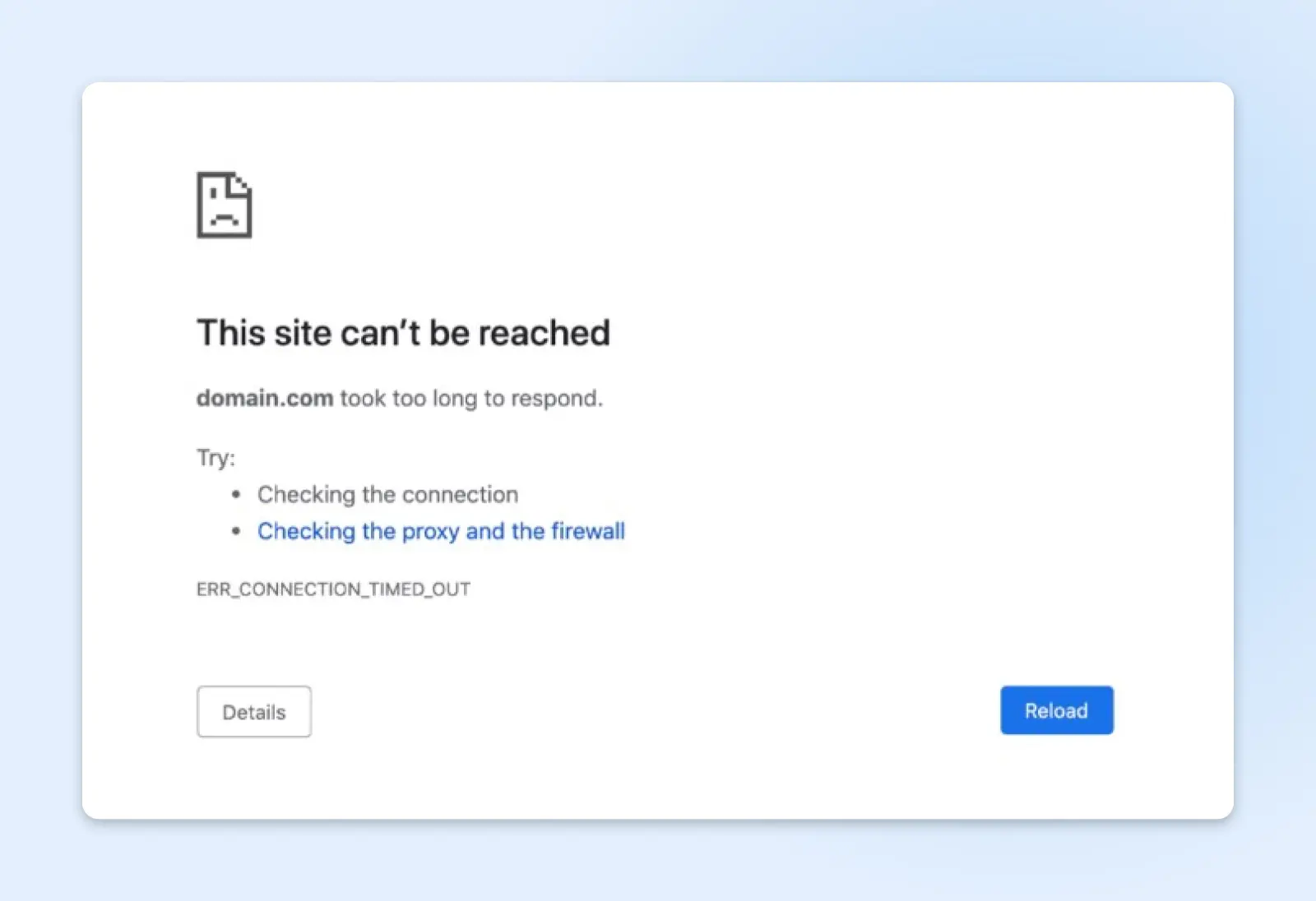
ERR_CONNECTION_TIMED_OUT is a browser error that means the server never answered your browser’s connection attempt within the time limit. Chrome logs it as network error -118 (“a connection attempt timed out,” per Chromium’s net error list). Because no connection was ever made, the usual cause is a server that’s unreachable or a firewall silently dropping the request.
Chrome and Microsoft Edge are both built on the same Chromium engine, so both show the exact ERR_CONNECTION_TIMED_OUT code under a “This site can’t be reached” or “Hmmm… can’t reach this page” headline. Other browsers use different words for the same problem:
- Firefox: “The connection has timed out.”
- Safari: “Safari Can’t Open the Page.”
- Chrome DevTools or app logs: “Failed to load resource: net::ERR_CONNECTION_TIMED_OUT.”
One cousin worth knowing about: ERR_TIMED_OUT (Chrome network error -7) looks almost identical but is broader. It means some step of the request timed out, sometimes after a connection was already made. ERR_CONNECTION_TIMED_OUT (-118) is specific: the connection itself never happened. The fixes below work for both.
What Causes ERR_CONNECTION_TIMED_OUT?
The short answer: something between your browser and the server swallowed the connection request. The usual suspects, roughly in order of how often we see them:
The server is down or overloaded. If the server can’t accept new connections because it’s offline or swamped with traffic, connection attempts pile up unanswered until browsers give up.
A firewall is silently dropping the request. Firewalls can respond two ways: reject a connection loudly (you’d see ERR_CONNECTION_REFUSED instead) or drop it silently, which produces a timeout. This can happen on your side (antivirus, corporate firewall) or the server’s side (a security tool that has blocked your IP address).
Your device is connecting to the wrong address. A stale DNS cache, or an old entry in your hosts file (a small text file that overrides DNS), can point your browser at an IP address the site no longer uses. The request goes to a server that isn’t listening, and nothing ever comes back.
DNS
The Domain Name System (DNS) protocol keeps records of which domain names correspond to specific IP addresses. This system enables you to browse the web by typing in regular URLs instead of IP addresses.
Read More
A proxy or VPN is misrouting you. Proxies and VPNs sit between you and the site. If the proxy is slow or misconfigured, your traffic dead-ends there and times out.
Your local network is flaky. An unstable Wi-Fi signal or a router that needs a restart can drop connection attempts before they ever leave your house.
How To Fix ERR_CONNECTION_TIMED_OUT: 11 Ways
First, figure out which side of the connection is broken. Try loading the site on your phone with Wi-Fi turned off, so it uses cellular data. If it loads there, the problem is on your device or network: start with fix 1. If it times out on cellular too, the problem is on the site’s end, and there’s nothing to fix on your device. When the site isn’t yours, all you can do is check an outage tracker (see fix 9), notify the owner, or wait. When it is yours, skip to fixes 9–11.
Fixes 1–8 are for visitors, ordered from quickest to most involved. Fixes 9–11 are for site owners.
1. Restart Your Router And Check Your Connection
It’s a cliché because it works. Unplug your router’s power, wait 30 seconds, and plug it back in. This clears the router’s own caches and re-establishes your connection to your internet provider.
If you’re on a network you don’t control (an office or a coffee shop), open a few other websites. If nothing loads, the network itself is the problem, and these steps can’t fix it.
2. Turn Off Your VPN Or Proxy (Temporarily)
Proxies and VPNs redirect your traffic through another server to protect your privacy. That extra hop is also an extra place for the connection to die. Turn the VPN off, reload the page, and you’ll know immediately whether it was the culprit. If it was, try switching your VPN to a different server or protocol before giving up on it.
To check for a proxy you didn’t know about:
On Windows: Open the Control Panel, select Internet Options, go to the Connections tab, and click LAN settings. Uncheck Use a proxy server for your LAN if it’s enabled, and click OK. (This classic dialog works on both Windows 10 and Windows 11.)
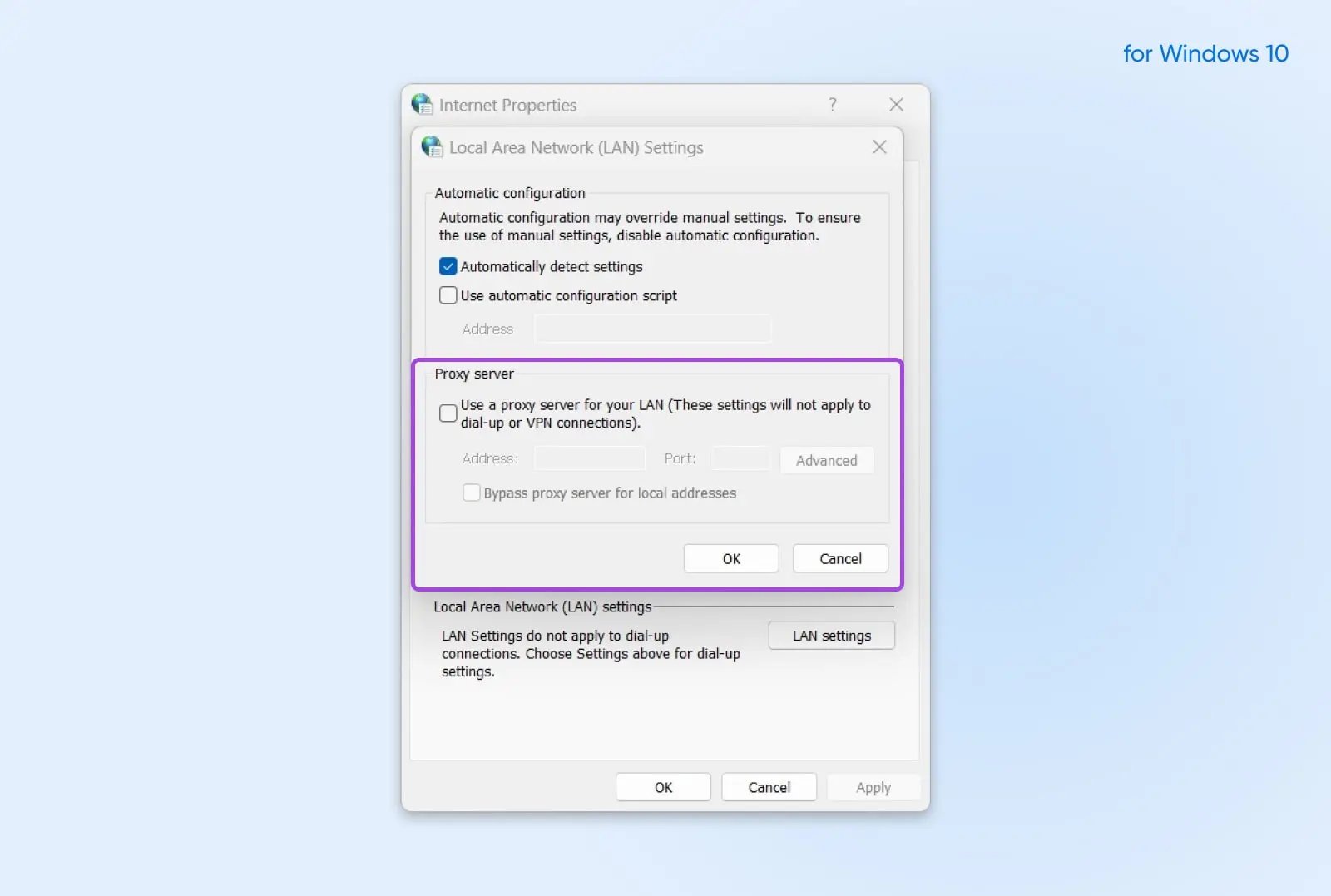
On macOS: Open System Settings, click Network in the sidebar, click your connection, then click Details. Select Proxies (you may need to scroll down), switch off any enabled proxy protocols, and click OK.
3. Delete Your Browsing Data
Your browser caches files, cookies, and redirects to speed things up. When that cached data goes stale, it can send requests somewhere that no longer answers.
In Chrome, open the three-dot menu and choose Delete browsing data (older Chrome versions call it “Clear browsing data”). Select Cookies and other site data and Cached images and files, then confirm. Other browsers keep the same option under their Settings or History menus.
4. Flush Your DNS Cache
Your computer remembers the IP addresses of sites you’ve visited so it doesn’t have to look them up every time. If a site moved servers and your cache still holds the old address, every visit dead-ends at a machine that no longer answers. Flushing the cache forces a fresh lookup, and it takes one command.
On Windows: Press the Windows key + R, type “cmd”, and press Enter. In the Command Prompt window, run:
ipconfig /flushdns
You’ll see “Successfully flushed the DNS Resolver Cache” when it works.
On macOS: Open Terminal and run:
sudo dscacheutil -flushcache; sudo killall -HUP mDNSResponder
Enter your password when asked. macOS shows no success message; no news is good news. (More detail in our DNS cache flushing guide.)
5. Change Your DNS Servers
By default, you use your internet provider’s DNS servers to turn domain names into IP addresses. If those servers are slow or serving stale records, switching to a free public DNS service often fixes timeouts. The two best-known:
- Google Public DNS: 8.8.8.8 and 8.8.4.4 (IPv6: 2001:4860:4860::8888 and 2001:4860:4860::8844)
- Cloudflare DNS: 1.1.1.1 and 1.0.0.1 (IPv6: 2606:4700:4700::1111 and 2606:4700:4700::1001)
On Windows 11 (and 10), the quick way: Open Settings → Network & internet, select Wi-Fi or Ethernet, and choose your network. Click Edit next to DNS server assignment, switch to Manual, turn on IPv4, and enter a public DNS address in Preferred DNS and its partner in Alternate DNS. Save. This changes only your DNS and leaves the rest of your connection settings alone.
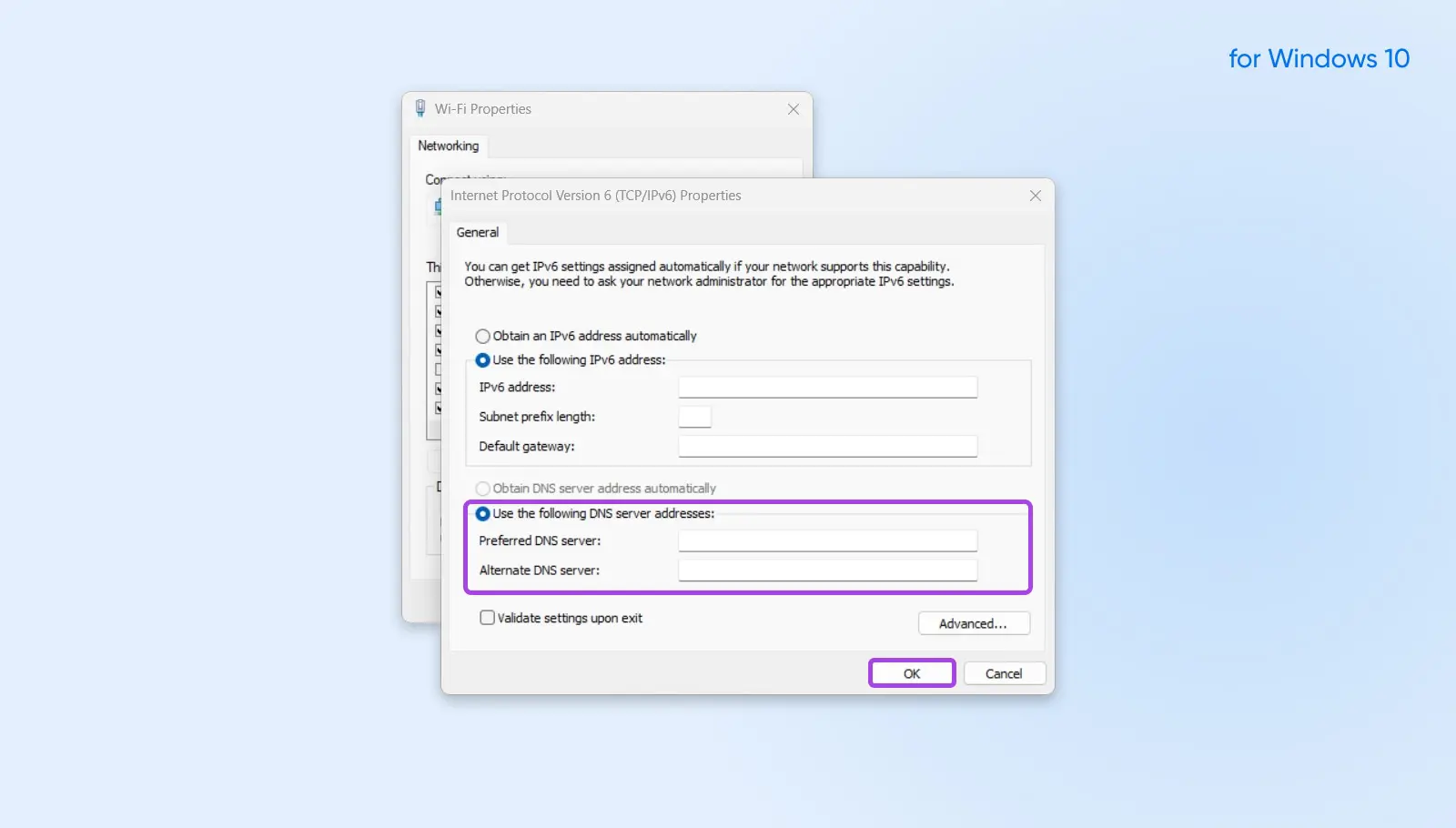
Prefer the classic dialog? Open the Control Panel → Network and Sharing Center → Change adapter settings. Right-click your connection, select Properties, choose Internet Protocol Version 4 (TCP/IPv4) (or Version 6), and click Properties.
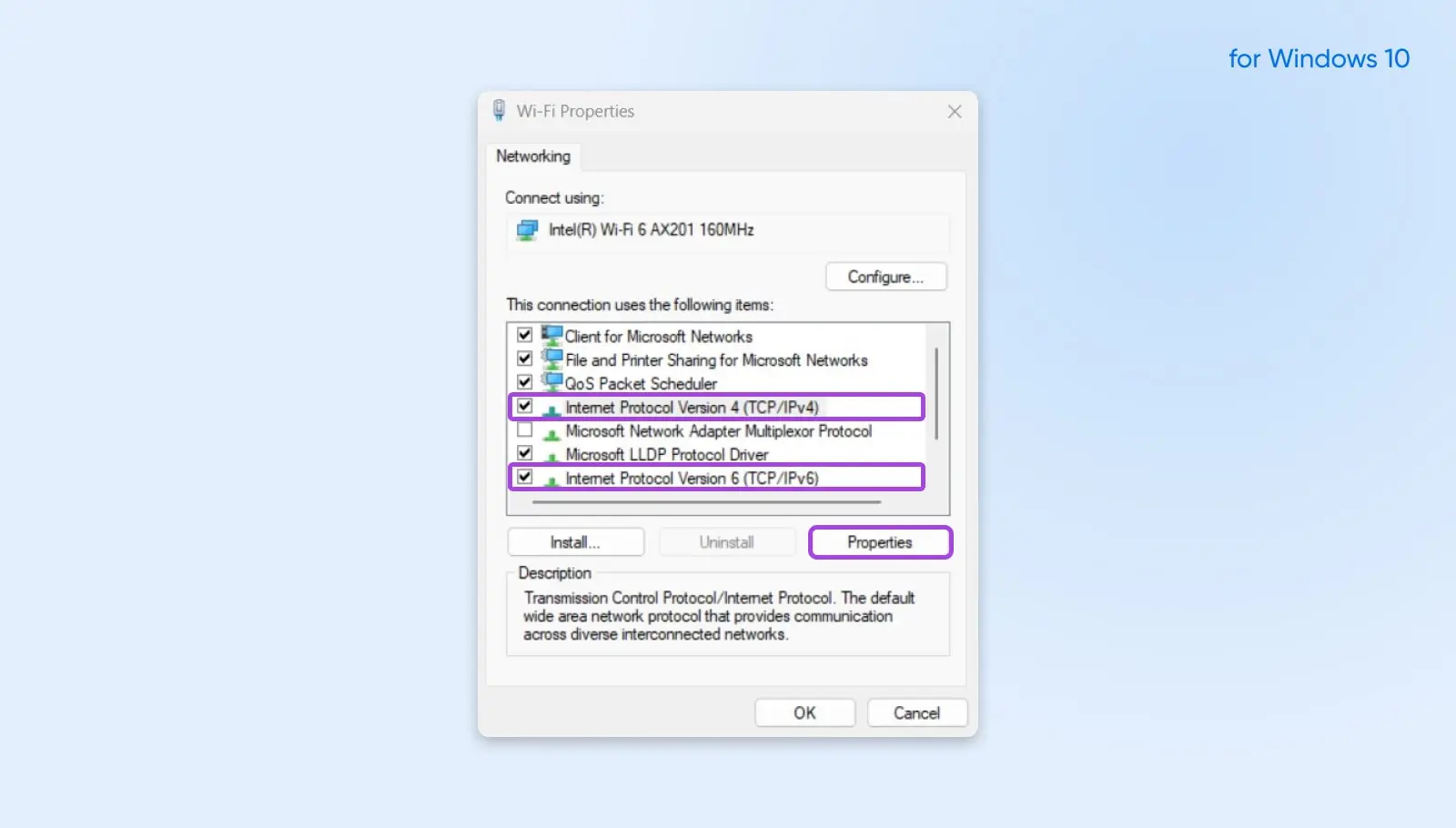
Select Use the following DNS server addresses, type in your chosen pair, and click OK.
On macOS: Open System Settings, click Network, select your connection, and click Details. Choose DNS, click the + under DNS Servers, add the addresses above, and click OK.
On either platform, restart your browser after the change.
6. Check Your Hosts File
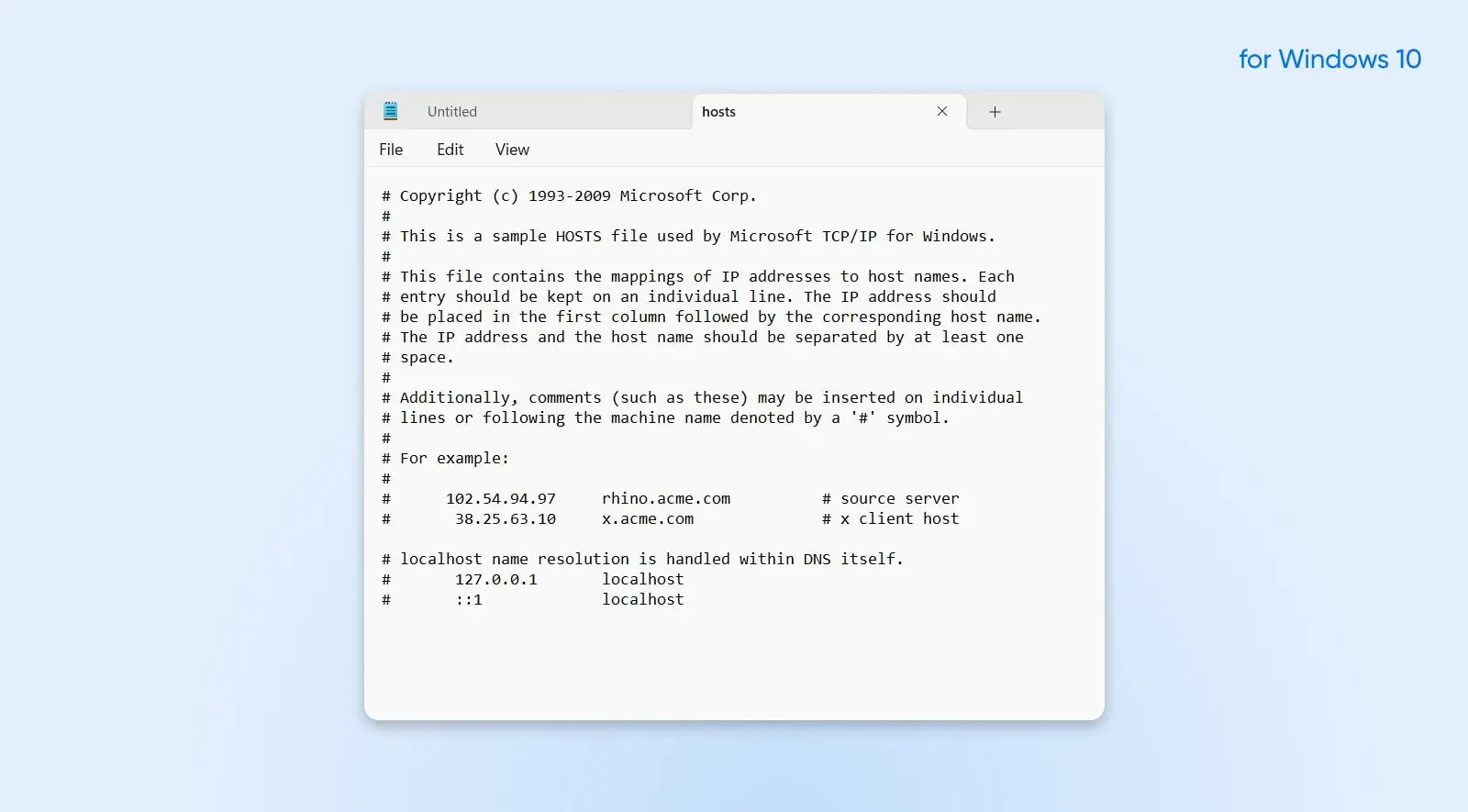
The hosts file is a manual override for DNS: any domain listed in it goes to the IP address written next to it, no questions asked. Developers use it for testing, and some software edits it to block sites. If the site you’re trying to reach is listed there with a dead or wrong IP address, you’ll time out on that site (and only that site) forever, no matter what else you fix.
On Windows: From the Start menu, find Notepad, right-click it, and choose Run as administrator. Go to File → Open and paste this full path into the File name bar, then click Open:
C:\Windows\System32\drivers\etc\hosts
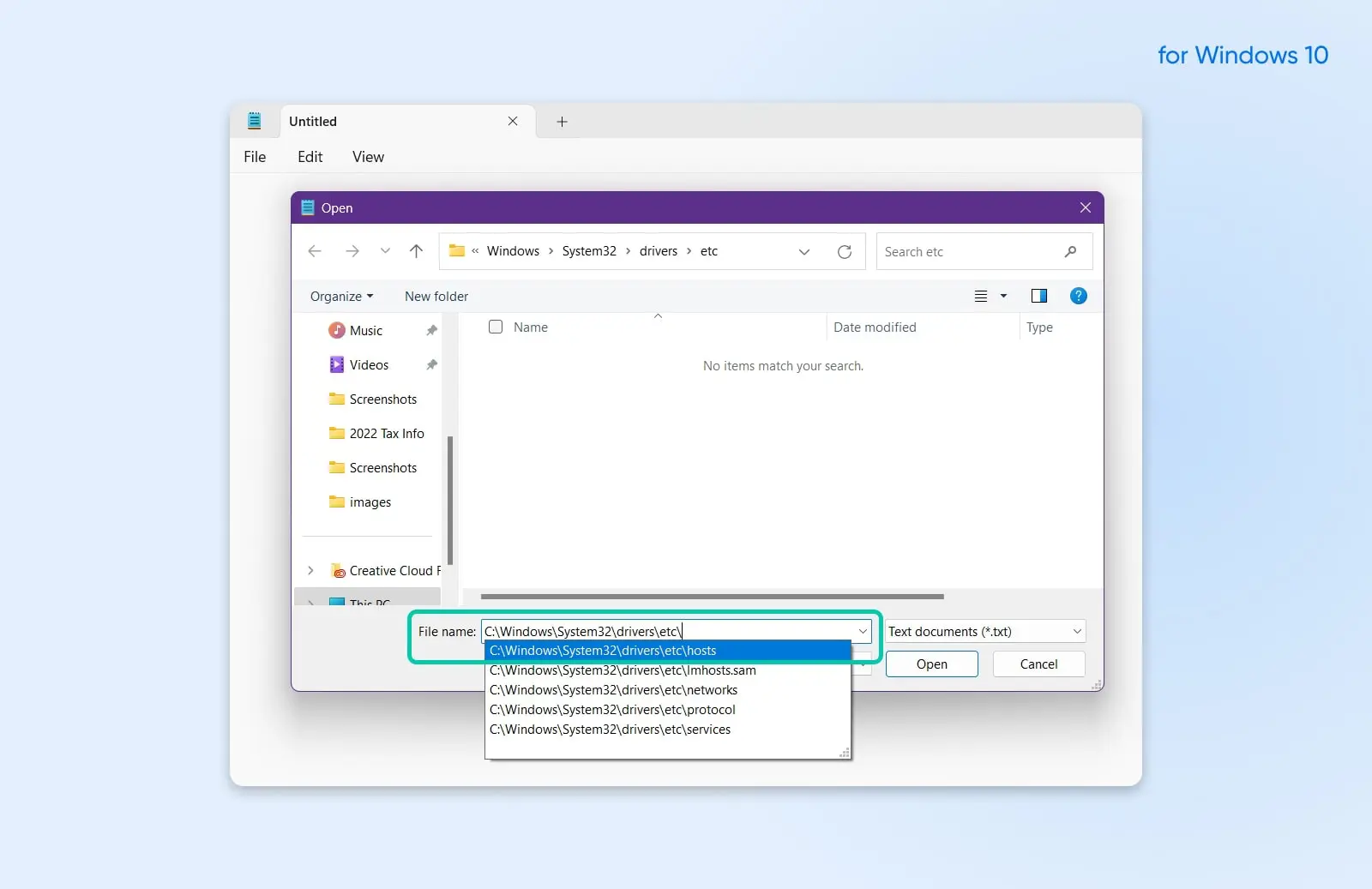
(Pasting the full path, including the “hosts” filename, matters: the file has no .txt extension, so it won’t appear in the file list under Notepad’s default filter.) Every active line sits below the comment lines that start with “#”. If the domain you can’t reach appears on one of those lines, delete that line and save.
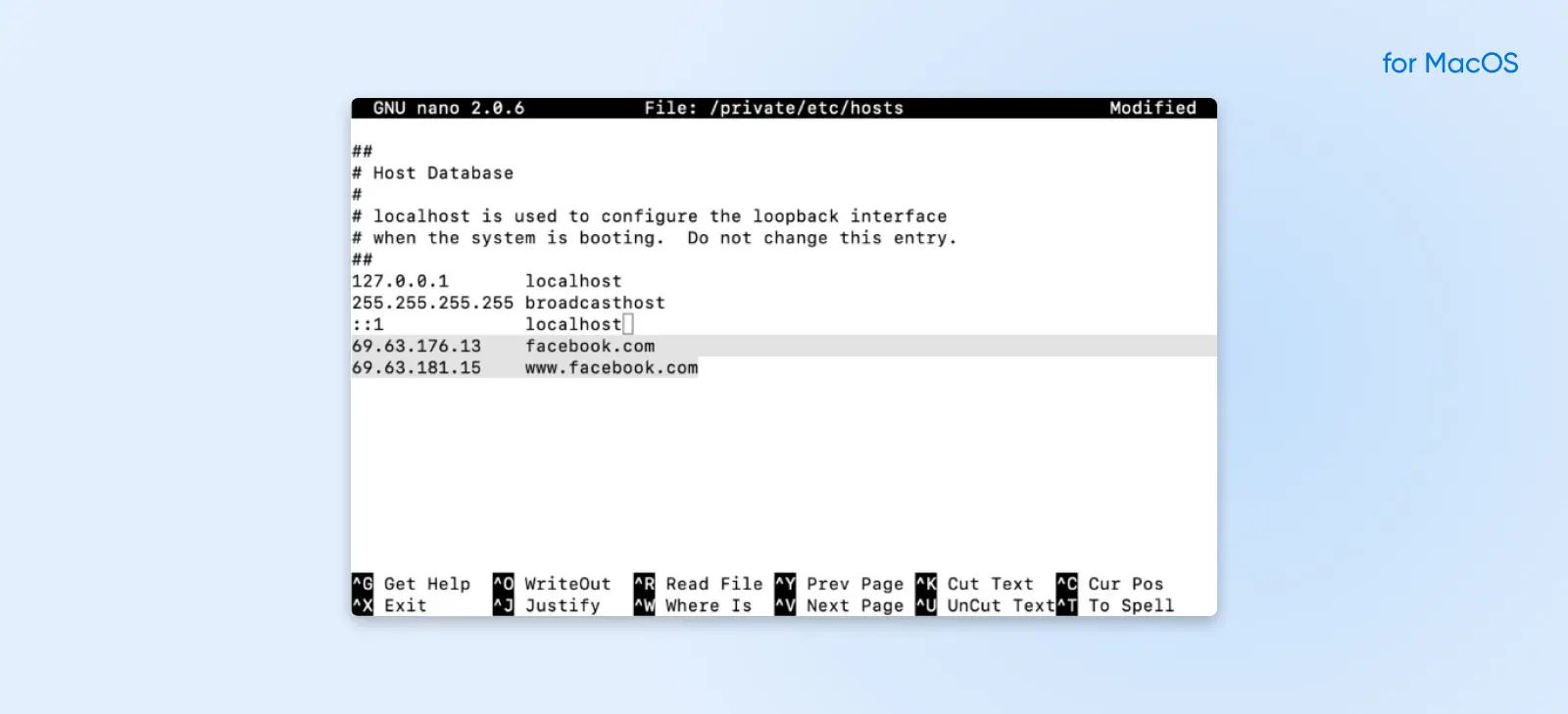
On macOS: Open Terminal and run:
sudo nano /private/etc/hosts
Delete any line that lists the domain you’re trying to reach (leave the localhost lines at the top alone), then press Control+O to save and Control+X to exit.
7. Temporarily Disable Your Firewall Or Antivirus
Firewall
A firewall is a set of rules that governs incoming and outgoing connections for a network or a specific device. The goal of firewalls is to protect against intrusions and unwanted outgoing connections.
Read More
Security software protects you by filtering connections, and sometimes it filters one it shouldn’t. A firewall that silently drops connection requests to a site produces exactly this error. Briefly disable your antivirus or firewall, reload the page, and re-enable it right after the test.
Only do this to test a site you’re confident is safe. If the site loads with your security software off, don’t leave it off. Add the site as an exception, and report the false positive to the software’s developer so they can fix it.
8. Test Your Computer On A Different Network
Earlier you tested from your phone. Now flip it: connect your computer to a different network and try the site again. Tethering to your phone’s hotspot is the easiest way. This isolates whether your computer or your network is at fault.
If the site loads on the hotspot but not on your home network, your router or internet provider is dropping the connection. Restart the router one more time, and if the timeouts continue, ask your provider whether the site is blocked or misrouted on their network. If the site times out on every network you try, the problem is on the server’s side.
When Your Own Website Times Out: Fixes 9–11 For Site Owners
If visitors report timeouts on your site (or your phone-on-cellular test failed), the problem lives on your server or its network path. One important distinction first: if the browser eventually shows an error page, like a 503 or a 504 Gateway Timeout, your server is reachable but failing, and those guides are the right ones. ERR_CONNECTION_TIMED_OUT means the server never answered at all.
9. Confirm The Outage And Rule Out Your Server’s Basics
Check whether the site is down for everyone or just some visitors. An outage checker like isitdownrightnow.com answers this in seconds. Then check your hosting provider’s status page for known outages, and your hosting panel for resource alerts: a server that’s out of memory or drowning in traffic stops accepting new connections, which visitors see as timeouts.
Two more server-side causes worth checking:
- DNS pointing at the wrong server. If you recently migrated hosts, stale DNS records can still point some visitors at the old, dead server. Verify your domain’s records point at the new IP address. Our nameservers and DNS guide walks through how.
- A security tool blocked one visitor. Server firewalls and security plugins ban IP addresses they consider suspicious, and bans that silently drop traffic look like timeouts to that visitor. That’s the classic “it works for everyone but me.” Check your security tool’s block list and unblock the affected IP address.
10. Disable Your Plugins, Then Your Theme (Via SFTP)
A runaway WordPress plugin or theme can eat enough server resources to make the whole site unresponsive. Since you probably can’t reach your WordPress dashboard while the site is timing out, you’ll need to work over SFTP. FileZilla is free and works well. If you’ve never edited files this way, our guide to creating and editing files via SFTP covers the setup.
SFTP
Secure File Transfer Protocol (SFTP) is a safer version of the FTP protocol that uses a secure shell data stream.
Read More
Connect to your site, open the wp-content directory, and rename the plugins folder to something like plugins-off. Reload your site. If it comes back, a plugin was the problem: rename the folder back to plugins, then rename each plugin’s individual folder inside it one at a time, reloading between renames, until you find the one that breaks the site.
If plugins weren’t it, do the same test with your theme: rename its folder inside wp-content/themes, and WordPress will fall back to a default theme like Twenty Twenty-Five, as long as one is still installed. If you’ve deleted the default themes, upload one first.
11. Raise Your Site’s Resource Limits (Or Upgrade Your Server)
PHP
PHP (Hypertext Preprocessor) is an open-source scripting language. It’s widely used in web development and can be embedded in HTML. Several popular Content Management Systems (CMS), such as WordPress, are built with PHP.
Read More
WordPress sites that regularly run out of PHP memory or processing time get slow, and a slow-enough server stops answering new visitors in time. Two levers to try:
Raise the PHP memory limit. Over SFTP, open wp-config.php in your site’s root directory and add these lines above the “That’s all, stop editing!” comment (our PHP memory limit guide has details):
define( 'WP_MEMORY_LIMIT', '256M' );define( 'WP_MAX_MEMORY_LIMIT', '512M' );
Raise the maximum execution time. This is the number of seconds a PHP script may run before the server kills it (commonly 30 seconds, PHP’s default). You can raise max_execution_time in your php.ini file if your host provides one, or ask your host’s support team to raise it for you.
If you’re hitting these limits repeatedly, the honest fix is usually a bigger hosting plan, not bigger limits: heavy traffic on an entry-level plan will keep outrunning whatever numbers you set. That’s the point at which upgrading to a plan with more dedicated resources, like a VPS, stops timeouts at the source.
If your error code isn’t ERR_CONNECTION_TIMED_OUT, one of these seven guides matches it:
ERR_CONNECTION_TIMED_OUT: Frequently Asked Questions
Is ERR_CONNECTION_TIMED_OUT my device’s fault or the website’s?
Either. Test from another network (your phone on cellular data is easiest). If the site loads there, the problem is your device, network, or DNS settings. If it still times out, the site’s server is down or unreachable.
Why do I get ERR_CONNECTION_TIMED_OUT on only one website?
A single-site timeout usually means your device holds a stale record for that site: your DNS cache or hosts file points at an address the site no longer uses. Flush your DNS cache, check your hosts file, and switch DNS servers.
The site works for everyone else — why not for me?
Something specific to you is being dropped. If the site fails from every device on your network, your internet provider may be misrouting it. If it fails only for your IP address, the site’s security tools may have banned it. Contact the site and ask.
How do I fix ERR_CONNECTION_TIMED_OUT on my Android phone?
Toggle Wi-Fi off and back on, or switch between Wi-Fi and mobile data to see which network fails. Then clear Chrome’s browsing data (three-dot menu → Delete browsing data) and restart the phone. If it only fails on your Wi-Fi, restart the router.
What’s the difference between ERR_TIMED_OUT and ERR_CONNECTION_TIMED_OUT?
ERR_CONNECTION_TIMED_OUT (Chrome error -118) means the connection to the server was never established. ERR_TIMED_OUT (error -7) is broader: some step timed out, sometimes after connecting. In practice they share causes and fixes, so start with the same steps in this guide.
Does ERR_CONNECTION_TIMED_OUT mean the site blocked me?
Sometimes. Security tools that silently drop banned traffic cause timeouts for one visitor while everyone else browses normally (see the previous question). More often the cause is innocent: a down server or a stale DNS record. Work through the fixes before assuming a ban.
Stop Fighting Timeouts
ERR_CONNECTION_TIMED_OUT is annoying precisely because the browser can’t tell you which link in the chain went silent. The diagnosis, though, is always the same: figure out which side is broken, then work through the fixes for that side. Bookmark this guide for the next time a page won’t load.
If the timeouts are happening on your own website, your hosting plan is part of the equation. All DreamHost web hosting plans include unmetered bandwidth, a 100% uptime guarantee, and 24/7 support. And if your site has outgrown its current plan, a VPS gives it dedicated resources that stop timeouts at the source.

Managed VPS
When You Expect Performance Get DreamHost VPS
Big or small, website or application – we have a VPS configuration for you.
See More
Did you enjoy this article?