What Is Otter.ai? AI Meeting Notes, Explained
It’s 3 PM. Your fourth meeting for the day just ended (whew!).
Your hand aches from writing, and your notebook tells the story — scattered arrows, half-finished thoughts, action items that no longer make sense, and the occasional doodle from when someone had technical difficulties…
While you focused on capturing words, you missed the subtle nods, the concerns, and other moments where real connections happen.
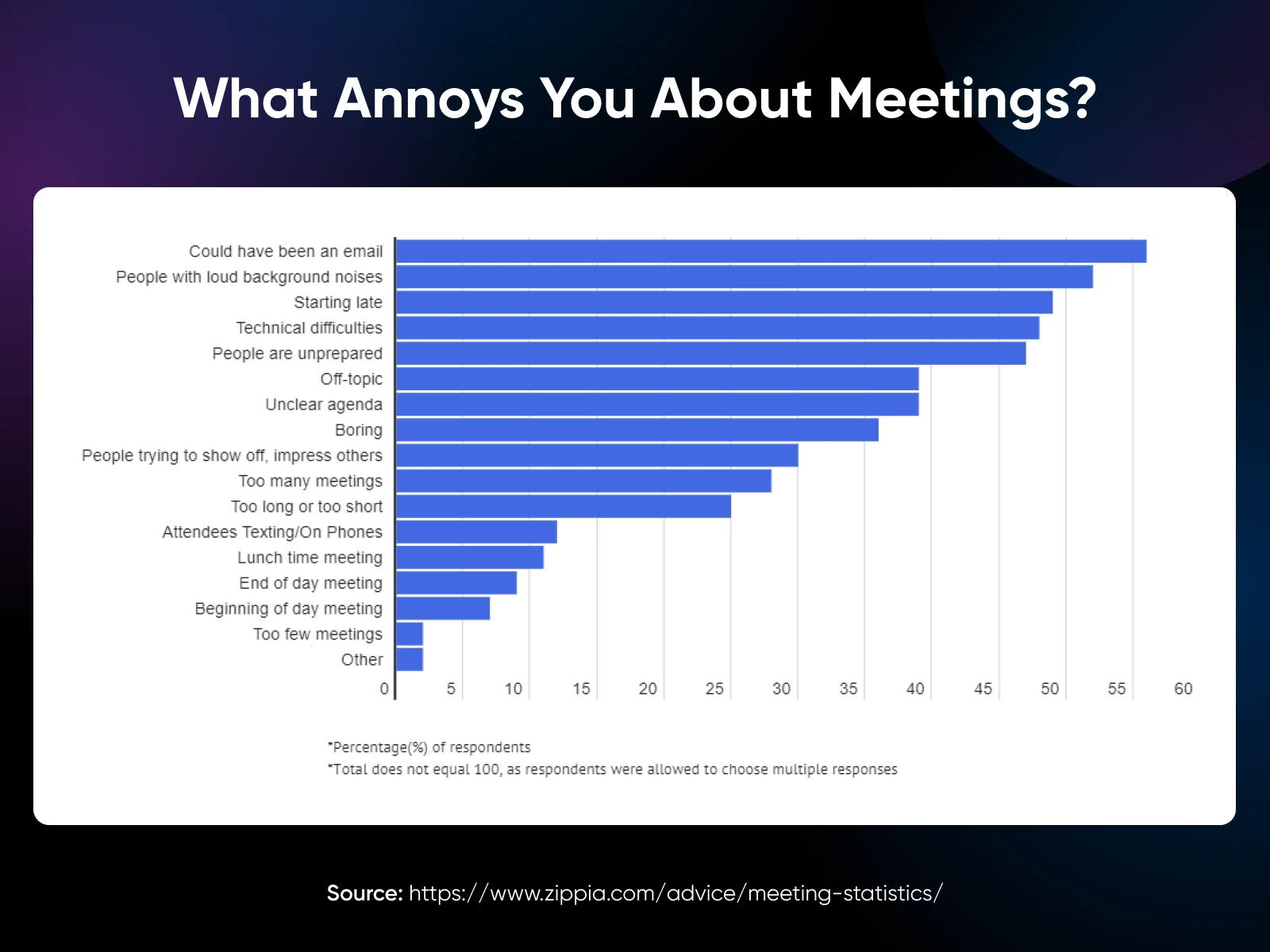
You’re not alone in this. Every day, 11 million meetings are hosted in the US, per Zippia’s meeting-statistics roundup (2026). Employees average about three hours a week in meetings (30% report more than five), yet 71% of meetings are rated unproductive.
The majority of the surveyed employees state that most meetings could have been an email.
And the cost? $37 billion in lost productivity annually.
For small business owners, the math doesn’t work. Every minute spent scribbling notes is a minute not spent building relationships, making strategic decisions, or growing your business.
That’s where AI can help. Tools like Otter.ai capture every word, generate clear summaries, and track action items automatically. And you can stay focused on what humans do best: leading conversations, building trust, and making informed decisions.
What is Otter.ai, exactly? It’s an AI meeting assistant that joins your calls, transcribes them in real time, identifies who said what, and writes a summary with action items. It works with Zoom, Microsoft Teams, and Google Meet — and covers in-person meetings through its mobile app.
Let’s understand meeting summaries and how you can make the most of your meetings with tools like Otter.
First, Do You Really Need AI Meeting Summaries?
Let’s think of meeting notes and summaries like raw footage versus a movie trailer.
Notes capture everything: from everything Kate said about her trip to LA, a random comment someone made, side conversations, and off-track thoughts said out loud. It’s a transcription of the entire meeting, but the thing is, you’ll rarely use meeting notes after the meeting is done.
Summaries, on the other hand, distill what matters — the decisions made, tasks assigned, and next steps planned — to save you a lot of time.
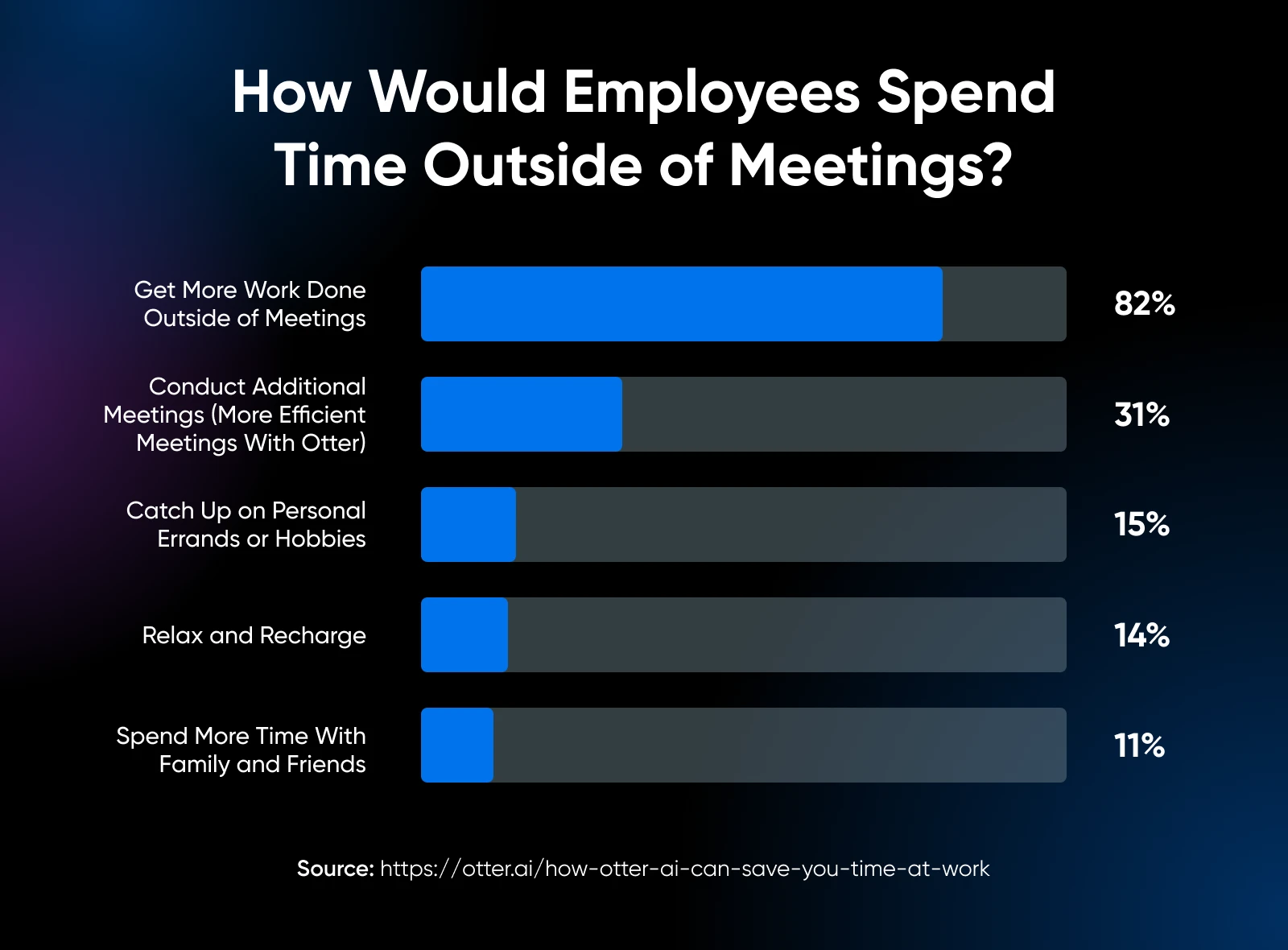
82% of respondents to Otter’s survey say they’d use the time saved to get more work done outside of meetings.
Small business owners who are still taking notes in the traditional way face a trade-off in every meeting: either be present and engaged or take accurate notes. I’ve rarely met someone who can handle both.
AI meeting summary tools like Otter.ai help you skip the manual note-taking and fully engage.
Otter captures everything and creates a good meeting summary, including these four essential things:
- What did we decide?
- Who’s doing what by when?
- What problems did we solve?
- What happens next?
These summaries also help team members stay aligned and accountable. No more “I thought you were handling that!” moments.
Meeting summaries help keep it simple, clear, and, most importantly, actionable for everyone involved.
Getting Started With Otter.ai: Building Your Meeting Intelligence System
The journey from scattered notes to streamlined meetings begins with a single step. Let me walk you through transforming how you capture, process, and activate meeting intelligence.
Setting Up Your AI Assistant in 5 Simple Steps
Changing how you handle meetings begins with a simple setup process. Here’s how to get started:
Step 1: Create Your Account
Sign up to Otter.ai with your email — preferably your work email — to access workspace features like collaboration and analytics.
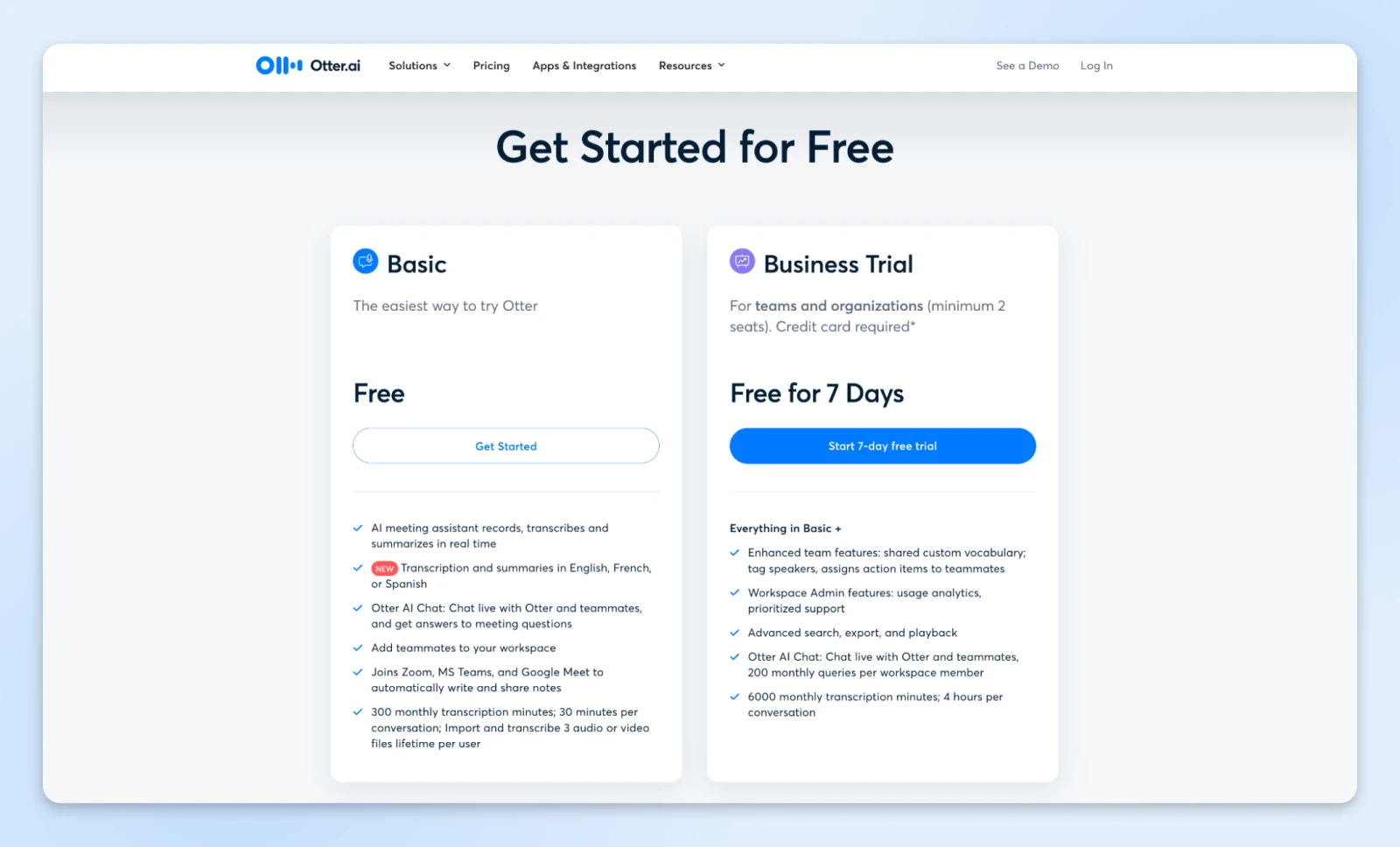
Once registered, confirm your email to activate your account. If the confirmation email doesn’t appear, check your spam folder and add Otter.ai as a contact.
Step 2: Connect Your Calendar
Link Otter to your calendar to streamline meeting management.
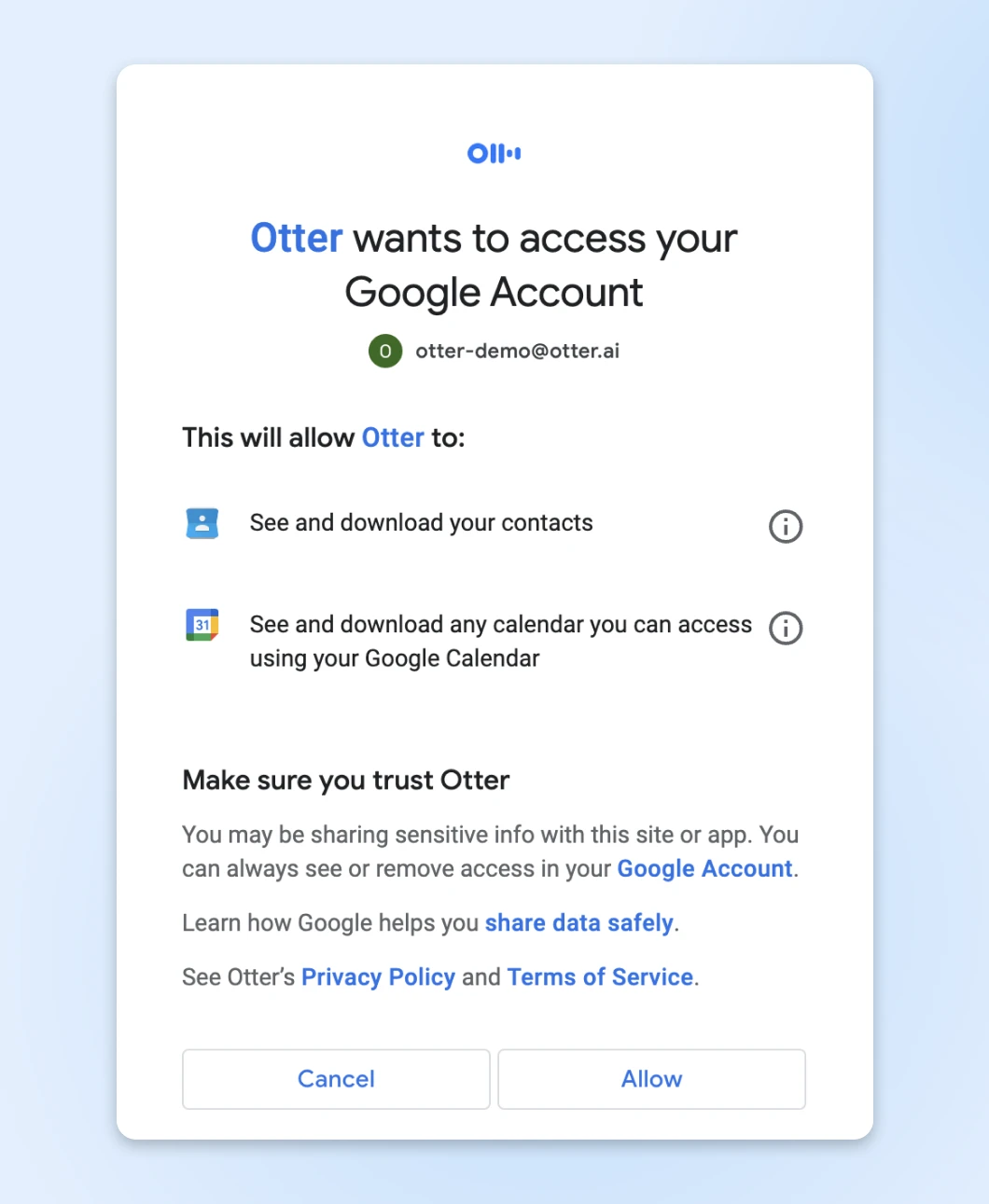
Once connected, Otter will automatically join scheduled meetings, record conversations, and generate summaries without manual intervention.
Step 3: Download the Apps You’ll Use
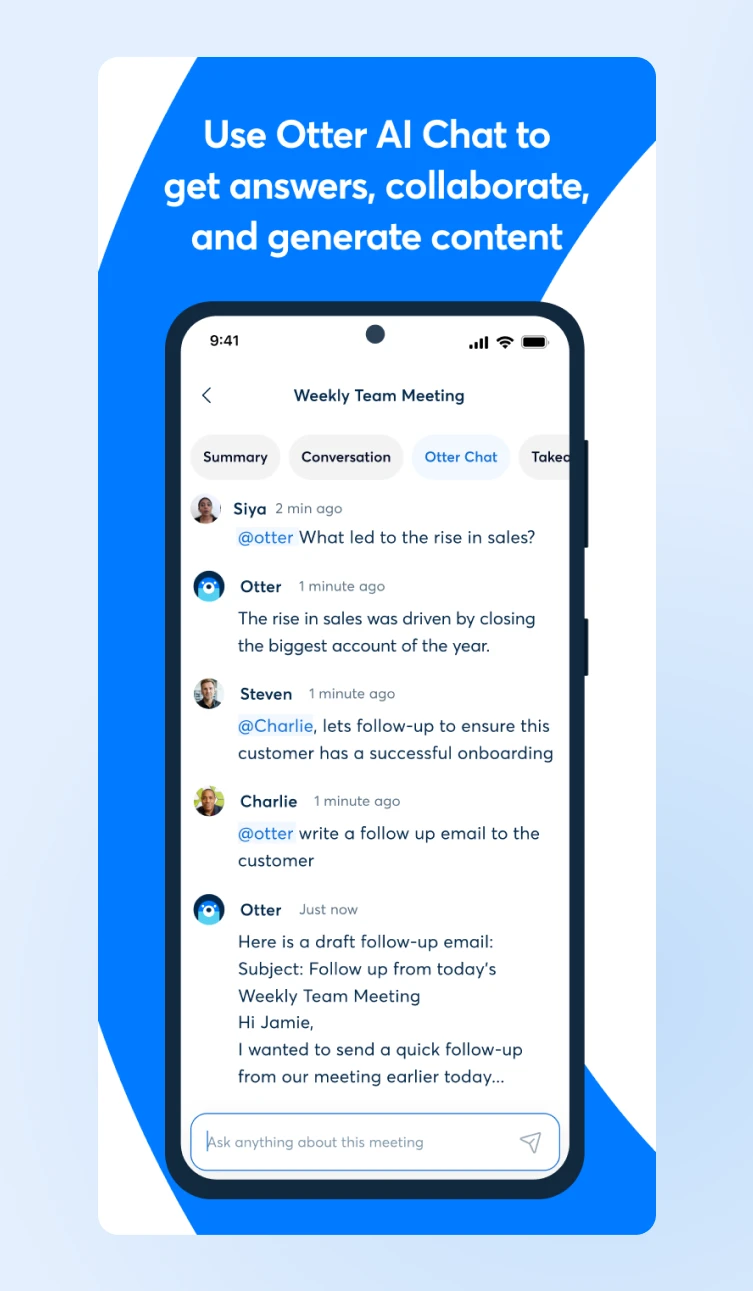
Additionally, you can download the Otter apps — mobile for iOS and Android, desktop for Mac and Windows, plus a Chrome extension. Everything syncs across devices, letting you record, transcribe, and access conversations wherever you are.
Step 4: Train Otter for Tagging and Vocabulary
Teach Otter to recognize speakers by tagging voices and adding custom vocabulary. For teams, you can also add shared vocabulary to boost transcription accuracy for specialized terms and names.
Step 5: Integrate Tools You Already Use
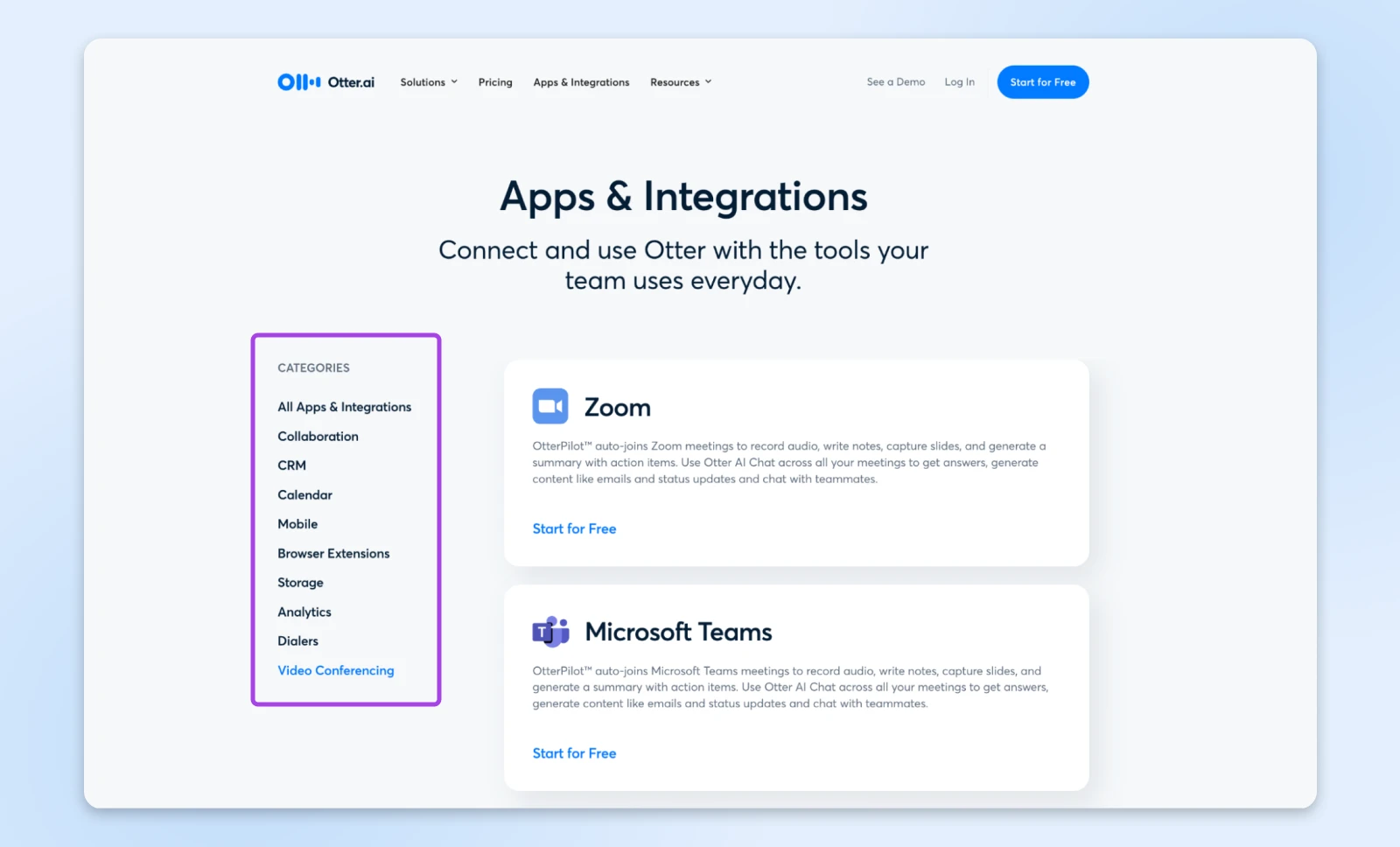
Otter integrates with a wide range of tools that you may already use. You can boost productivity by connecting it to apps like Zoom, Microsoft Teams, Google Meet, Dropbox, and your favorite calendars.
These integrations simplify workflows and improve collaboration.
Core Features for Online Meetings
Think of Otter as a skilled executive assistant, but one that never misses a beat.
Here are some core features we absolutely love:
- Live transcription: This one is the most important considering we need (almost) every word to be captured accurately. Otter’s transcription is highly accurate in clear audio (accuracy drops with background noise and heavy accents, as Otter itself notes), and it identifies speakers automatically while marking key moments as they happen.
- Automated summaries: After each meeting, Otter distills discussions into clear, actionable highlights. It creates a summary and a checklist of action items that you can pass on to your team members.
- Collaborative intelligence: AI doesn’t have the context of your company, so your team members can go back to the transcript and highlight additional key moments, add comments, and build on ideas — turning static transcripts into living documents that evolve with your projects.
That’s pretty much all you need from meeting transcription software. But before we talk plans, one question is worth asking first.
Your Video App Has an AI Notetaker — Do You Still Need Otter?
Fair question, because in 2026 the big meeting platforms bundle their own AI notes: Zoom includes AI meeting notes with its eligible paid plans (the feature set long branded AI Companion, folded into Zoom AI in 2026), Microsoft Teams offers intelligent recap through Copilot and Teams Premium, and Google Meet can take notes with Gemini on qualifying Workspace plans.
If your whole work life happens inside one of those platforms, its built-in notetaker may be enough. Otter still earns its slot in three cases: your meetings are spread across platforms and you want one searchable archive; you need to record in-person conversations or transcribe uploaded audio files; or you want AI summaries without paying for the platform tier that includes them. Otter’s free plan covers all three at small scale.
Is Otter Worth the Investment?
The answer depends on how meetings fit into your workflow. Otter.ai is, however, well worth it if you regularly attend meetings.
It automates tasks that consume time and focus, such as taking notes and summarizing discussions. The time you save within just a few meetings pays for the tool itself.
Here’s how the plans break down:
For those just starting, the Free plan is an excellent way to explore what Otter.ai can offer.
It currently includes 300 transcription minutes per month (with a per-meeting cap), live meeting summaries, and real-time collaboration features. For individuals attending a few meetings, this plan already adds significant value — capturing discussions, summarizing decisions, and helping you stay focused.
If your needs grow, the Pro plan raises the monthly transcription allowance, extends the per-meeting time cap, and adds team features like shared custom vocabulary. Check Otter’s pricing page for current plans — just one hour saved each month typically covers the cost.
The Business plan is built for teams.
You get:
- Unlimited meetings with longer per-meeting caps.
- The ability to join up to three concurrent meetings.
- Larger shared custom vocabulary for team names and jargon.
- Admin tools like usage analytics, plus priority support.
Small businesses often find this plan redirects hundreds of hours annually to high-impact work.
Beyond Basic Meeting Recording
Otter.ai is ready to impress, by doing so much more than just notes.
For example:
- Automatically generates action items.
- Creates searchable archives of institutional knowledge.
- Enables async collaboration through shared annotations.
- Tracks meeting patterns and participation metrics.
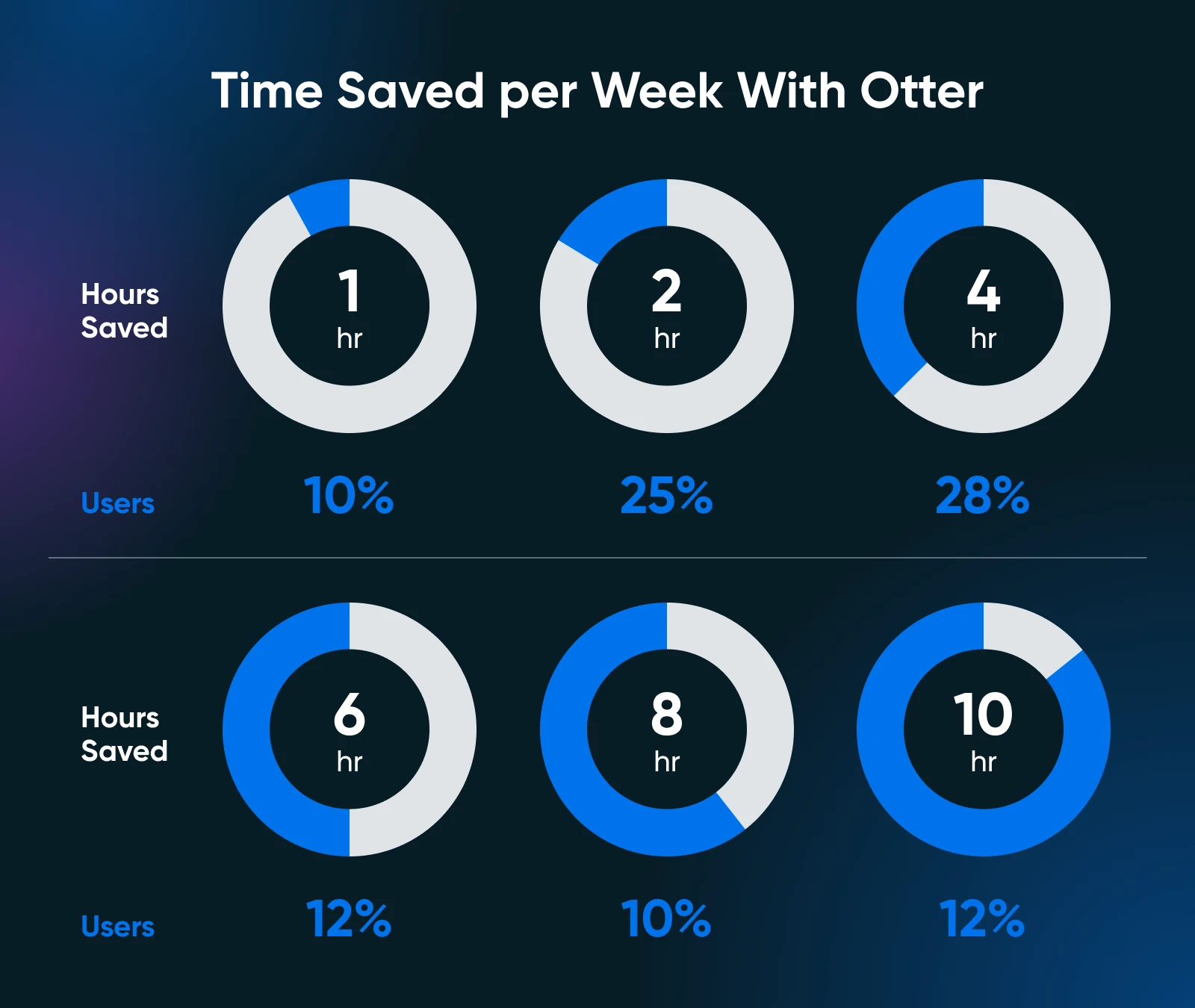
In the same survey, 62% of respondents report saving at least 4 hours weekly.
Make the Best of Otter.ai for Business Growth
Efficient use of Otter.ai can do more than just simplify your meetings; it can help your business grow by saving time, improving collaboration, and driving actionable outcomes.
Here’s how to make the most of its features:
Improve Meeting Transcripts
Start every meeting prepared. Make sure your microphone captures audio clearly and place it centrally if you’re in a room.
When joining virtual meetings, configure Otter.ai to auto-join and begin transcription. This hands-off approach lets you focus entirely on the discussion without worrying about missed details.
Encourage participants to speak clearly and identify themselves during conversations. Otter’s speaker identification feature works best when voices are distinct. For recurring meetings, leverage the platform’s ability to refine speaker tags over time for better accuracy.
Customize and Edit Summaries
Otter’s AI-generated summaries are highly accurate, but every business has nuances. It makes sense to review your summaries after meetings to make sure they align with your goals.
Re-check the key decisions, edit action items, and make sure deadlines are clear immediately after the meeting has ended.
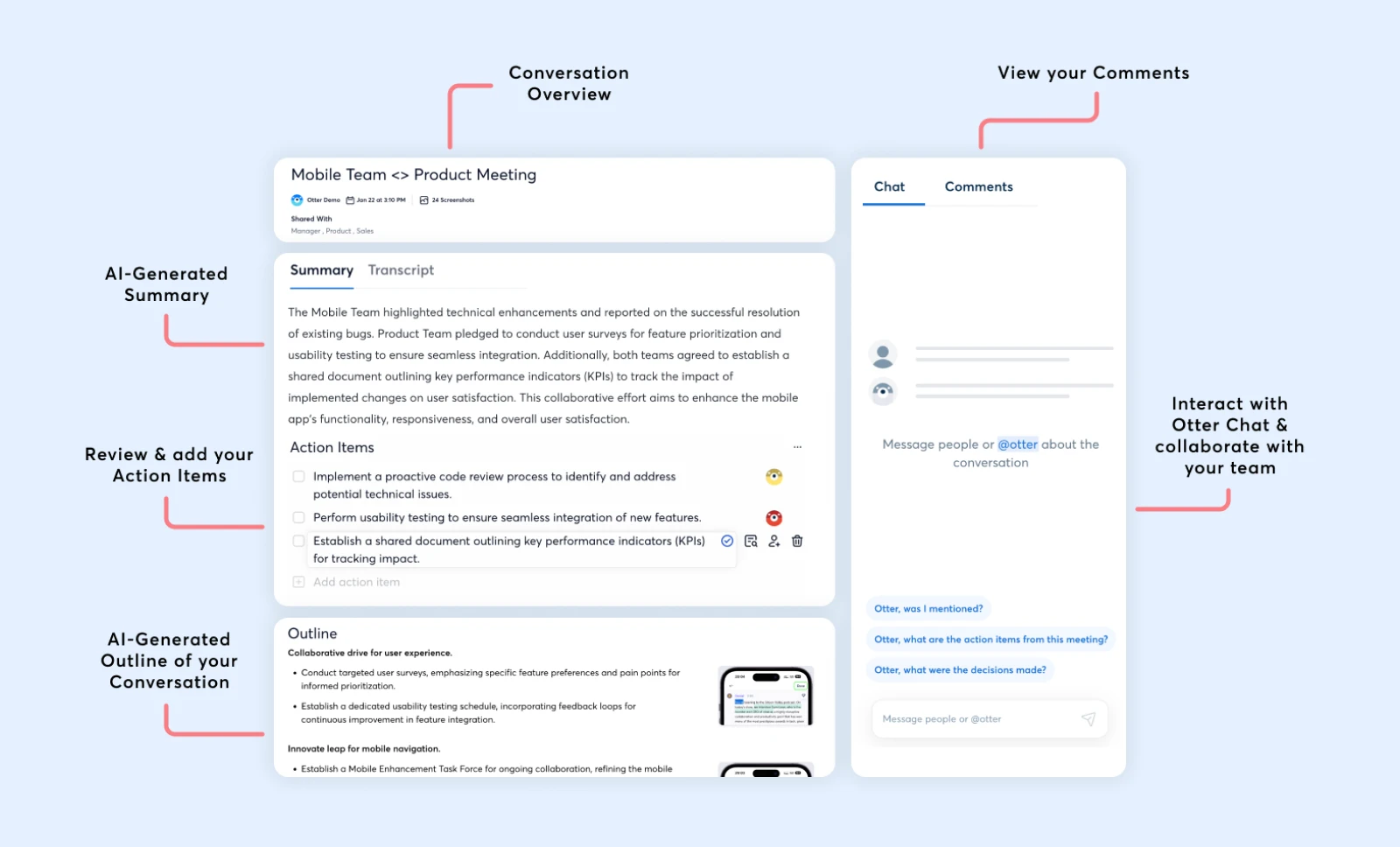
Use custom tags for speakers, projects, or tasks. For instance, tagging a “Client Proposal” action item makes sure it shows up when you search for this meeting later.
Personalizing summaries in this way makes follow-ups easier and keeps everyone accountable.
Use Collaboration Features
Otter lets you edit meeting notes like shared living documents. Team members can annotate transcripts, add comments, and highlight moments that matter most.
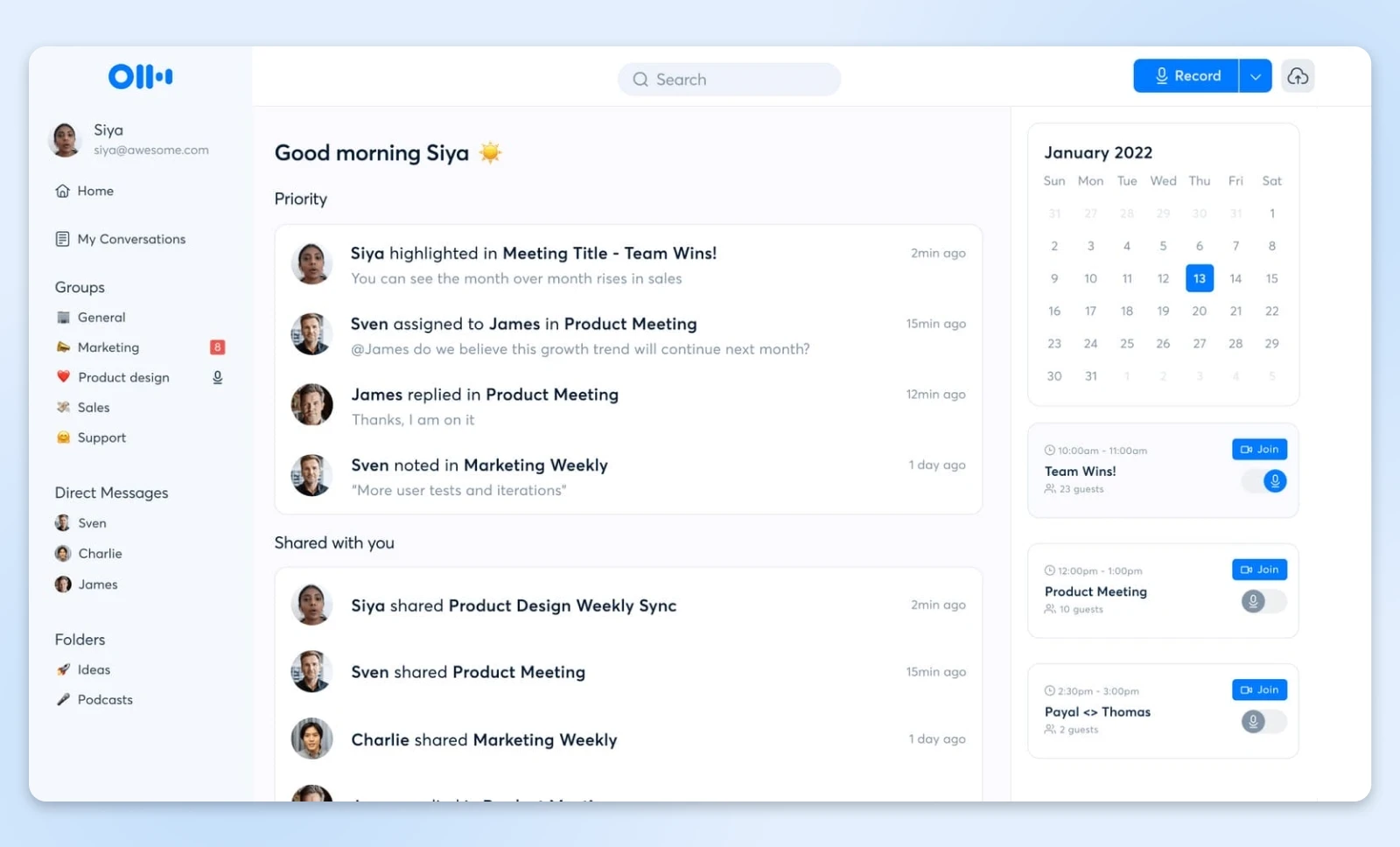
Generally, businesses can use these tools to refine ideas, assign tasks, and clarify responsibilities together in an async fashion.
Collaborative editing also helps align teams across the board.
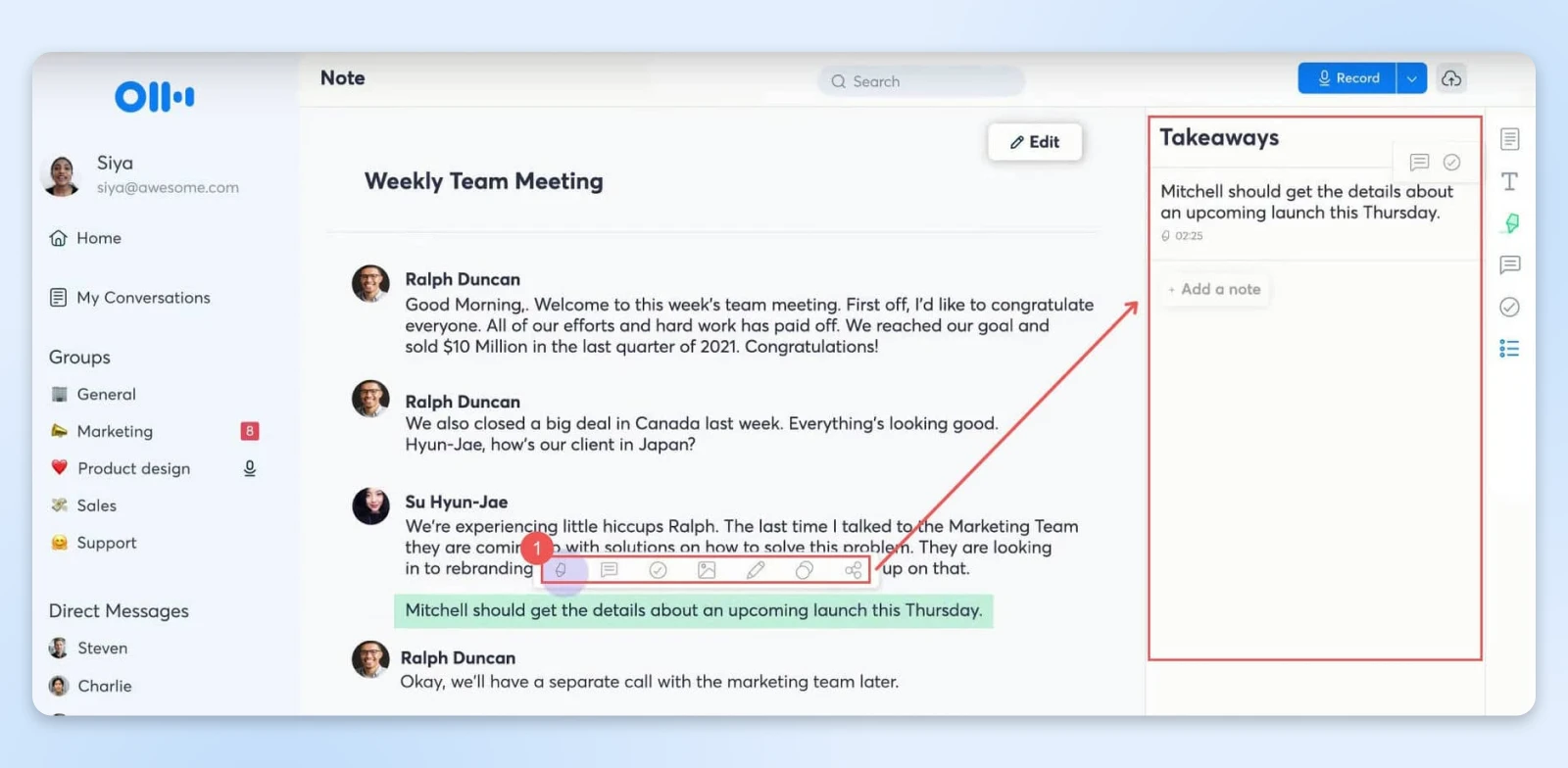
For example, after a product launch discussion, you can highlight customer feedback and assign specific follow-ups to your marketing and product teams within the transcript itself.
The team has the full context of the comment as it’s now attached to a specific timestamp in the meeting transcript.
Share Notes and Follow-Ups Automatically
Share transcripts and summaries immediately after meetings to ensure everyone is in agreement.
Otter.ai allows you to share private links with relevant team members or export notes in formats like PDF or DOCX for external stakeholders (export formats vary by plan — the free tier covers the basics like TXT).
You can also set Otter to automatically send an email with the summary and transcript link to all those who were part of the meeting.
This helps everyone on the team (those who attended and those who didn’t) know:
- What was covered
- What was the gist of the outcome of the meeting
- The action items
Integrating Otter.ai with complementary tools can further enhance your productivity and meeting efficiency. Here are some solutions:
- Krisp: Background noise disrupts meetings and can affect transcription accuracy. Krisp’s AI-powered noise cancellation ensures clear communication during virtual meetings. It’s a paid tool with a 7-day free trial, and it pairs well with Otter.ai to enhance the quality of your recordings, resulting in more precise transcriptions.
- Calendly: Simplify scheduling with Calendly. This tool syncs your availability with invitees, ensuring seamless booking. When linked with Otter.ai, your meetings are automatically prepared for transcription, saving you the hassle of manual setup.
- Zapier: Automate repetitive tasks by connecting Otter.ai with Zapier. For instance, set up workflows where Otter.ai transcripts are automatically saved to a designated Google Drive folder or emailed to team members after every meeting.
- Trello: After generating action items with Otter.ai, use Trello to organize them into project boards. Assign tasks, set deadlines, and track progress to ensure that every action item from your meetings is addressed efficiently.
- Grammarly: For polished meeting summaries, Grammarly can be used to further refine Otter.ai’s transcriptions and notes. It also helps your follow-up emails and shared documents maintain a professional tone, improving communication with clients and stakeholders.
With the workflows now set up, let’s look at a few simple templates you can use to share the meeting notes and summaries with your team so they can be efficiently actioned.
Simple Templates for Meeting Notes and Summaries
How you communicate outcomes can make the difference between a great meeting and great results.
Here are some meeting summary templates that you can share with the team after every meeting. And honestly, you’re welcome.
Executive Summary Template
Subject: Meeting Summary: [Project Name] Discussion – [Date]
Hey team,
Here’s a focused recap of our discussion on [Project]:
Key Decisions:
- [Major decision 1] – Impact: [Brief description]
- [Major decision 2] – Impact: [Brief description]
Action Items:
- [Task] – Owner: [@Name] – Due: [Date]
- [Task] – Owner: [@Name] – Due: [Date]
Next Steps: [Brief paragraph about immediate priorities]
Full meeting notes: [Otter.ai Link]
Project Update Format Template
[Project Status: Green/Yellow/Red]
Progress Update:
- What we’ve accomplished
- Where we stand now
- Immediate priorities
Blockers & Solutions:
- [Blocker 1] → [Solution/Next Step]
- [Blocker 2] → [Solution/Next Step]
Client Meeting Follow-Up Template
Dear [Client Name],
Thank you for our productive discussion today. To ensure we’re aligned:
Your Goals:
- [Primary objective]
- [Secondary objective(s)]
Our Commitments:
- [Deliverable 1] by [Date]
- [Deliverable 2] by [Date]
Timeline: [Week 1]: [Milestone] [Week 2]: [Milestone]
Next meeting: [Date/Time]
Otter.ai FAQs
How many free transcription minutes does Otter.ai include?
The free Basic plan currently includes 300 transcription minutes per month, with a cap on each meeting’s length. Paid plans raise both limits — check Otter’s pricing page for the current numbers.
Can you use Otter.ai for in-person meetings?
Yes. The mobile app records and transcribes in-person conversations in real time, and you can also upload audio files for transcription. That’s a real advantage over the notetakers built into Zoom, Teams, and Meet, which only cover their own calls.
How do you export a meeting summary from Otter.ai?
Open the conversation, then use the export option to download the summary or transcript — TXT on the free plan, with formats like PDF and DOCX on paid plans. You can also share a private link or have Otter email the summary to attendees automatically.
Is Otter.ai better than Zoom AI Companion, Teams Copilot, or Gemini in Meet?
Different jobs. Built-in notetakers are convenient if you live in one platform and already pay for the tier that includes them. Otter wins when your meetings span platforms, when you need in-person recording or file uploads, or when you want a single searchable archive of everything.
Get Your Time Back with Otter.ai
Every meeting has the potential to create clarity, spark ideas, and drive meaningful action — only if the details don’t get lost in the shuffle.
Otter.ai makes sure you never miss a moment, turning your discussions into summaries and actionable plans.
With less stress and more focus, you can approach your next meeting knowing that the important work of capturing, summarizing, and sharing is already taken care of.
Otter.ai handles the capturing and summarizing so you can focus on running the meeting.
Did you enjoy this article?